complete a supplier audit, supplier audit, self audit, leader, supplier leader, review date, accept date, propose date, decline audit, acknowledge, acknowledge audit, corrective actions, add corrective actions, audit form, edit audit, audit email
OVERVIEW
This guide shows how a Supplier / Leader takes part in a supplier audit in Kiuey: reviewing the dates, acknowledging the audit, completing the form and handling corrective actions.
Who is this for? Suppliers / Audit Leaders
IMPORTANT NOTES
- The Leader can accept the dates, propose new ones or decline them. If the Leader declines, the Approver can reopen the audit a maximum of 2 times.
- In a Self Audit, only the Leader completes the form. If audit_self_mandatory = true, the Leader can only accept or move the dates.
- Acknowledge is available from the Drafted status onwards and never blocks the flow.
- You will receive an email when corrective actions are requested for your audit.
WHO CAN DO THIS
Leader: Reviews the dates, acknowledges the audit, creates the corrective actions and closes them.
Approver: Requests, reviews and accepts the corrective actions and closes the audit.
Steps
1
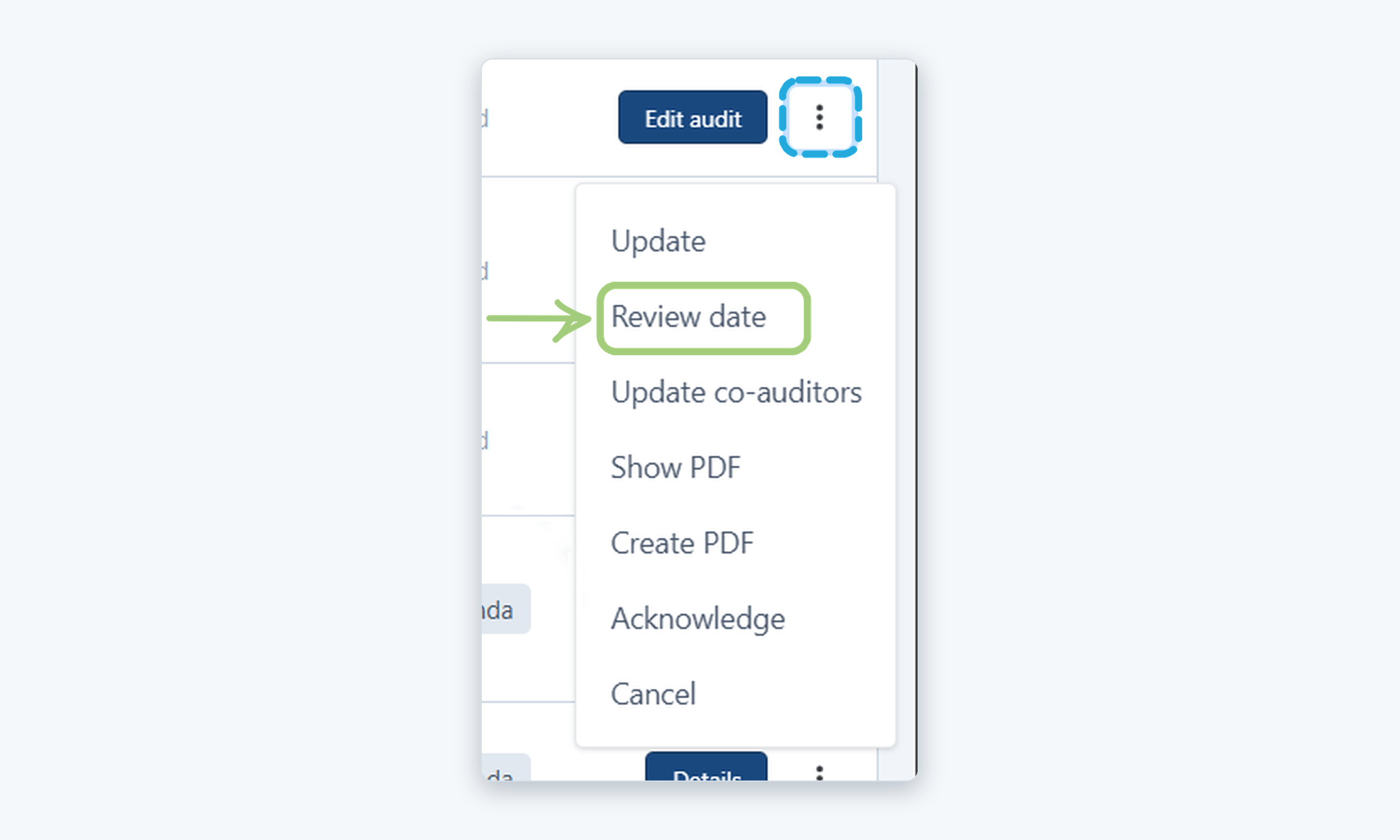
Open the audit and select Review date
Go to the audit you were assigned as Leader, click the three-dot menu (⋮) next to Edit audit and select Review date.
2
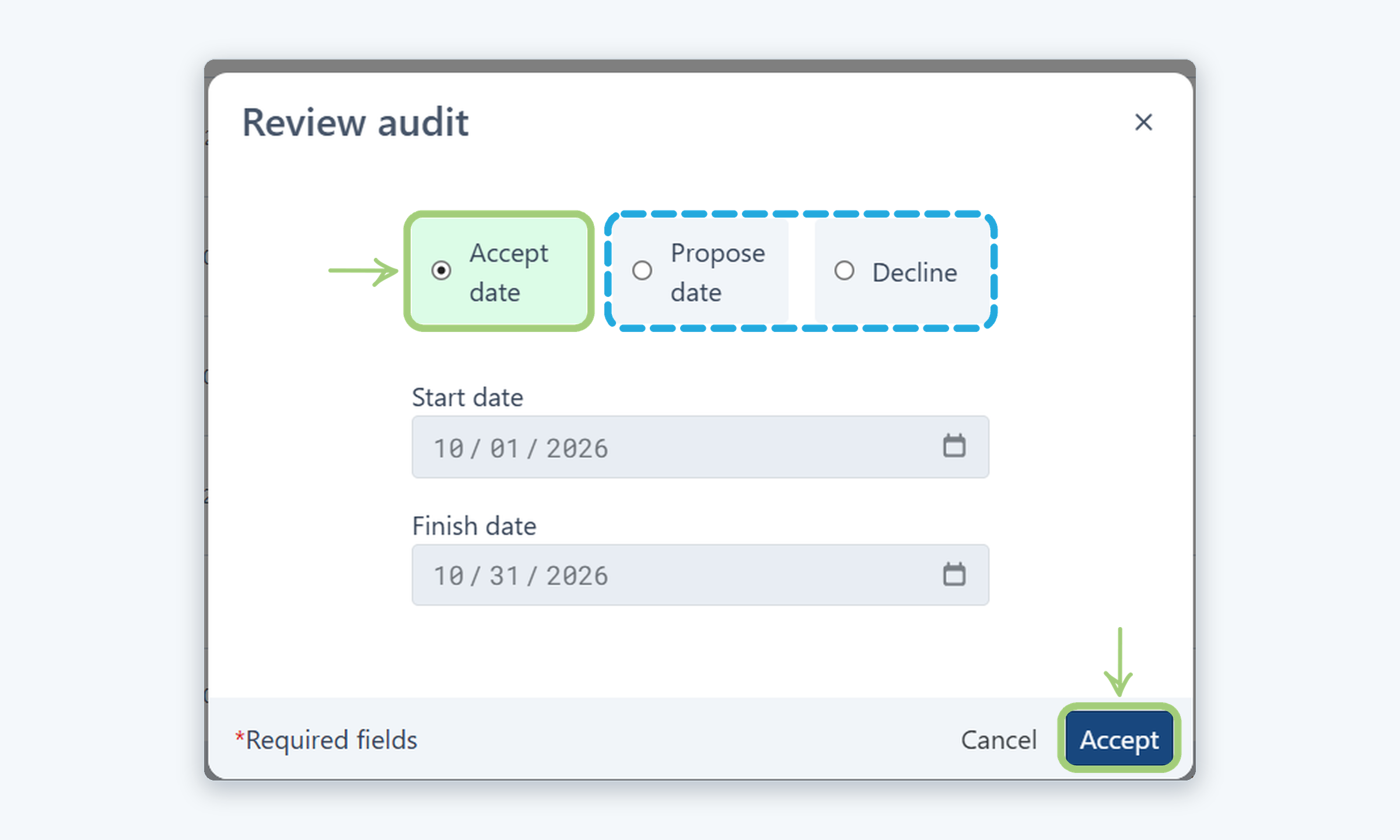
Accept, propose or decline the dates
In the Review audit window, choose Accept date to confirm the proposed Start and Finish dates, or Propose date / Decline if they do not work for you. Then click Accept (or the matching button) to confirm. Once the dates are accepted, the audit moves to Scheduled.
3
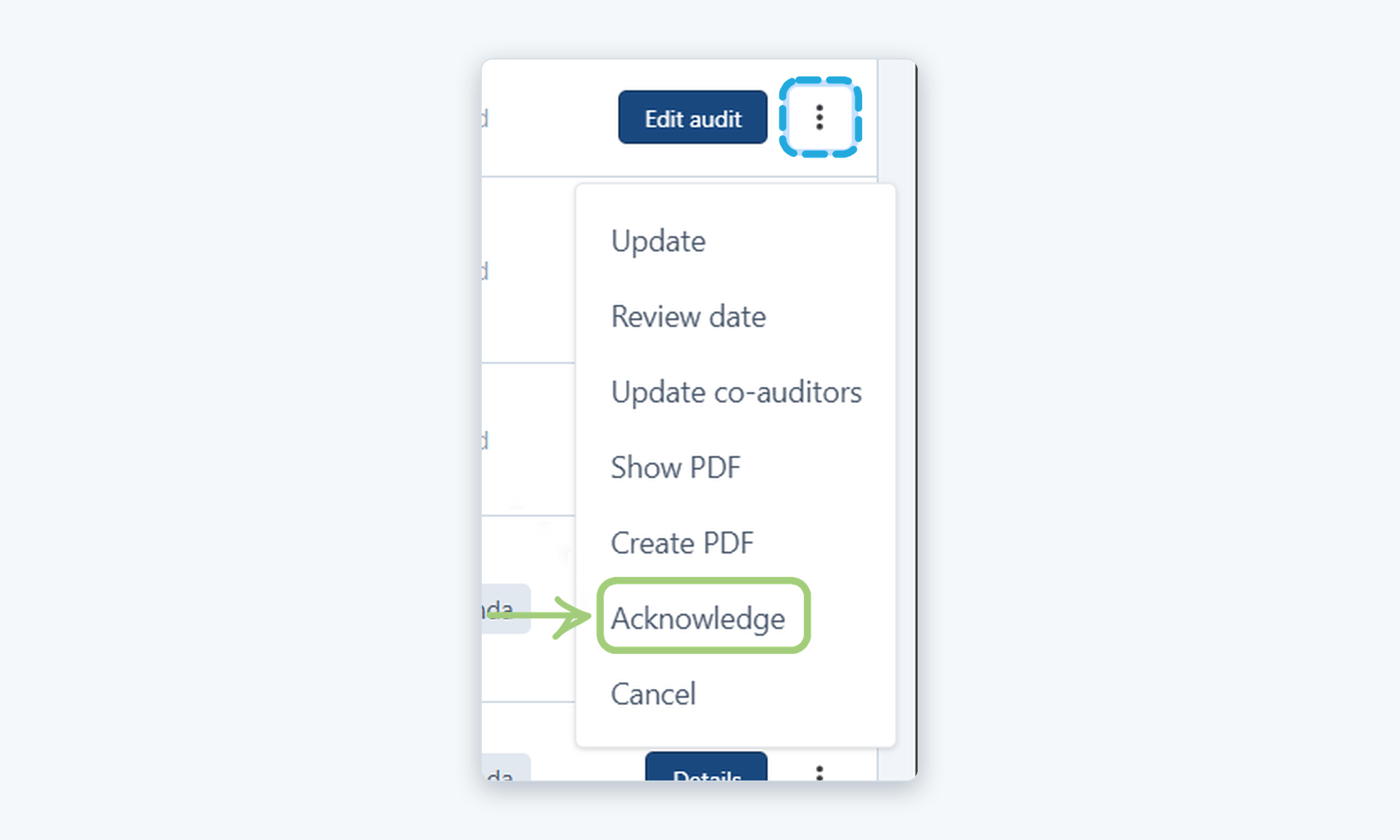
Acknowledge the audit
Open the three-dot menu (⋮) again and select Acknowledge. This action is available from the Drafted status onwards and does not block the flow of the audit.
4
Complete the audit form
When the audit date arrives, click Edit audit and answer every question of the form. In a Self Audit, only the Leader completes the form. When all the answers are completed, the audit changes to Conducted.
5
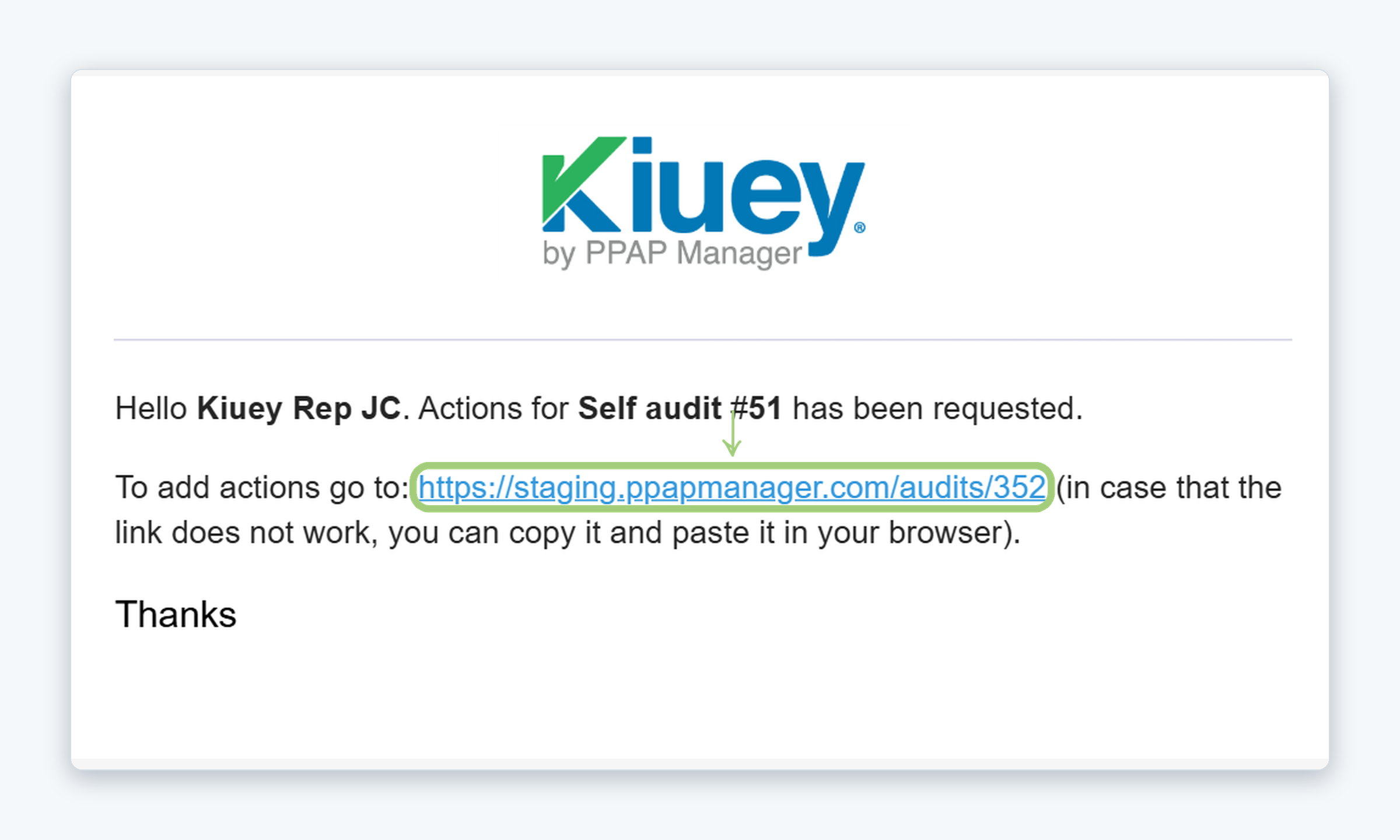
Wait for the corrective actions request
If the Approver requests corrective actions, you will receive an email like the one below. Click the link in the email to go directly to the audit.
6
Add the corrective actions
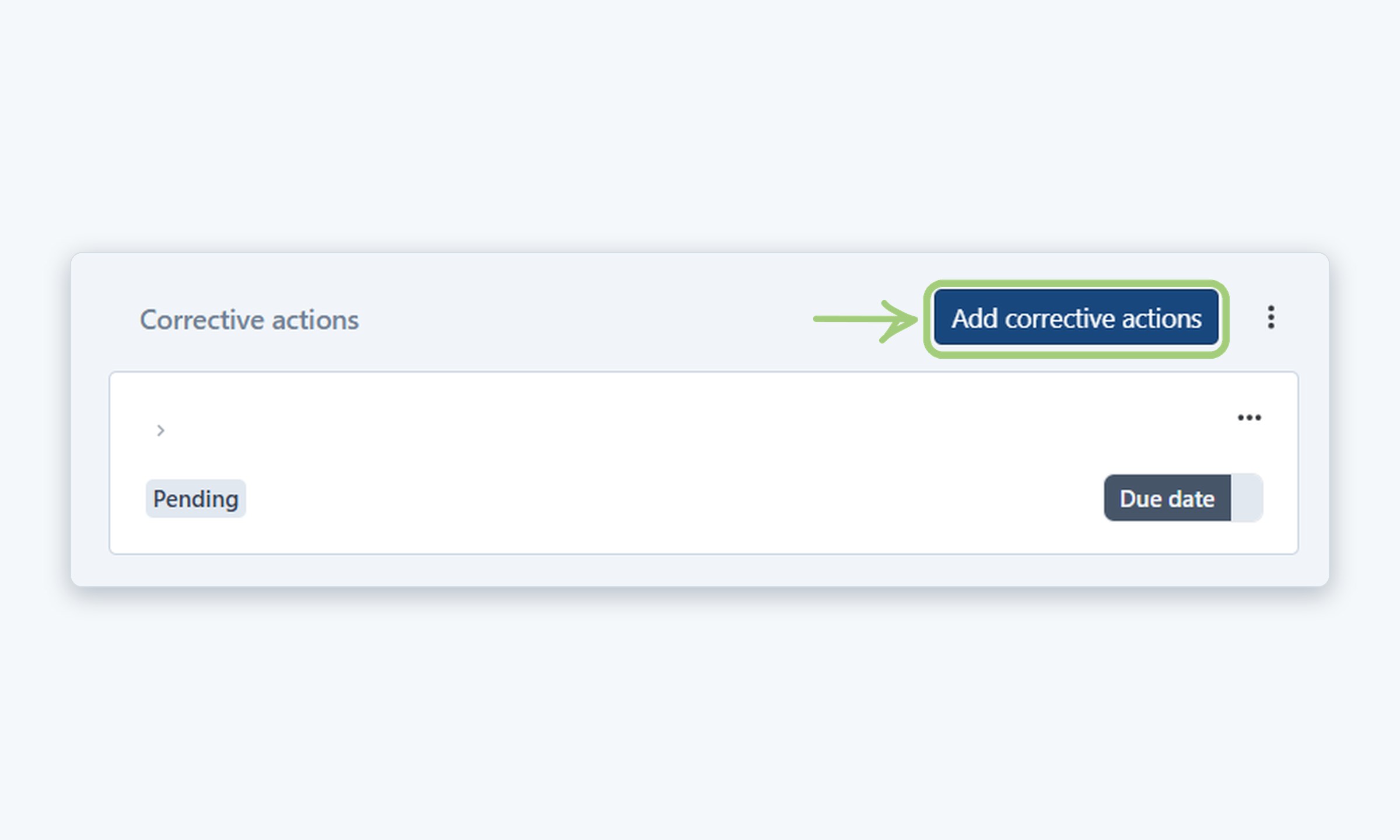
In the audit, go to the Corrective actions section and click Add corrective actions. Create an action for each finding. The Approver will review your actions and their evidence.
7
Close the actions
Once the Approver accepts the actions and their evidence, you will close them. This process repeats until all the close conditions are met, and then the Approver closes the audit.
Need more help?
If you have any questions or concerns, please contact Kiuey Support by submitting a ticket or through any of our support channels. Our team will be happy to assist you.