run a supplier audit, supplier audit, auditor, approver, complete audit form, set score, audit score, corrective actions, add corrective actions, grant disposition, accept corrective action, reject corrective action, close audit, save and exit, co-auditor
OVERVIEW
This guide shows how an Auditor / Approver runs a supplier audit in Kiuey: completing the form, setting the score, managing corrective actions and closing the audit.
Who is this for? Internal usersAuditorsApprovers
IMPORTANT NOTES
- Only an internal user who is not a Viewer can run an audit.
- The score is calculated automatically; adjusting it is optional.
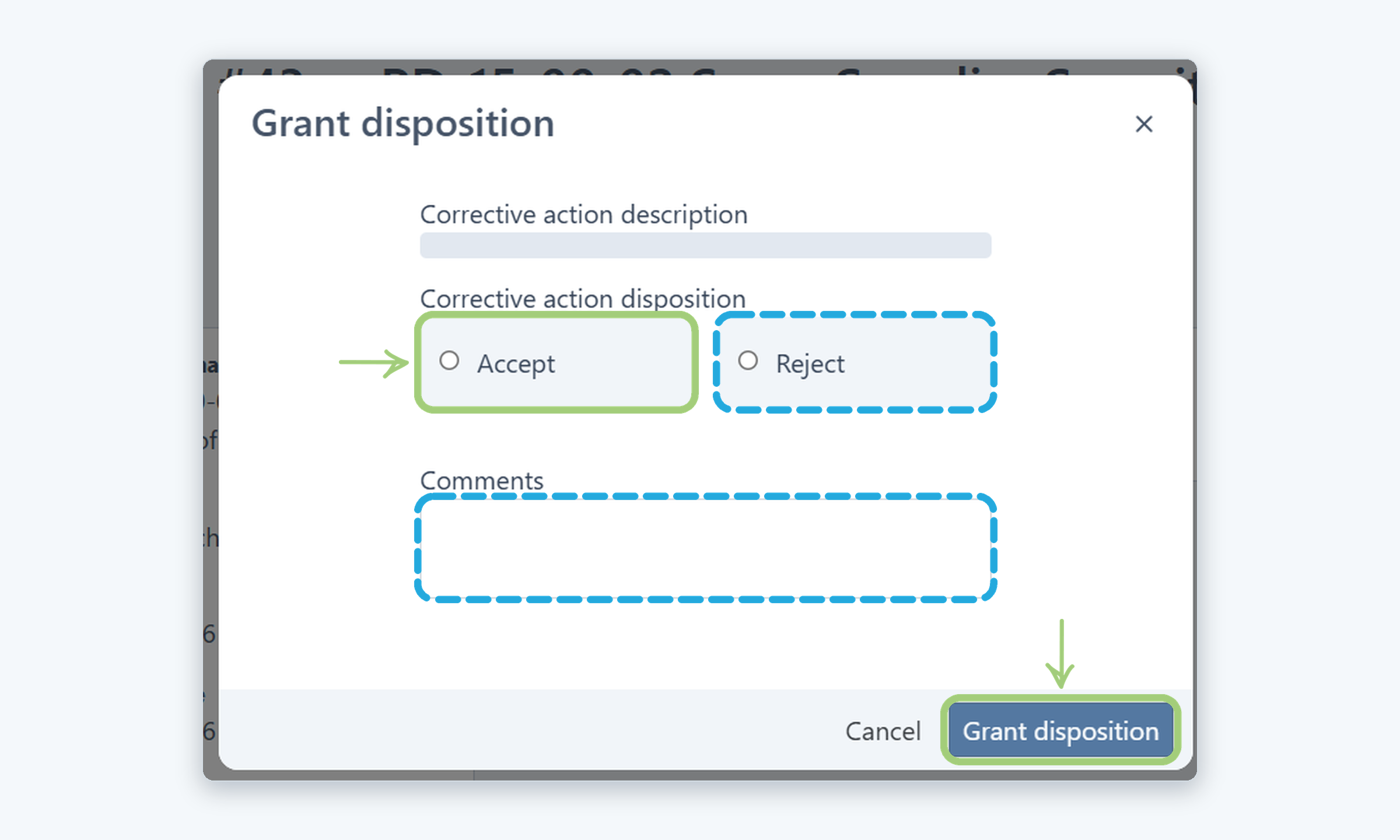
- Each corrective action must be accepted or rejected with a disposition. You can add a comment to explain your decision.
- The audit can be closed only when all the close conditions are met.
WHO CAN DO THIS
Approver: Completes the form, sets the score, requests and accepts the corrective actions and closes the audit.
Co-auditor: Helps complete the audit form.
Leader: Creates and closes the corrective actions.
Steps
1
Complete the audit form
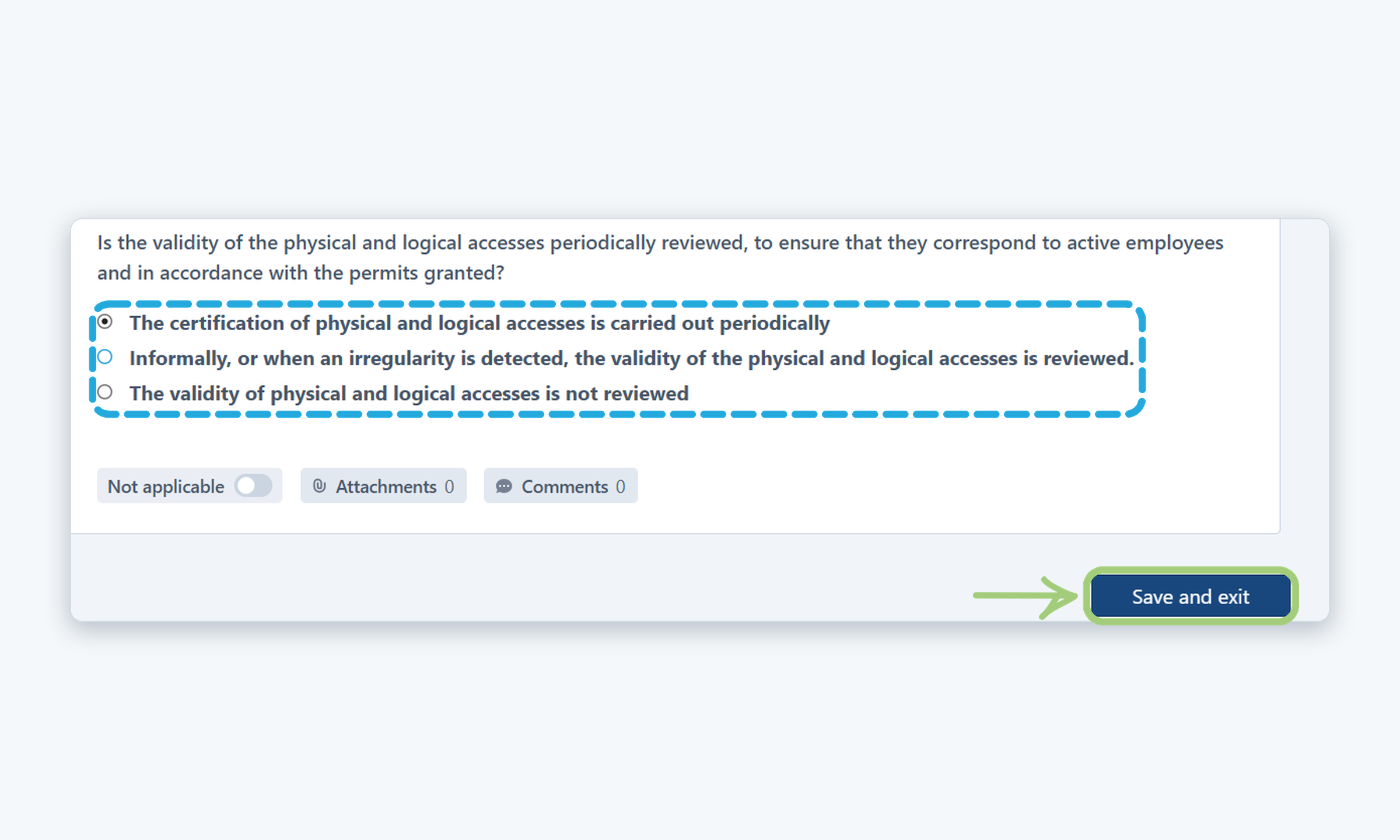
Open the audit, click Edit audit and answer every question of the form. Use Not applicable, Attachments and Comments on each question when needed. Click Save changes to keep your progress, and Save and exit when you finish. When every answer is completed, the audit changes to Conducted.
2
Set the score (optional)
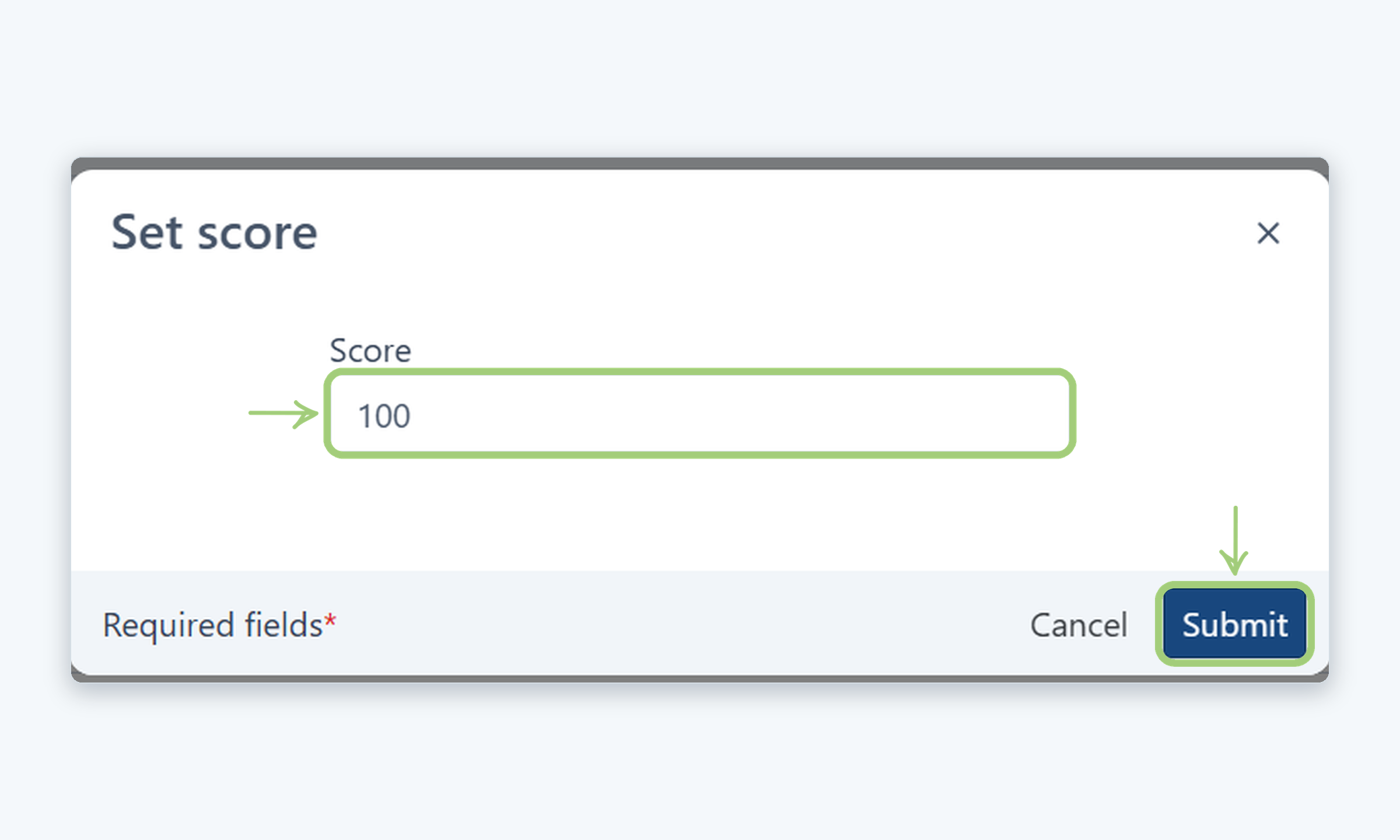
The score is calculated automatically. If it needs to be adjusted, enter the new value in the Set score window and click Submit.
3
Add corrective actions if needed
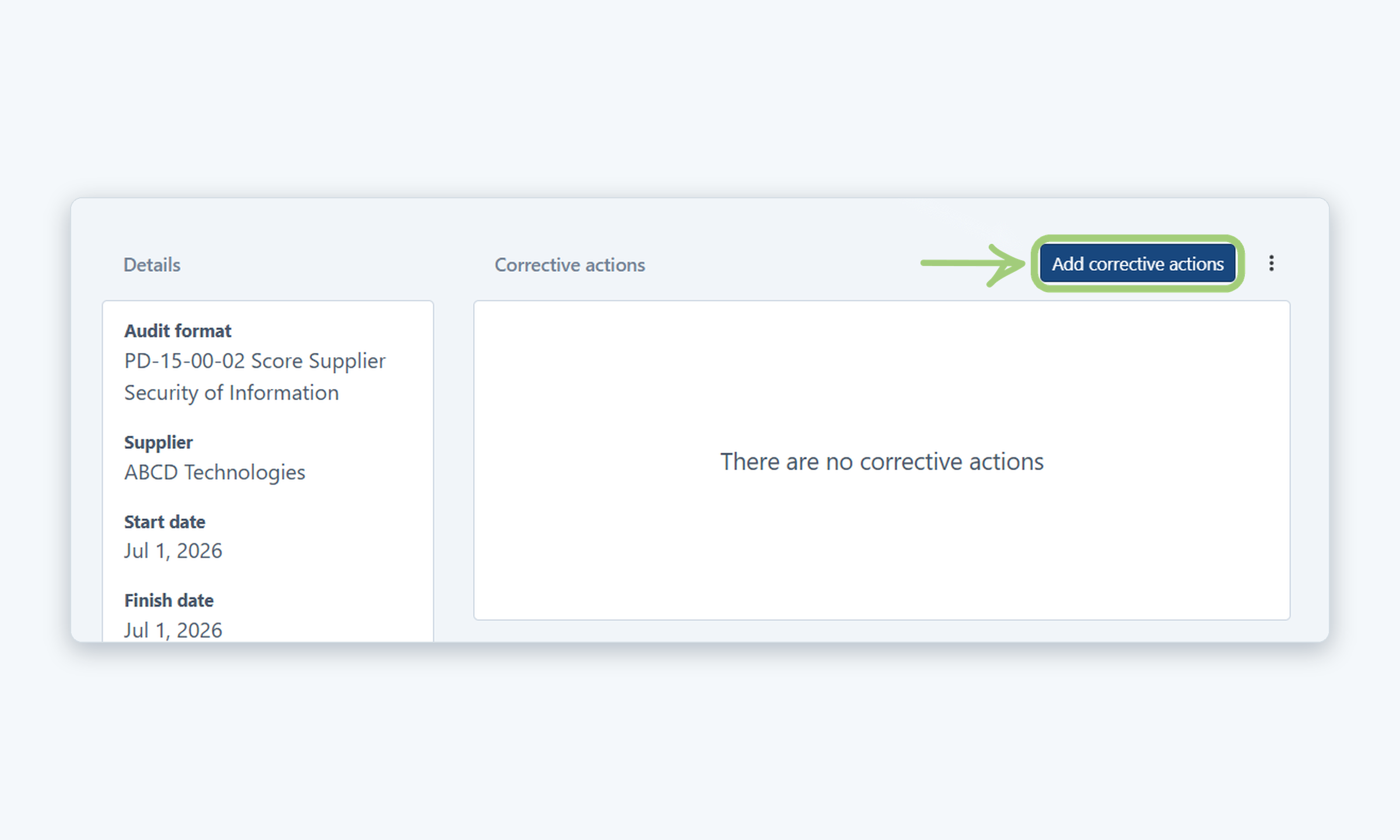
If the audit requires corrective actions, open the audit and click Add corrective actions in the Corrective actions section.
4
Fill in the action
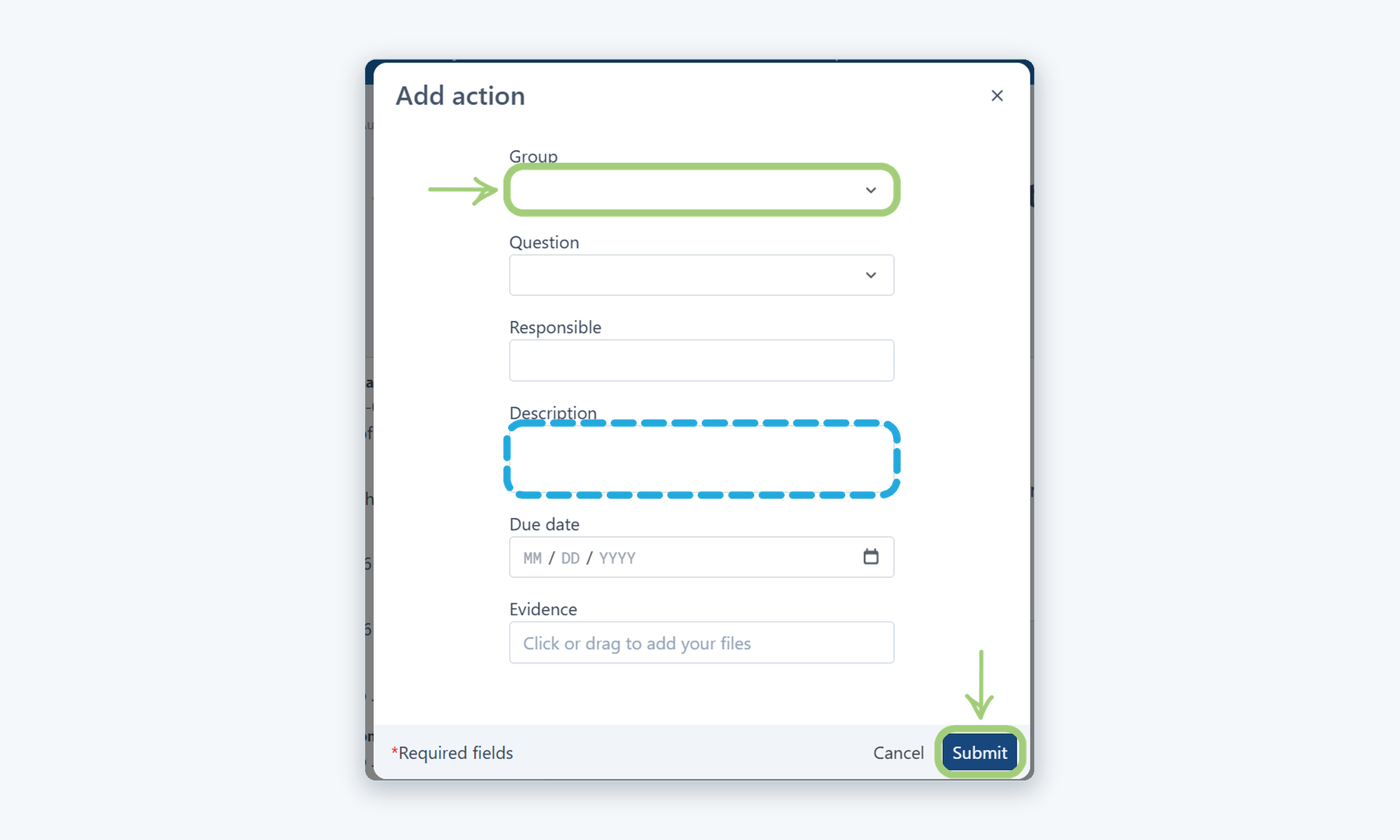
Complete the Add action form: select the Group and Question, enter the Responsible, describe the action in Description, set the Due date and add the Evidence files if you have them. Then click Submit.
5
Open the action menu
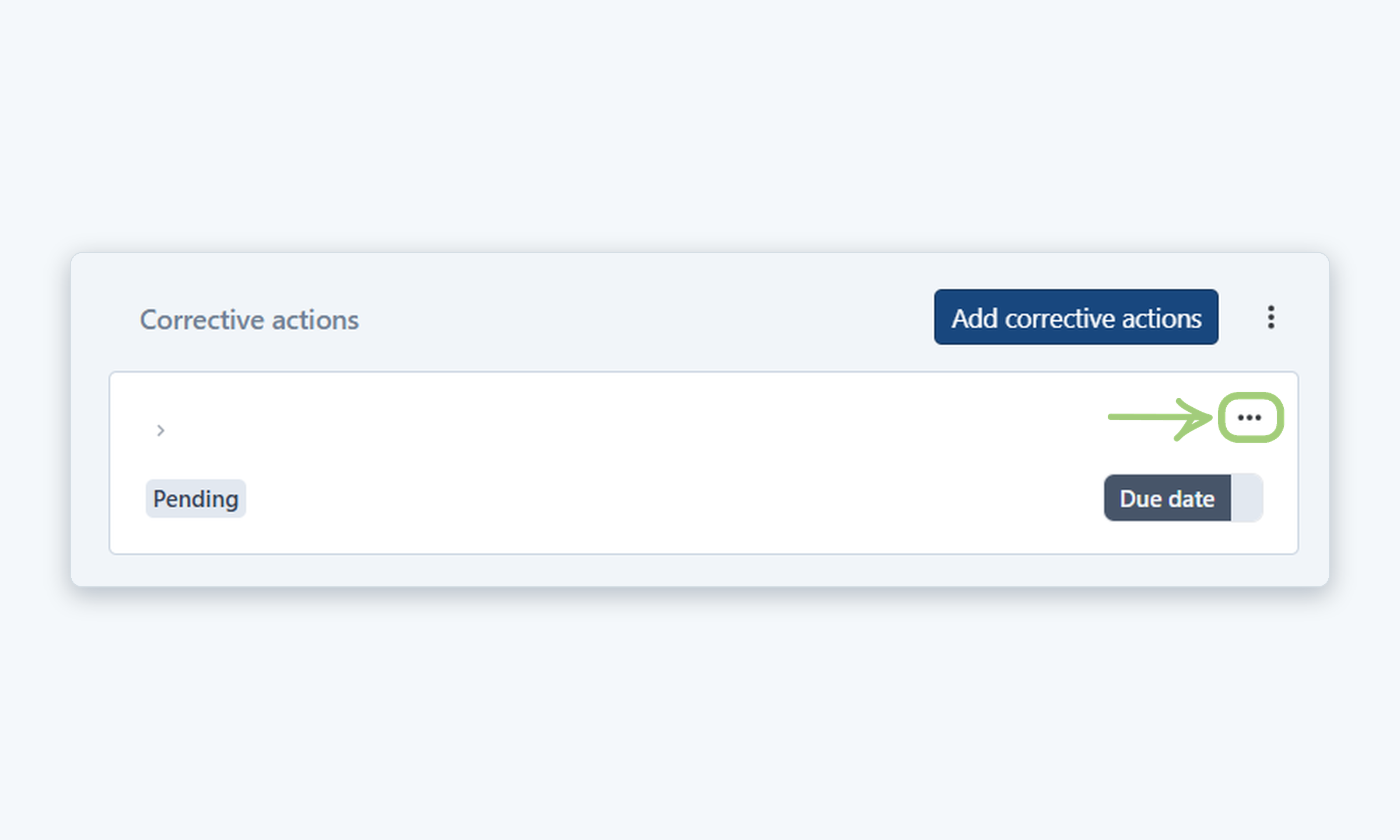
When the Leader has created the actions, each one appears as Pending. Click the three dots (…) of the action you want to review and select Grant disposition.
6
Accept or reject the action
In the Grant disposition window, review the corrective action description and select Accept or Reject. Add a comment if needed and click Grant disposition.
7
Close the audit
Repeat the review until all the close conditions are met. Then the Leader closes the actions and you, as Approver, close the audit. The audit status changes to Closed.
Need more help?
If you have any questions or concerns, please contact Kiuey Support by submitting a ticket or through any of our support channels. Our team will be happy to assist you.