This function enables users to import VDA 6.3 audit results in JSON format into the platform and automatically create a new audit based on the imported data.
Note: This function must be enabled for each environment. If the option is not available, please open a ticket for assistance.
Step 1:
From the Audits view, click on the the three-dot icon next to the Request audit button > Click Import VDA JSON:

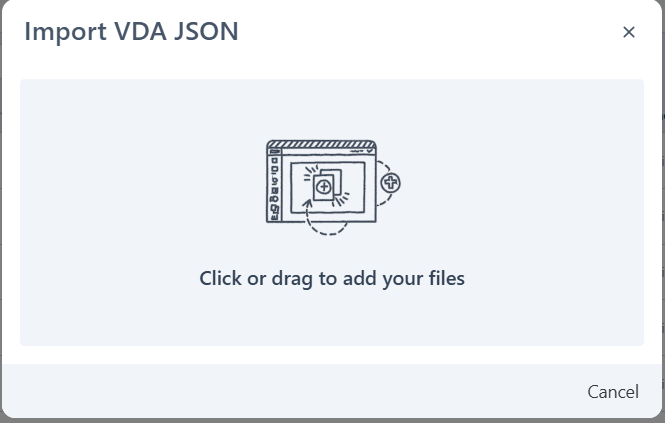
This will prompt the Import VDA JSON box to open.
Step 2: Click or drag the VDA 6.3 JSON file:
Example JSON format file:

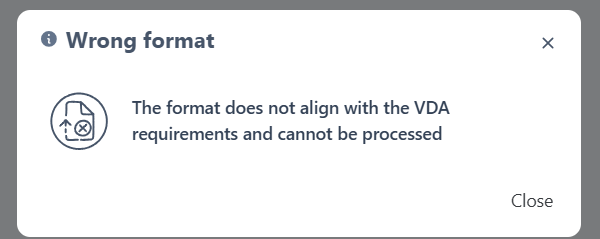
If an unsupported file format is uploaded, a warning message will be displayed.
Step 3: Enter any data not included in the JSON file.
After the correct JSON file is uploaded, the system will populate the audit results from the file and display a form allowing the user to enter any remaining required information that was not included in the JSON.
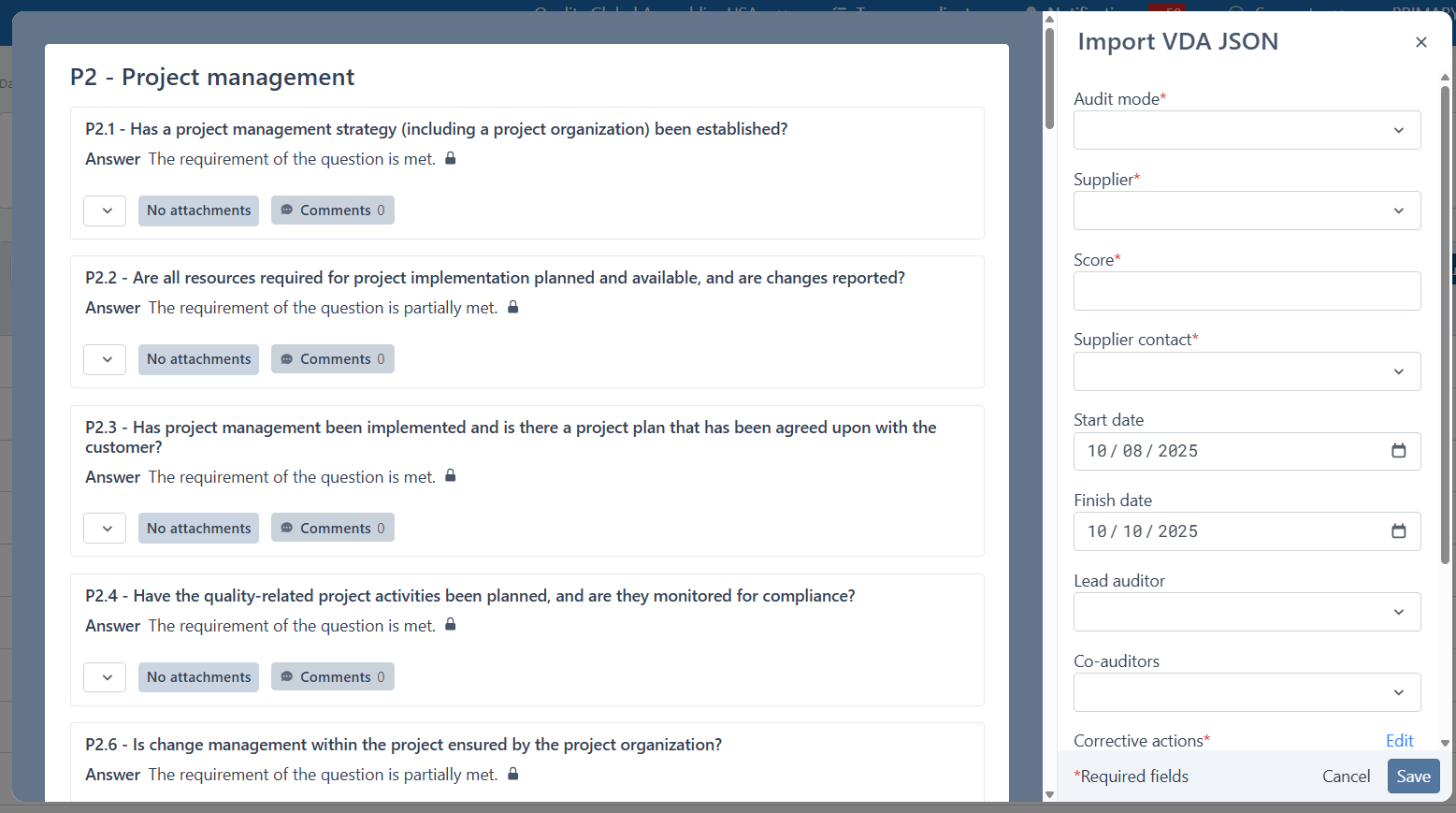
3.1 Assign the user that answered the question (if not included):
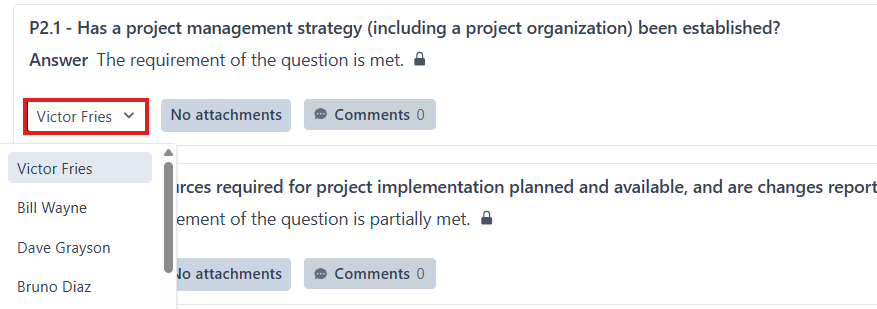
3.2 Select all required Audit inputs (Audit mode, Supplier, Supplier contact, Score, Auditors):
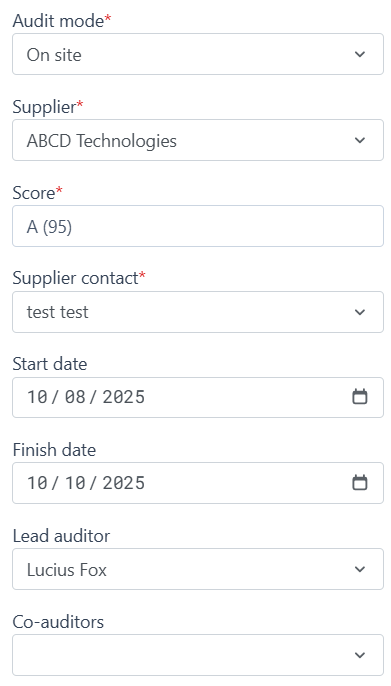
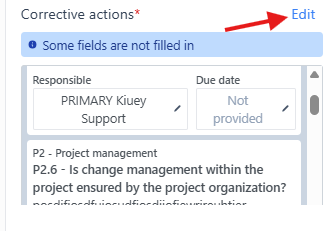
3.3 Review corrective actions section:
The system will display a message if the Responsible or Due fields were not included in the corrective action results.
Adding this information is optional.
You can edit these fields by clicking the Edit button.
4. Save (submit) the Audit after completing the information.
If optional fields were not added, a warning message will appear. Click Submit anyway to continue or Cancel to add the fields.
A confirmation message will appear:
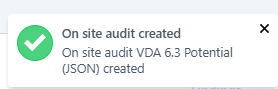
VDA 6.3 can be found in the Audit list:

Was this article helpful?
That’s Great!
Thank you for your feedback
Sorry! We couldn't be helpful
Thank you for your feedback
Feedback sent
We appreciate your effort and will try to fix the article