draft audit, supplier audit, request audit, save as draft, launch audit, update audit, drafted, audits
OVERVIEW
This guide explains how to request a supplier audit as a draft, find and update your drafts, and launch them when they are ready.
Who is this for? Internal users
IMPORTANT NOTES
- Fields marked with an asterisk (*) are required.
- While an audit is saved as a draft, it can be edited and the supplier is not notified.
- The supplier is notified only when you launch the audit.
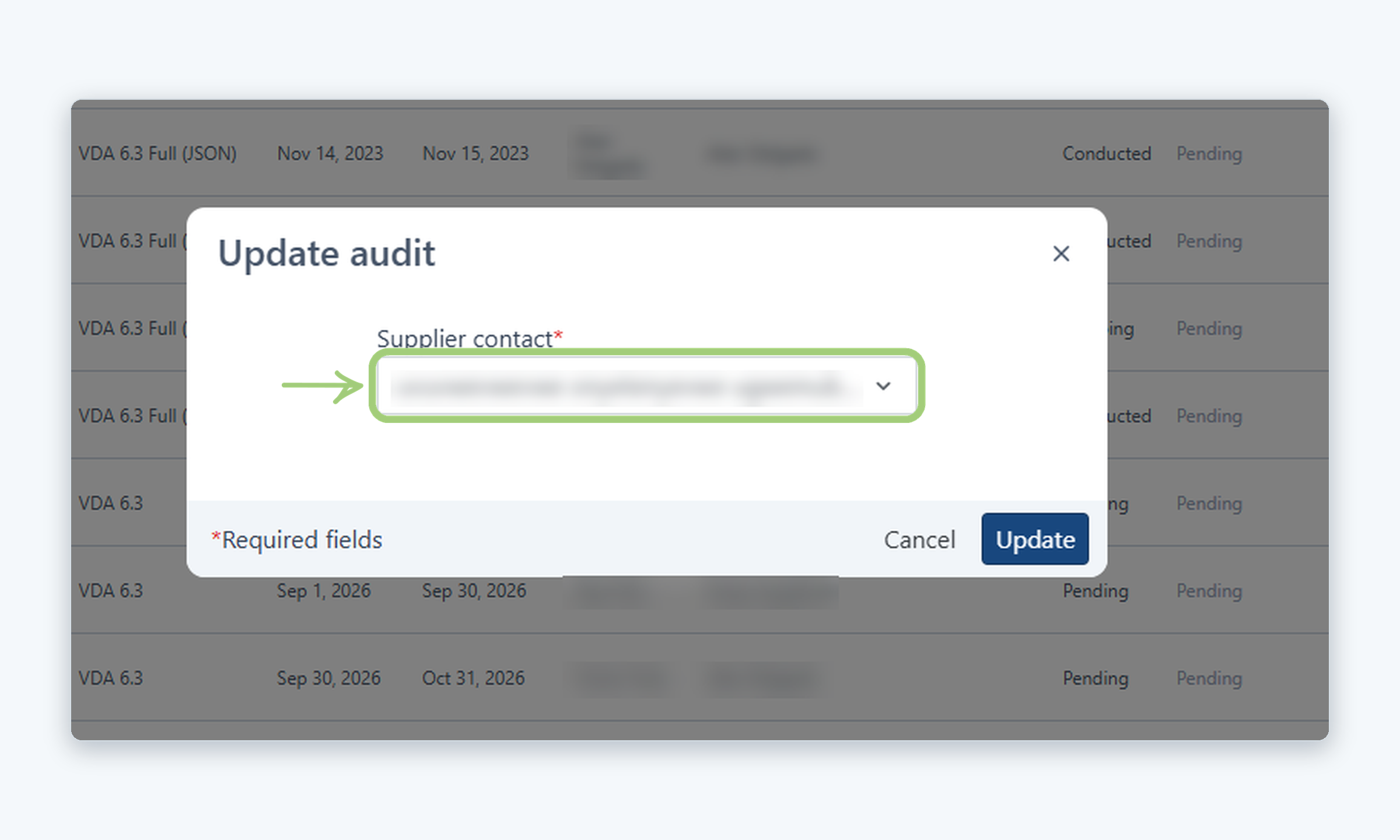
- For audits that are not drafts, you can only update the Supplier contact.
WHO CAN DO THIS
Internal user: Can request, update and launch supplier audits from the Audits page.
Steps
1
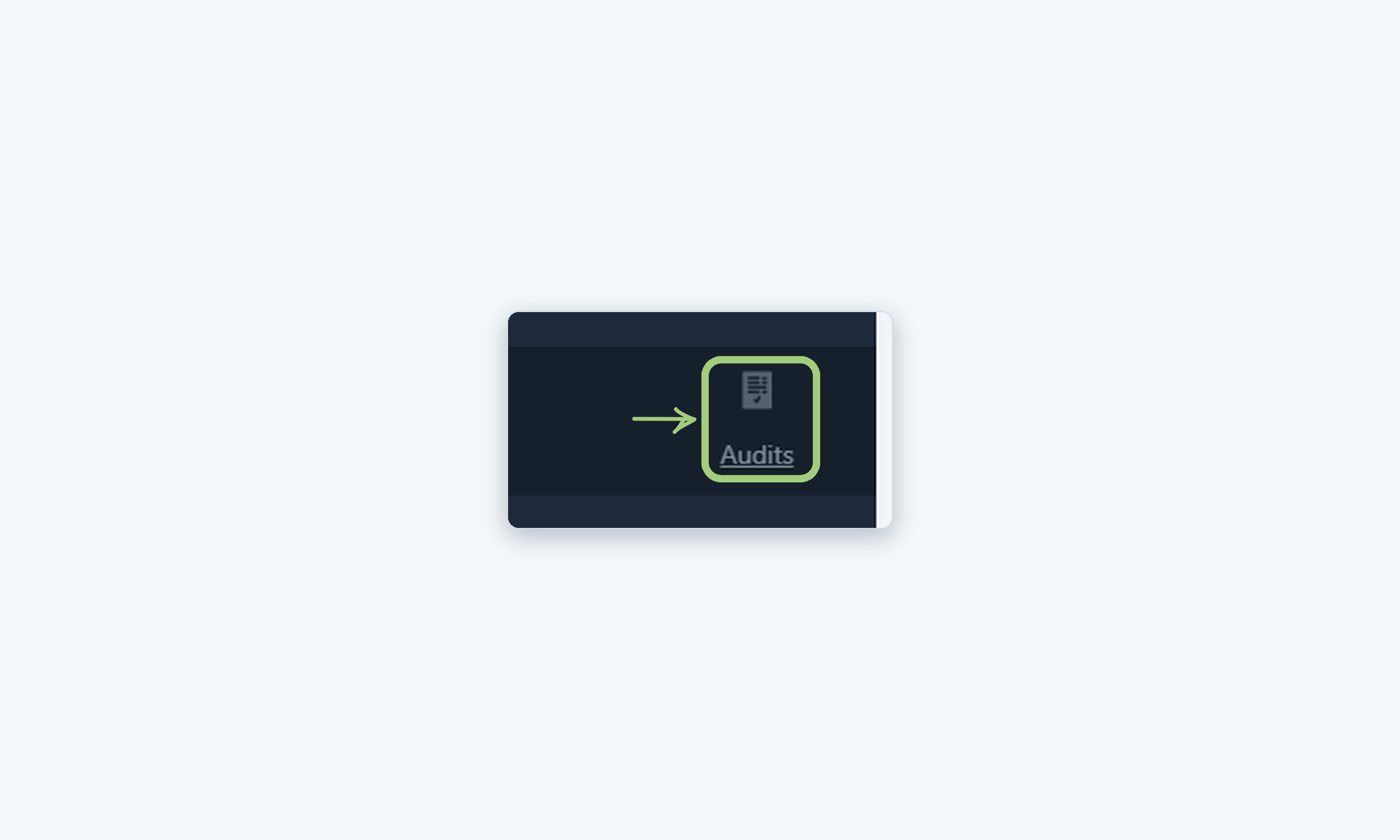
Go to Audits
In the left menu, click Audits.
2
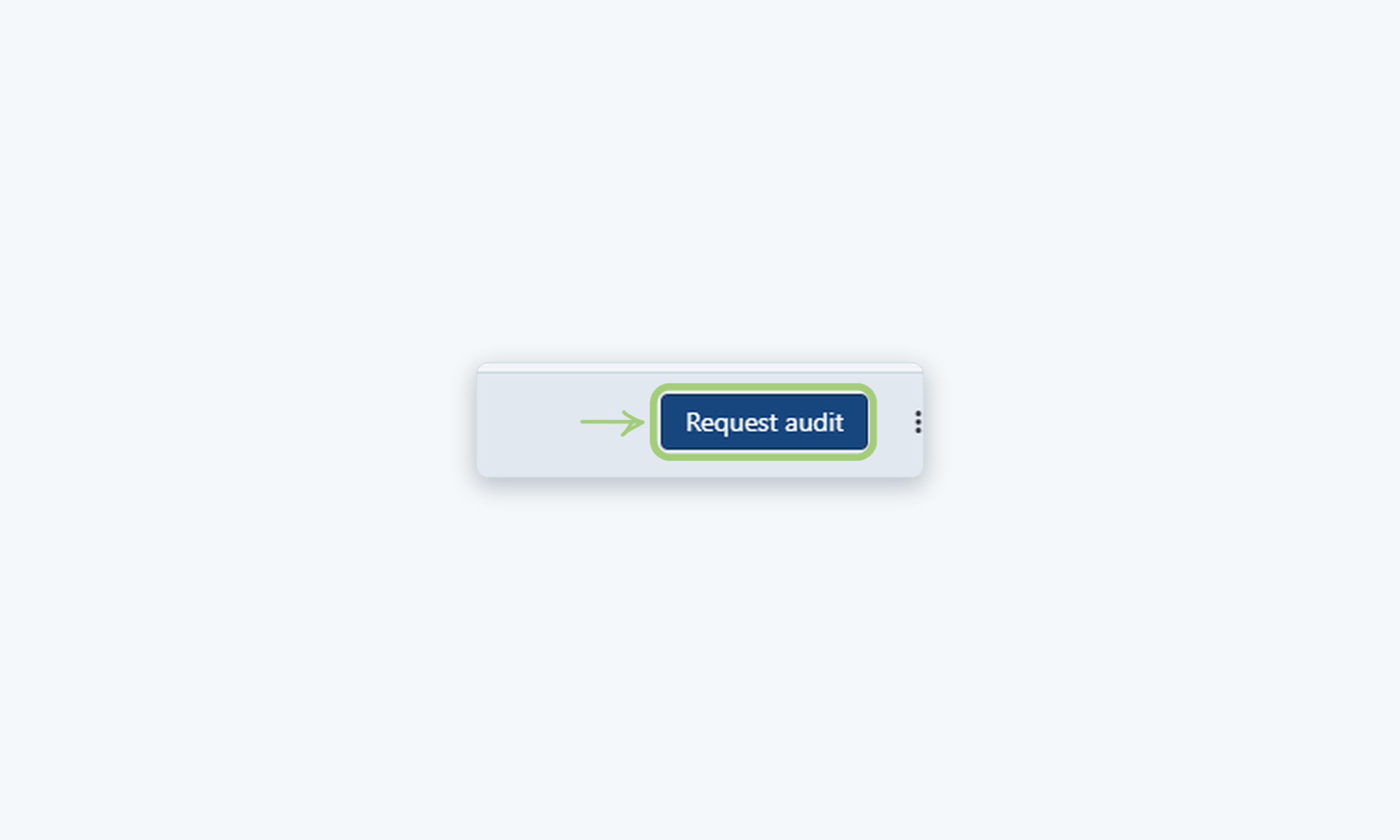
Click Request audit
On the Audits page, click Request audit.
3
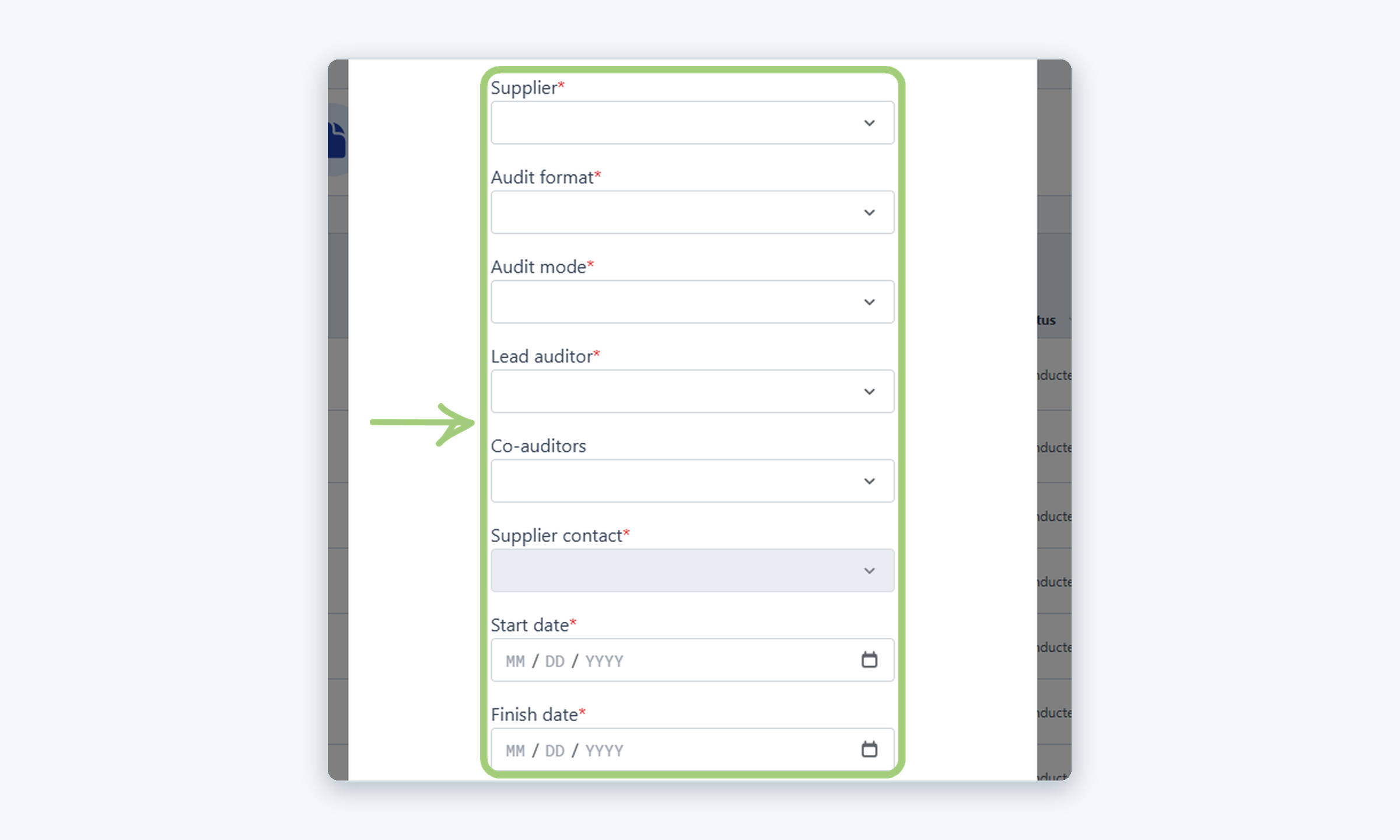
Fill in the fields
In the Request audit window, complete the required fields: Supplier, Audit format, Audit mode, Lead auditor, Supplier contact, Start date and Finish date. Co-auditors is optional.
4
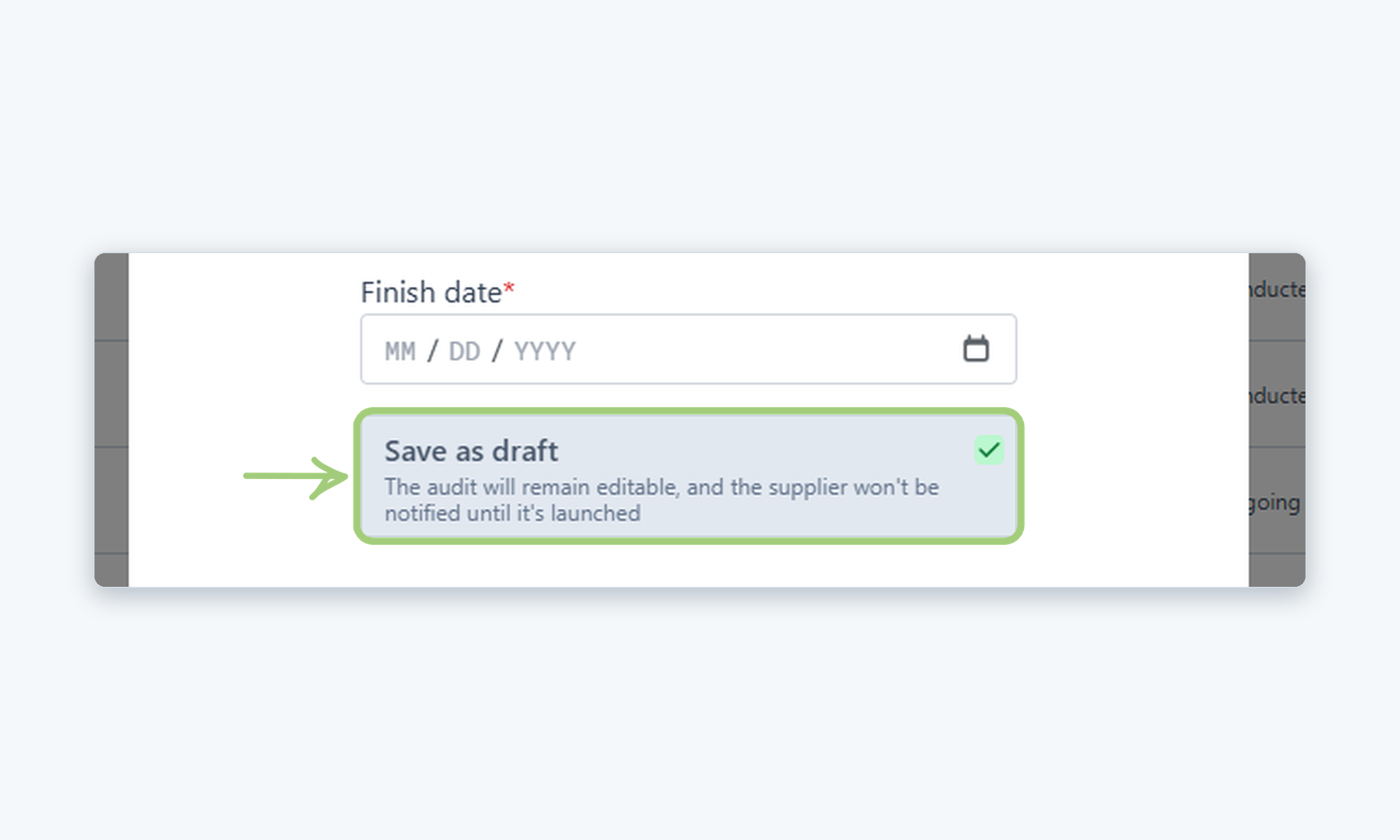
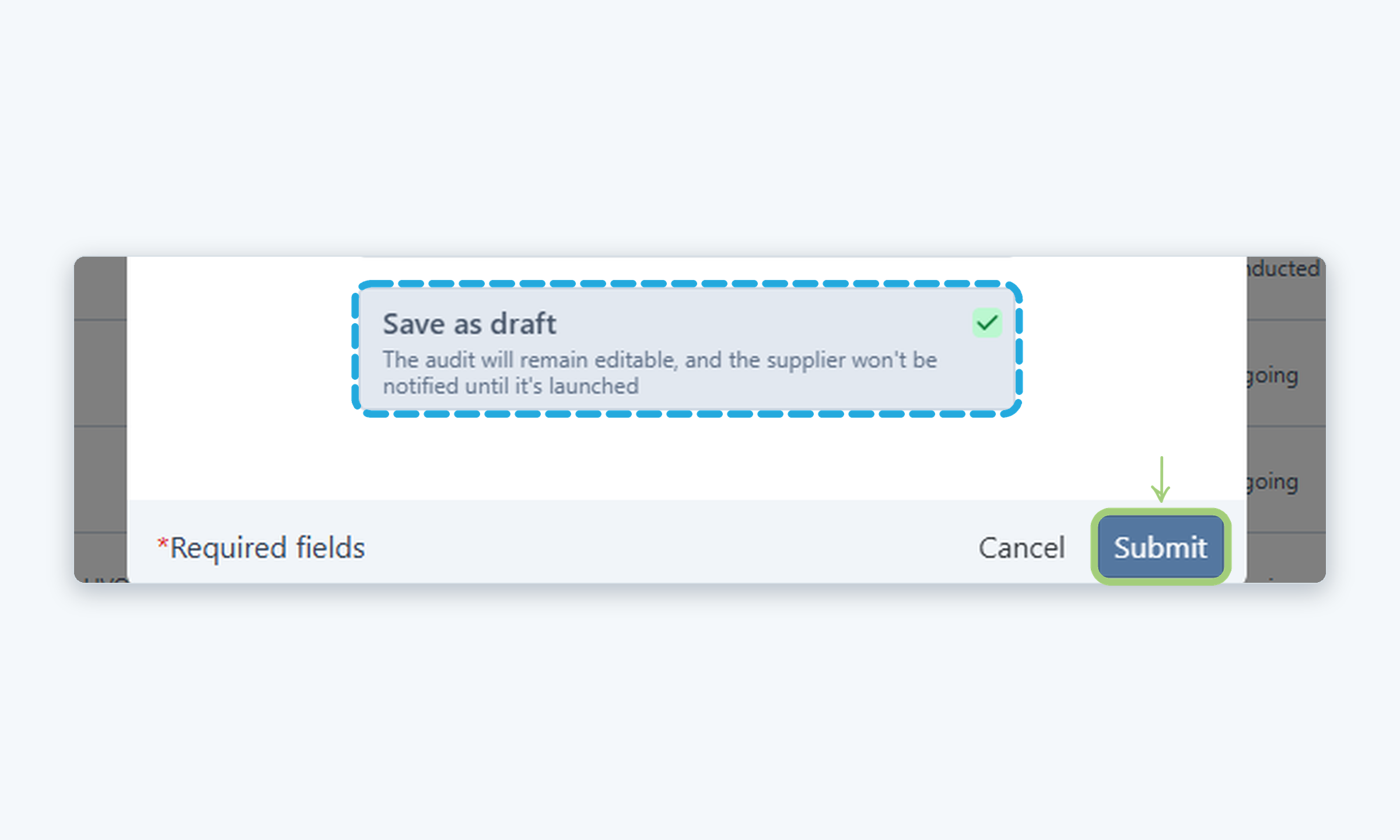
Select Save as draft
Make sure Save as draft is selected. The audit will remain editable, and the supplier won’t be notified until it is launched.
5
Click Submit
Click Submit. A message confirms that the audit was saved.
6
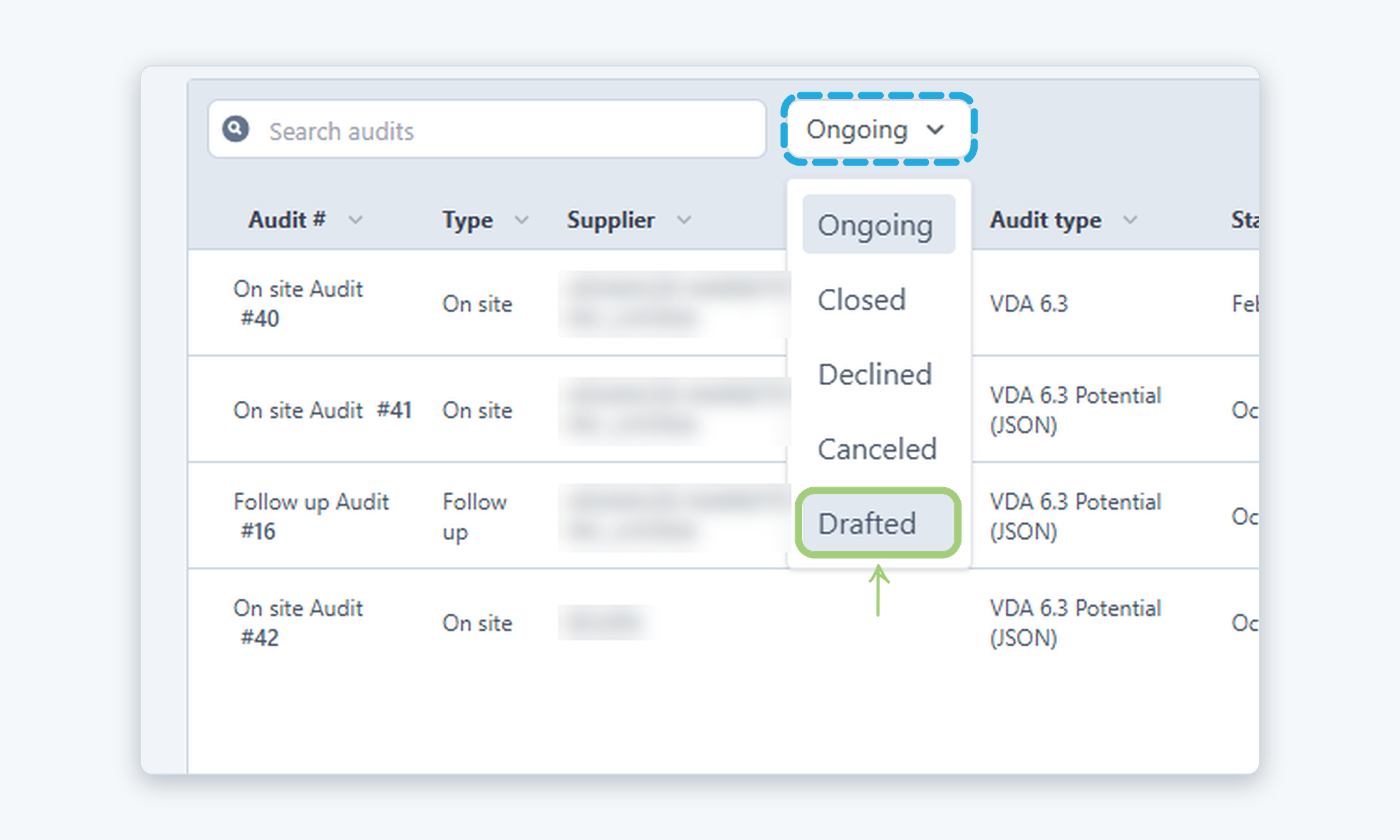
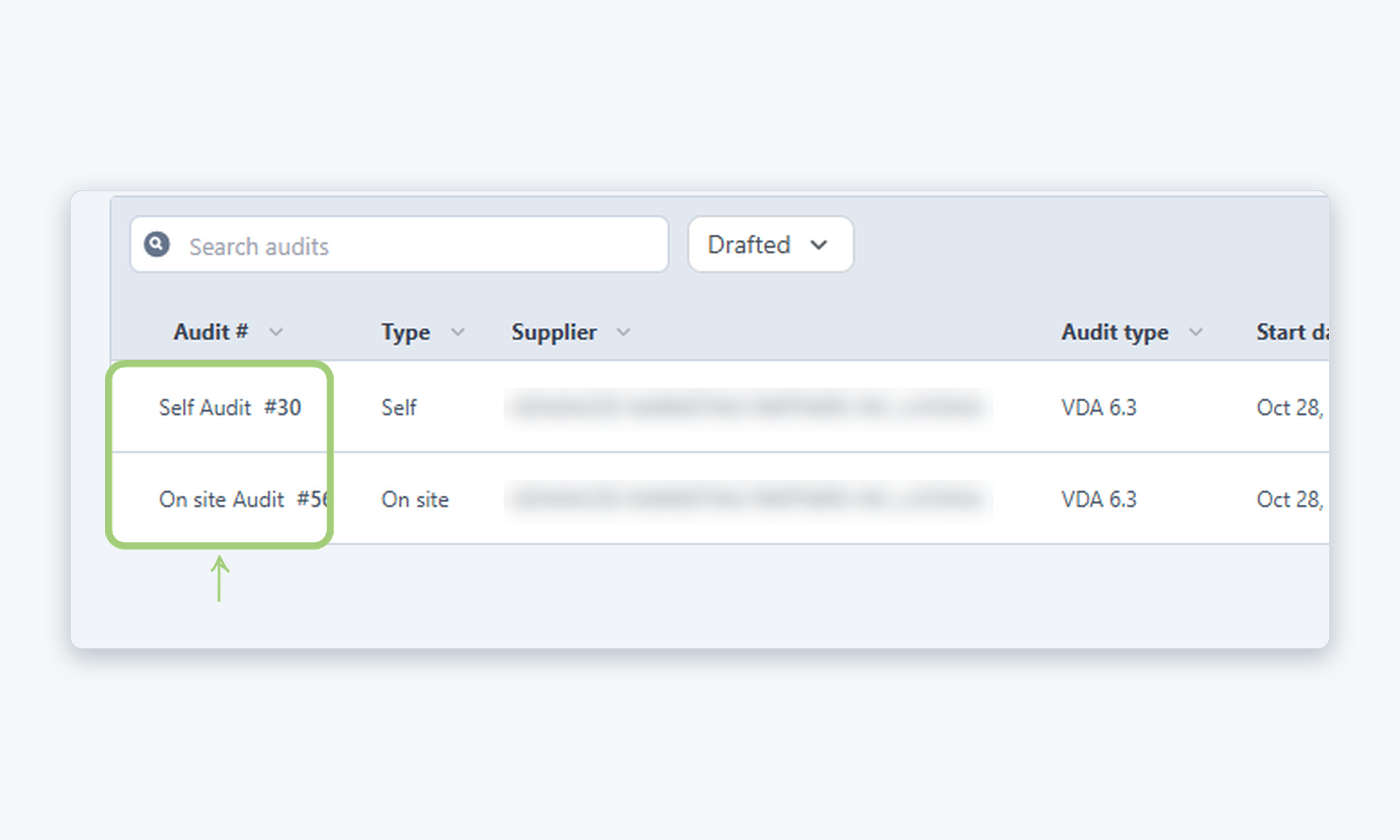
Filter by Drafted
To find your draft, open the status filter at the top of the list and select Drafted.
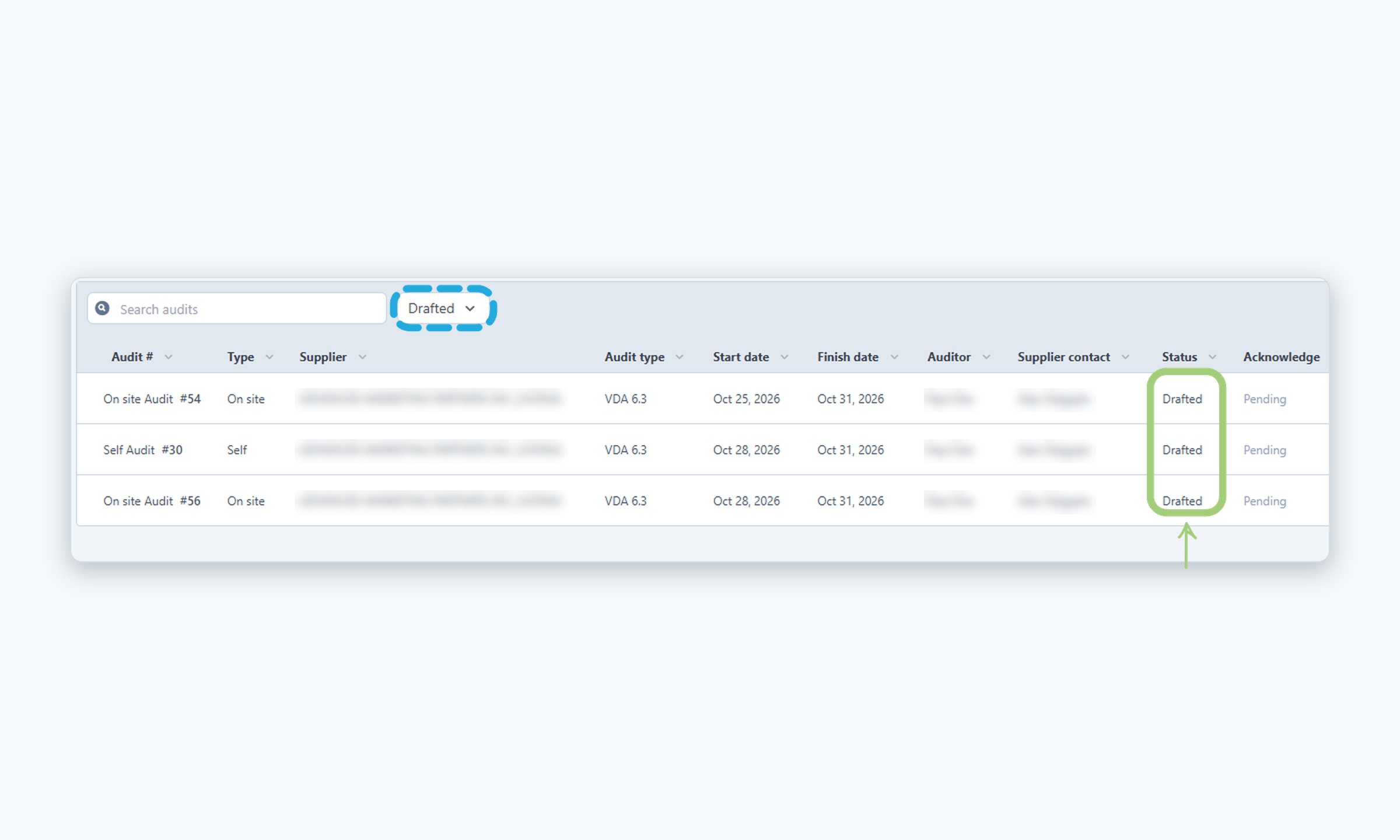
7
Check your draft
The list now shows only the audits in Drafted status. Check that your new audit appears.
8
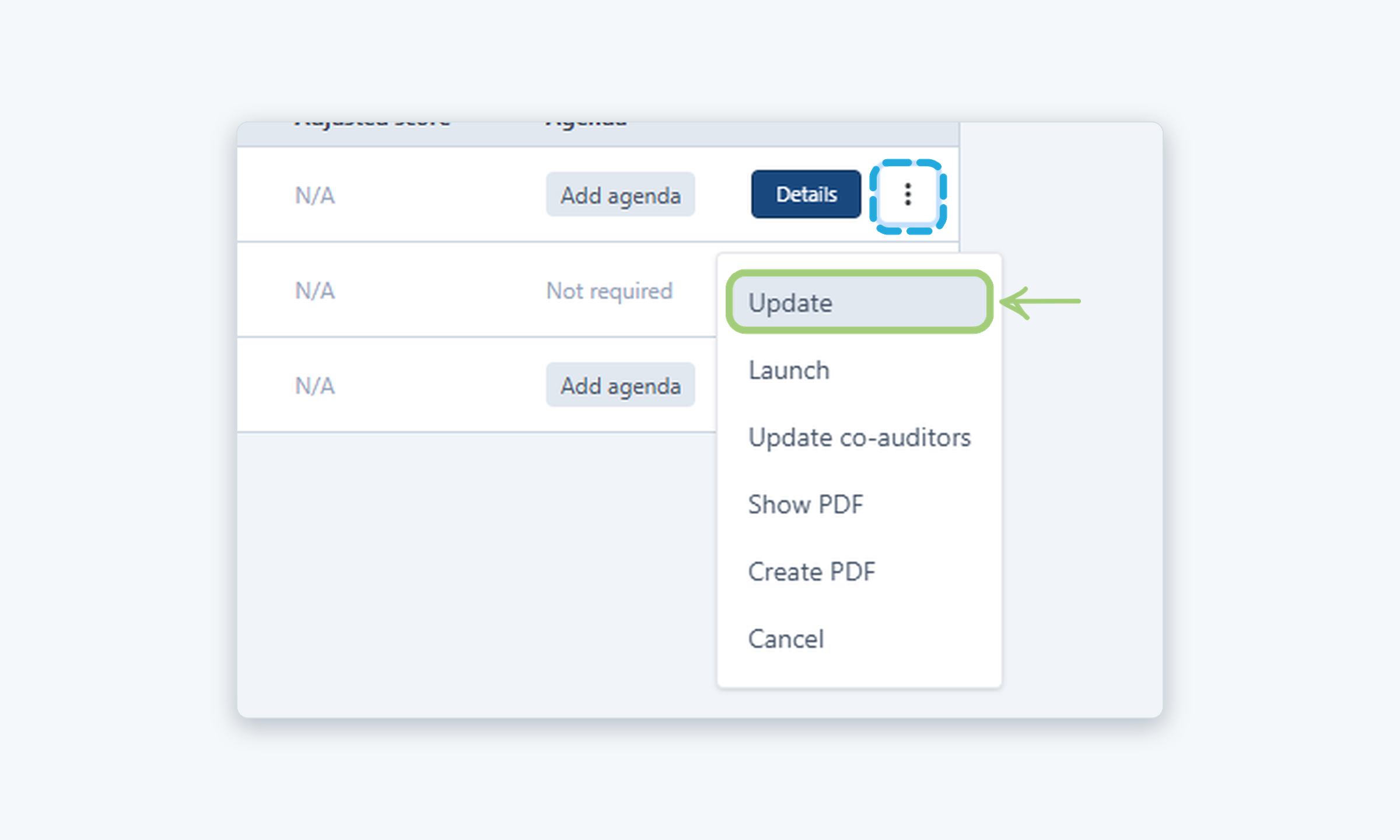
Click Update
To change a draft, click the three dots (⋮) at the end of its row and select Update.
9
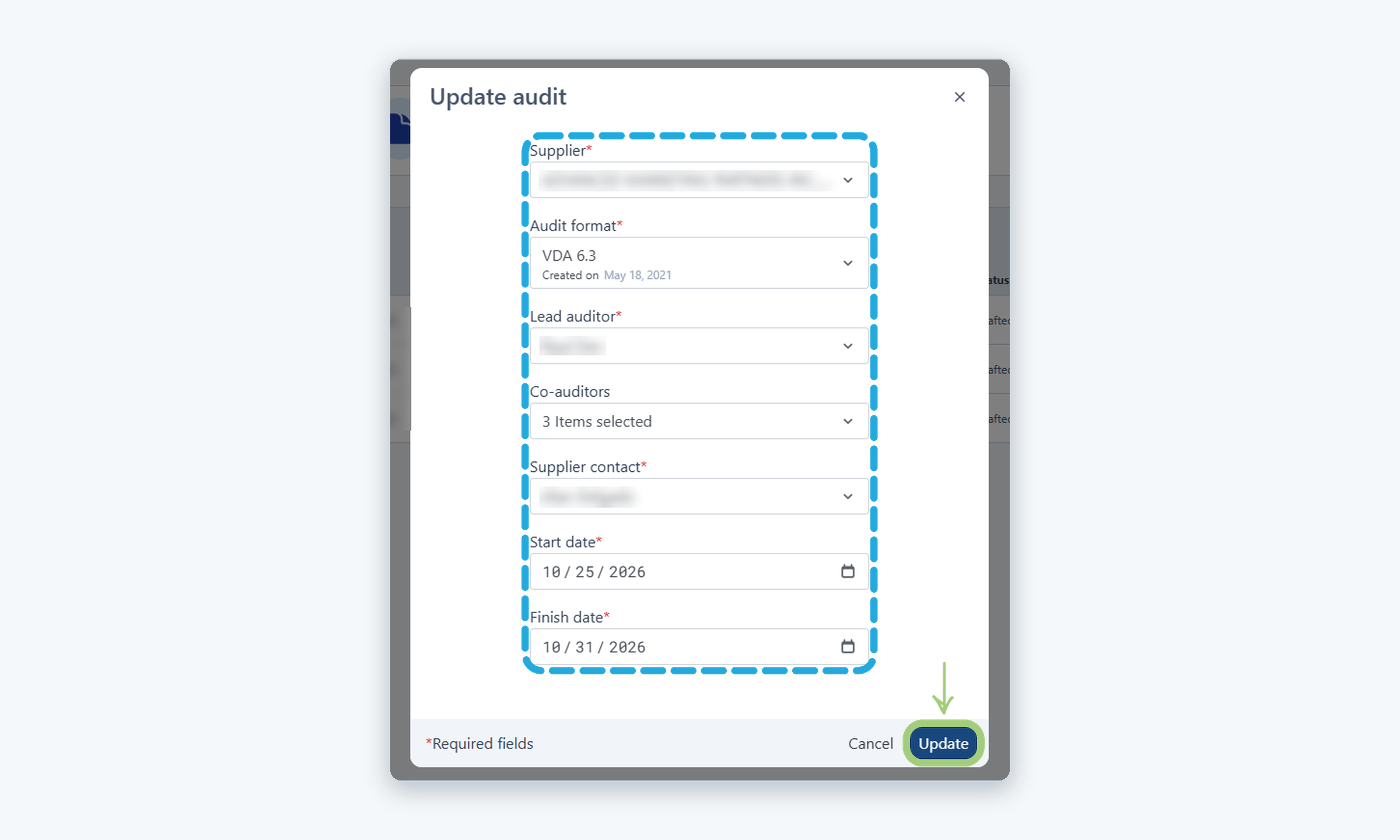
Update the fields
In the Update audit window, change the fields you need and click Update. The changes are shown in the list.
10
Update an audit that is not a draft (optional)
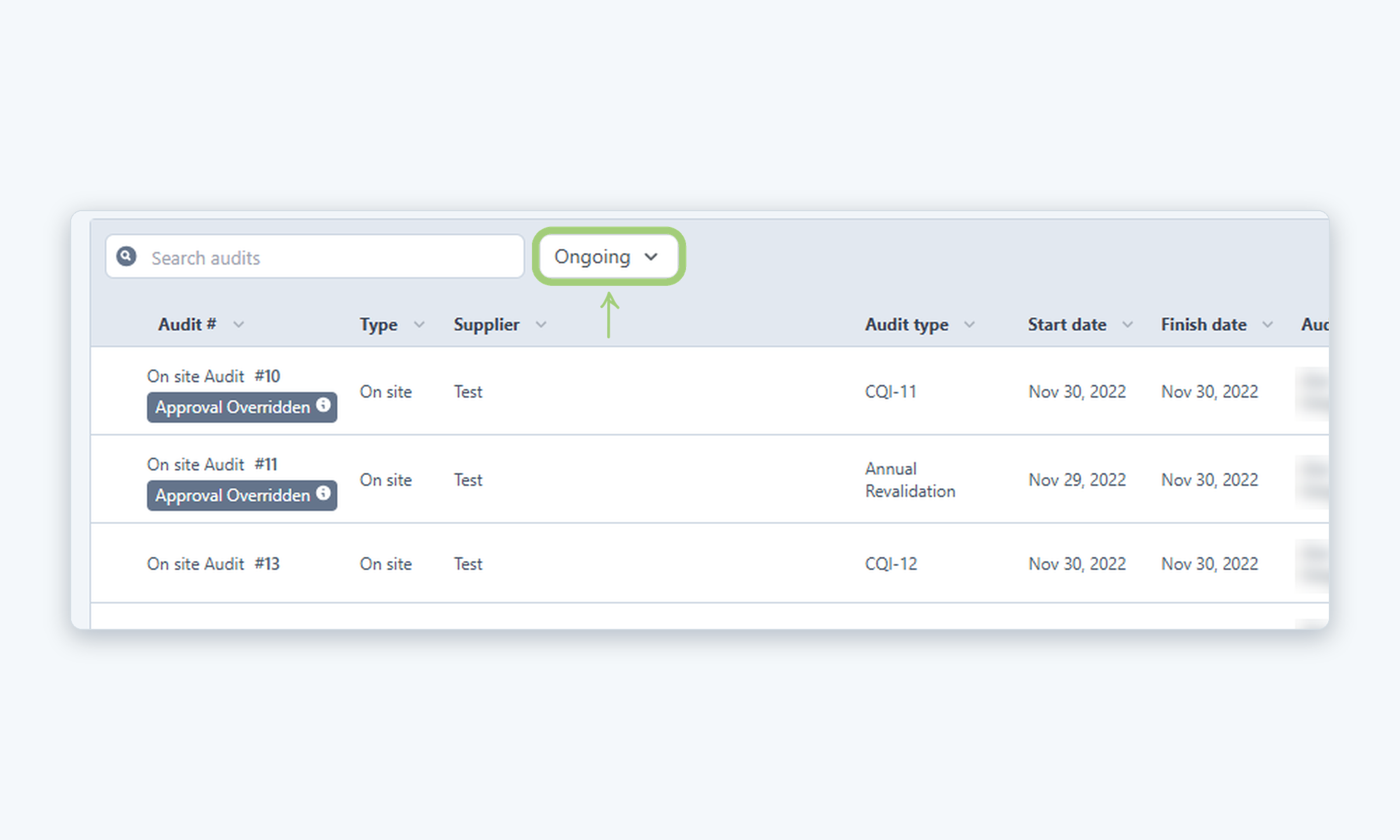
To review audits that are not drafts, select Ongoing in the status filter. For these audits, the Update window only lets you change the Supplier contact.
11
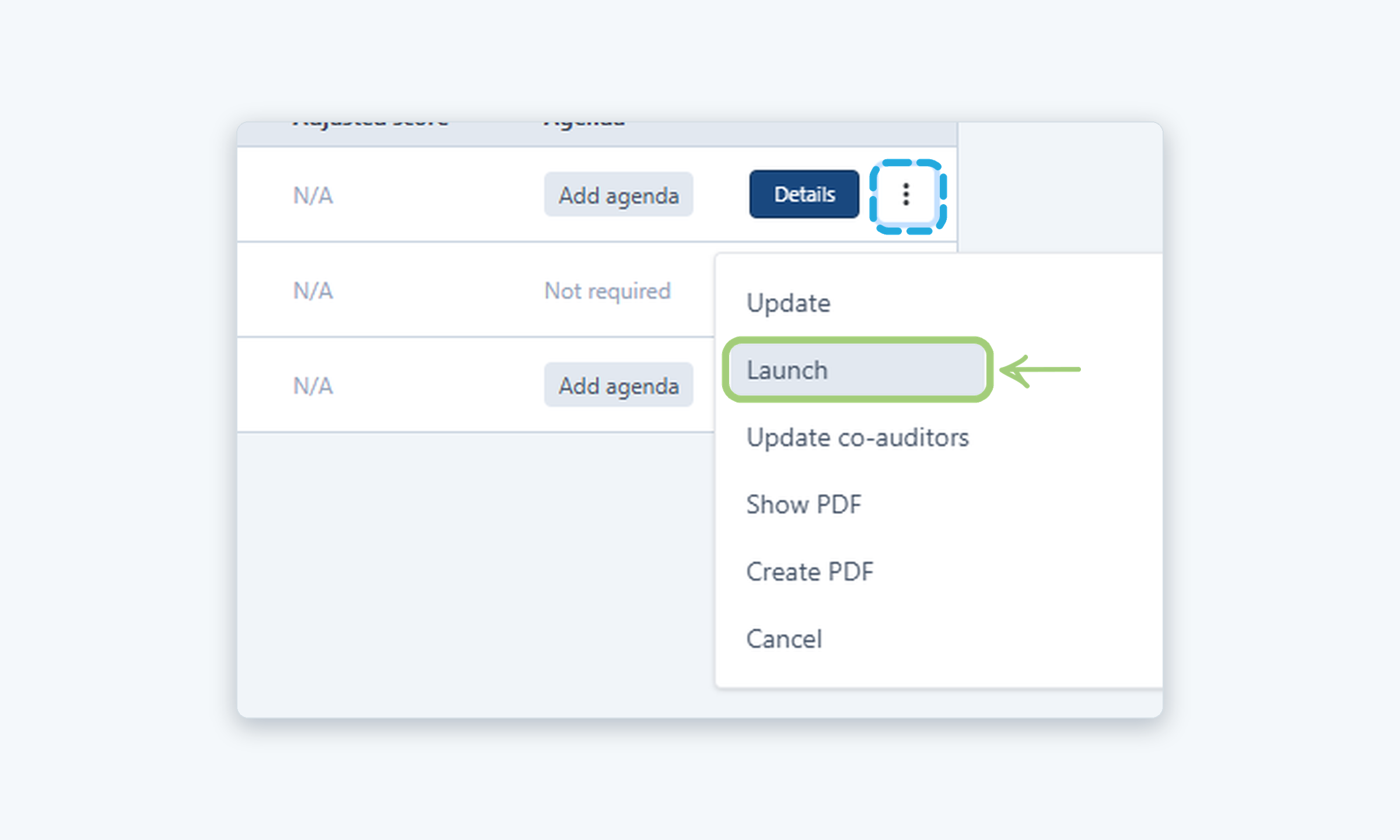
Click Launch
When your draft is ready, select Drafted in the status filter again, click the three dots (⋮) on the audit row and select Launch.
12
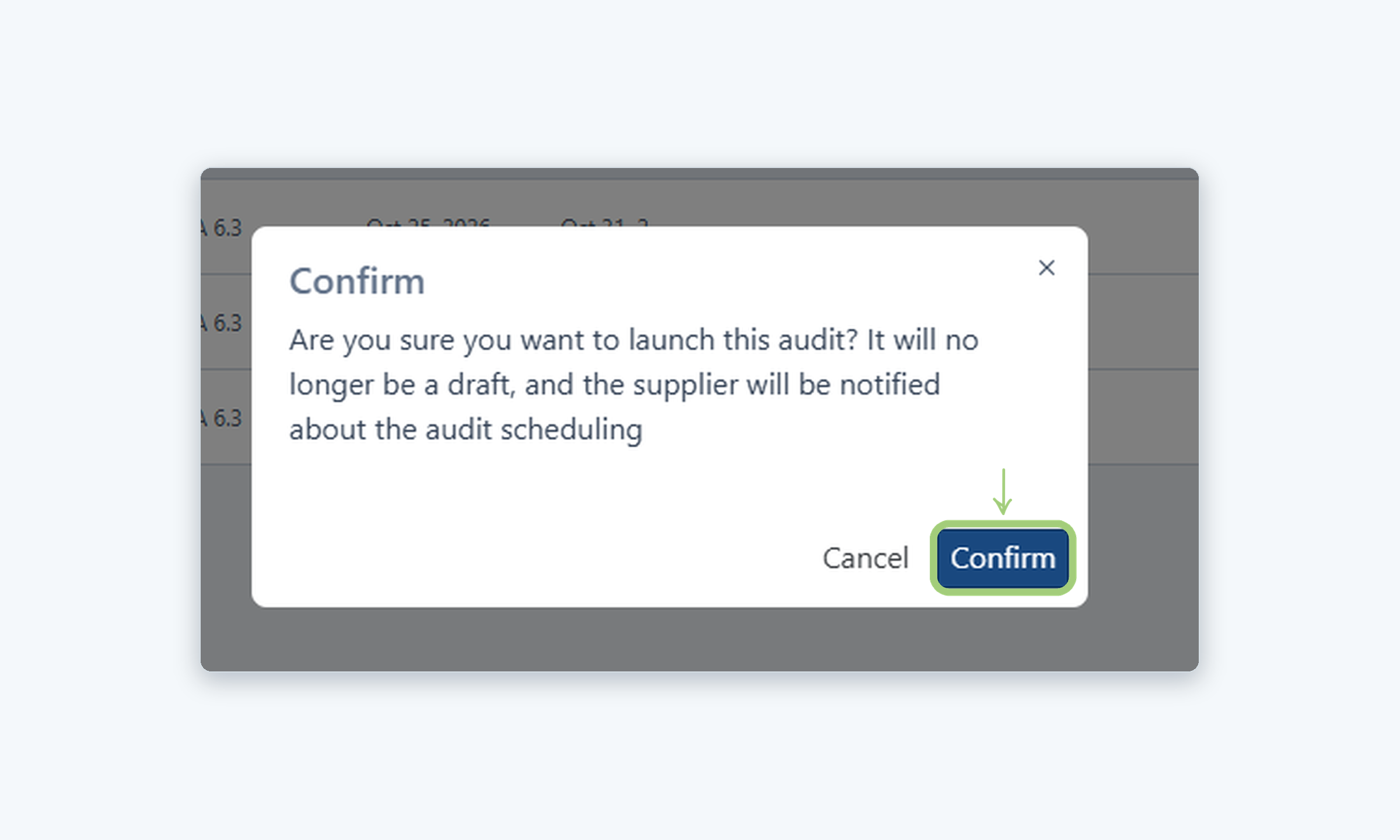
Click Confirm
In the Confirm window, click Confirm. The audit will no longer be a draft, and the supplier will be notified about the audit scheduling.
13
Check the audit
The audit disappears from the Drafted list and its status changes to Pending.
Need more help?
If you have any questions or concerns, please contact Kiuey Support by submitting a ticket or through any of our support channels. Our team will be happy to assist you.