Good to know: the process is the same for PPAP and APQP level templates.
Note: Changes made to a level template are not applied to PPAPs/APQPs that already exist or are currently active. To include the new elements in those, you will need to add them manually or contact support.
Steps
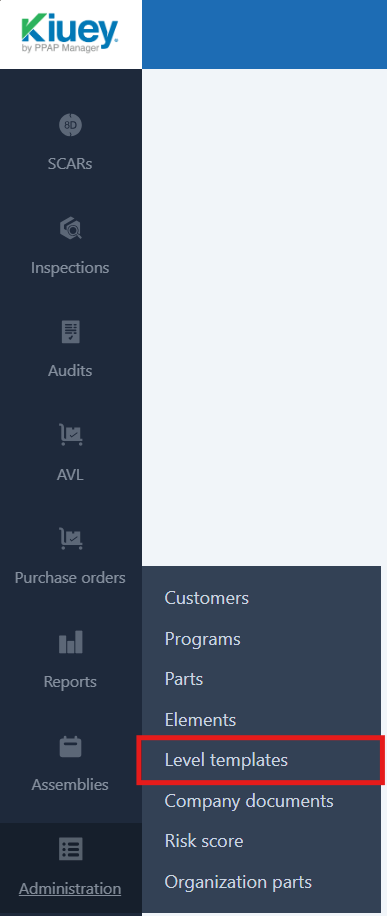
1. Go to Level Templates.
From the sidebar menu, click Administration > Level Templates.
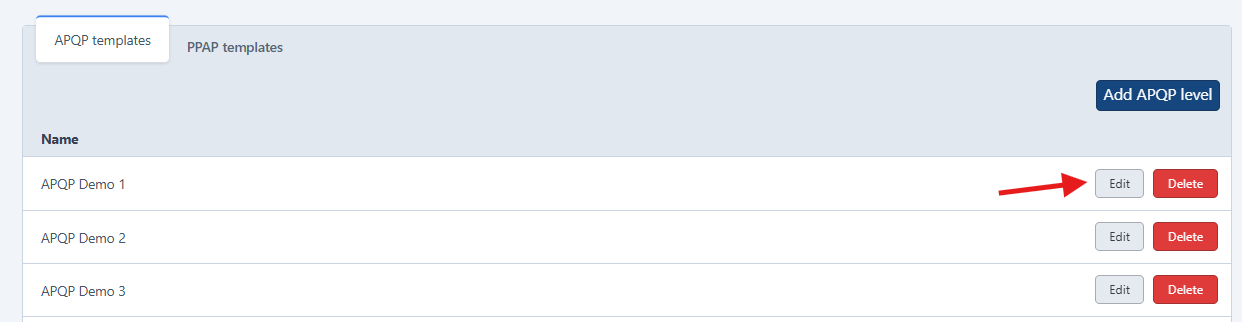
2. Choose the template type.
Select whether you want to edit a PPAP or an APQP level template.
3. Click “Edit”.
Find the level template you want to modify and click Edit.
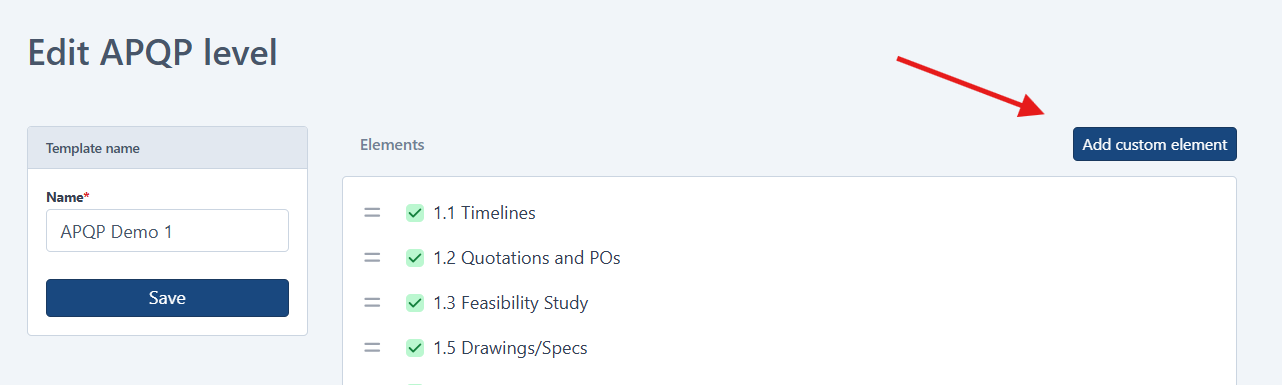
4. Click “Add custom element”.
5. Search for or create the elements.
Search for the elements you want to add. If the element you need doesn’t exist yet, create it.
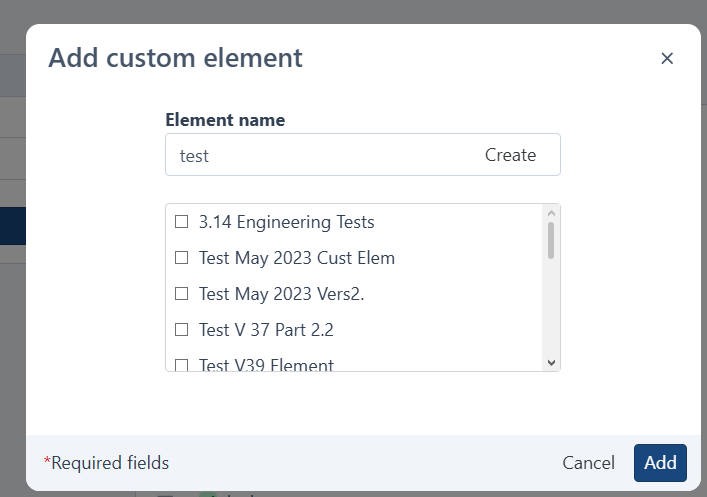
6. Click “Add”.
Once you have selected or created all the elements you need, click Add.
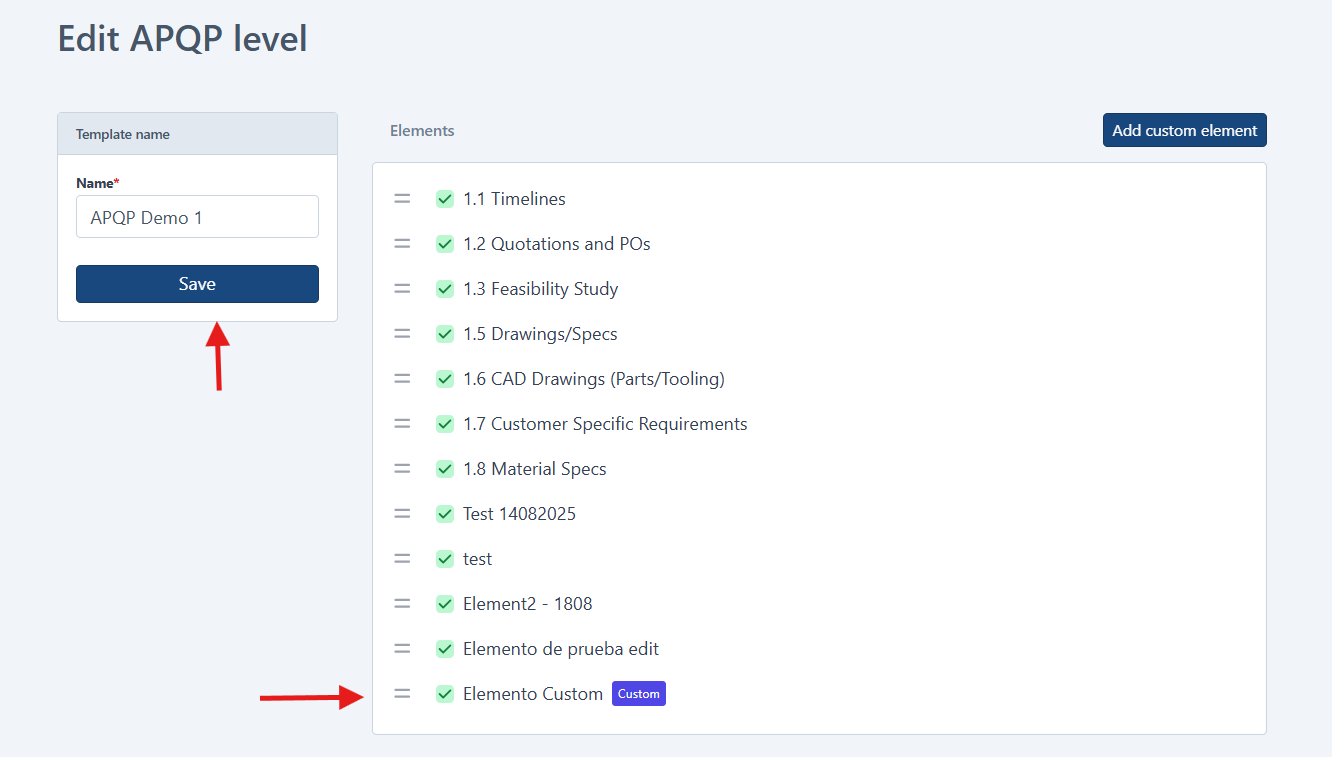
7. Click “Save”.
Click Save to apply your changes to the level template.
Was this article helpful?
That’s Great!
Thank you for your feedback
Sorry! We couldn't be helpful
Thank you for your feedback
Feedback sent
We appreciate your effort and will try to fix the article