custom element, add instructions, element instructions, element template, add attachment, PPAP elements, administration
OVERVIEW
This guide explains how to create a custom element and add instructions (and an optional template file) to guide the users who work on it.
Who is this for? Internal users
IMPORTANT NOTES
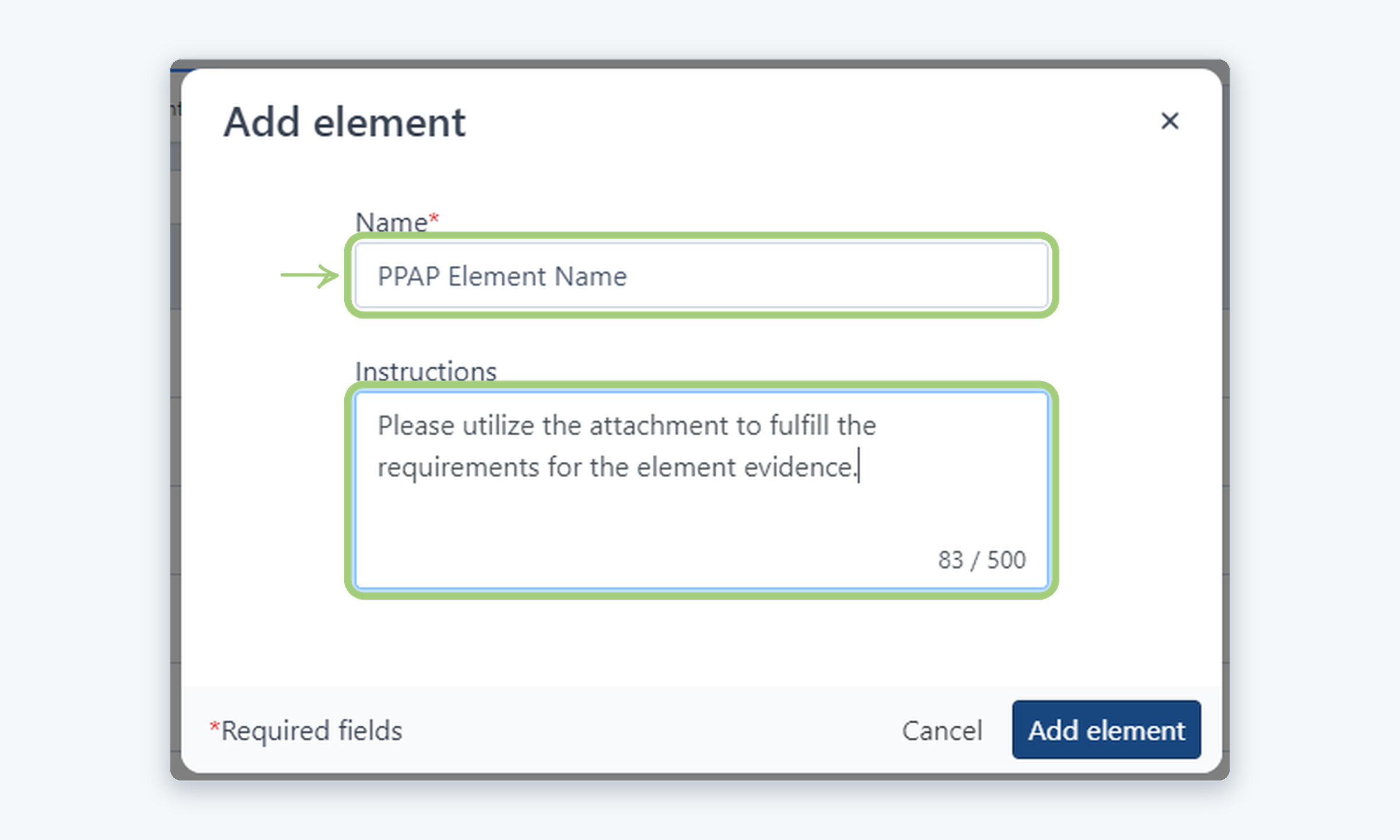
- Only Name is required (marked with an asterisk). Instructions accepts up to 500 characters.
- The template file is optional.
WHO CAN DO THIS
Administrator: Can create custom elements and add instructions and templates.
Steps
1
Open Elements
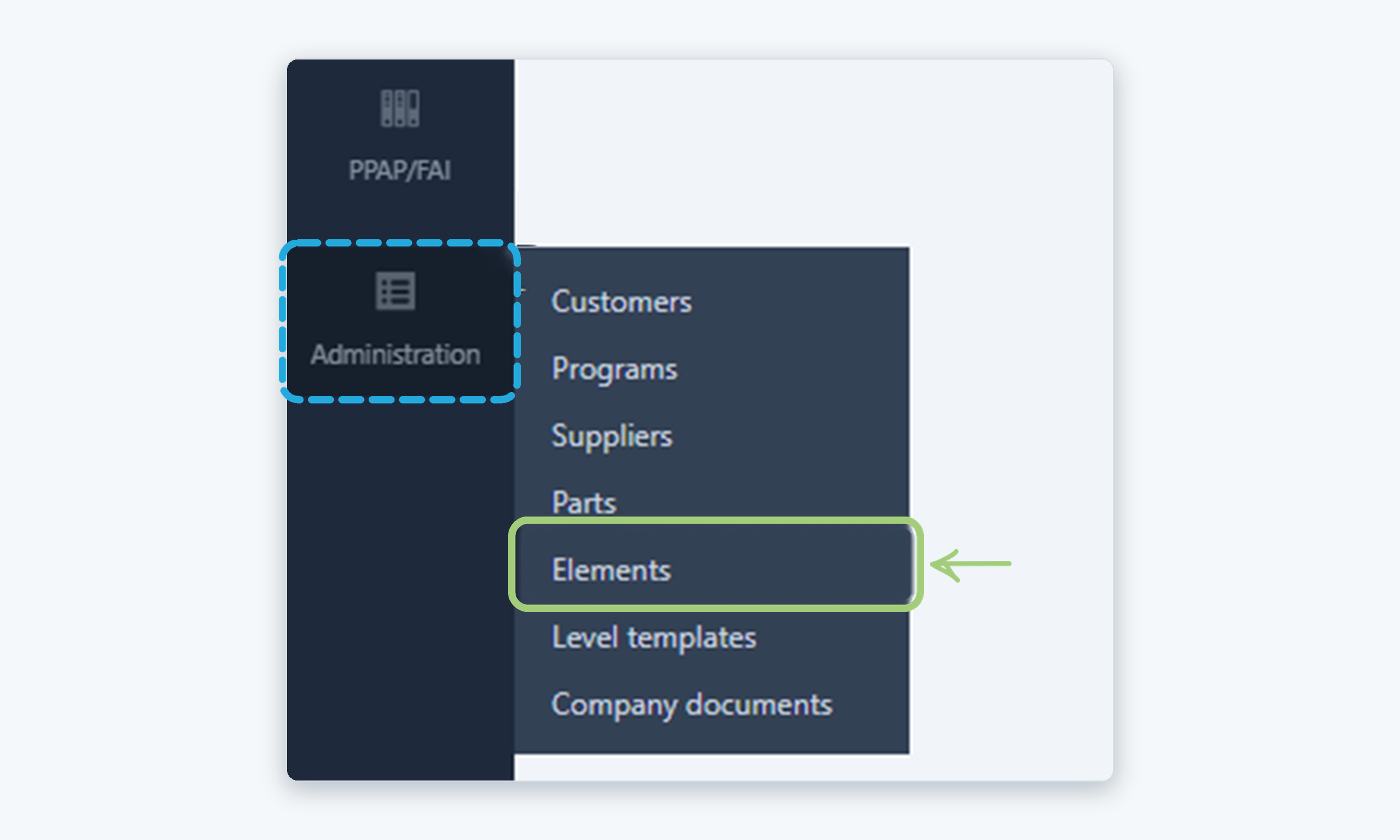
In the left menu, click Administration and select Elements.
2
Click Add element
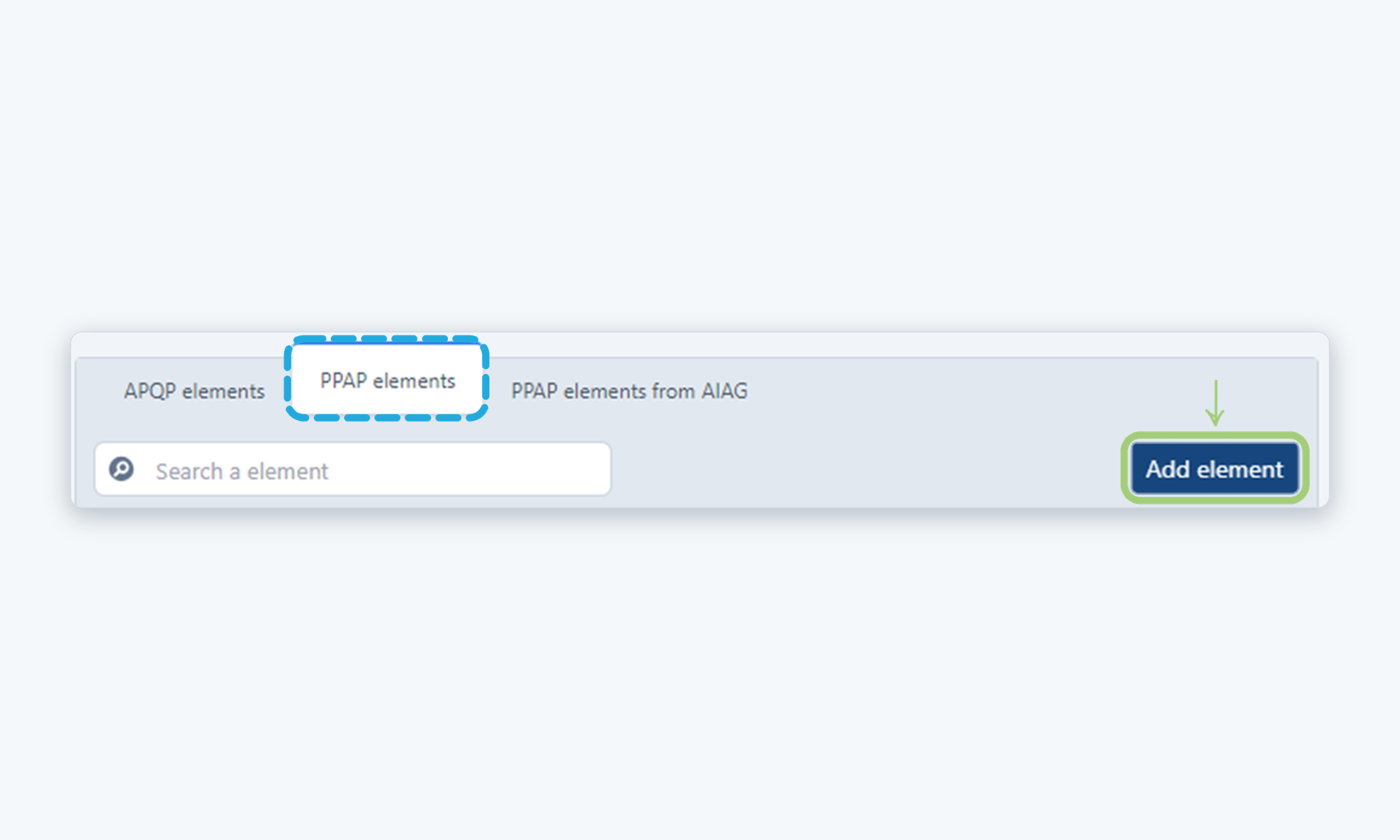
On the Custom elements page, open the PPAP elements tab and click Add element.
3
Fill in the fields
In the Add element window, enter the Name of the element. Then, in Instructions, write the text that users will see when they work on this element (up to 500 characters).
4
Save the element
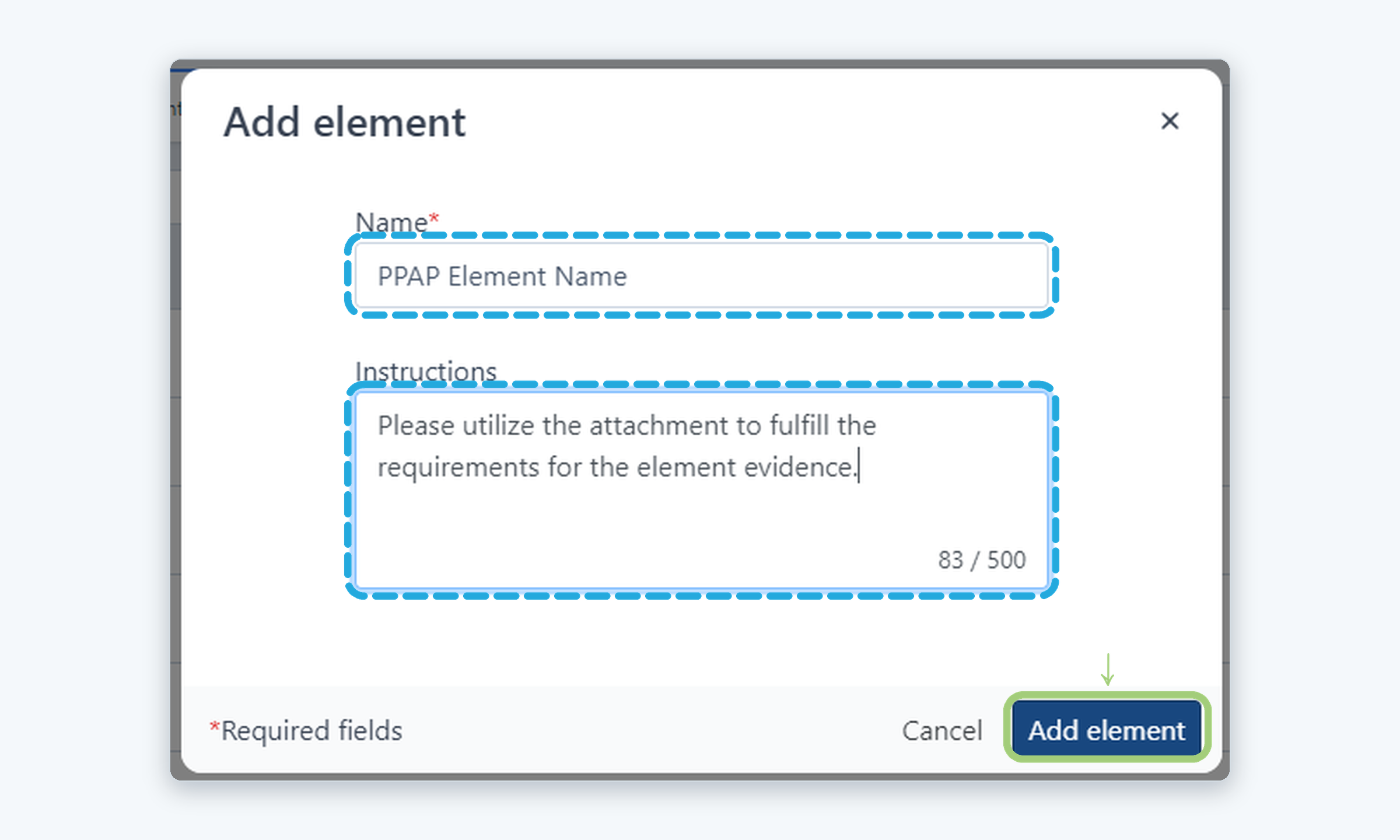
Click Add element to create it.
5
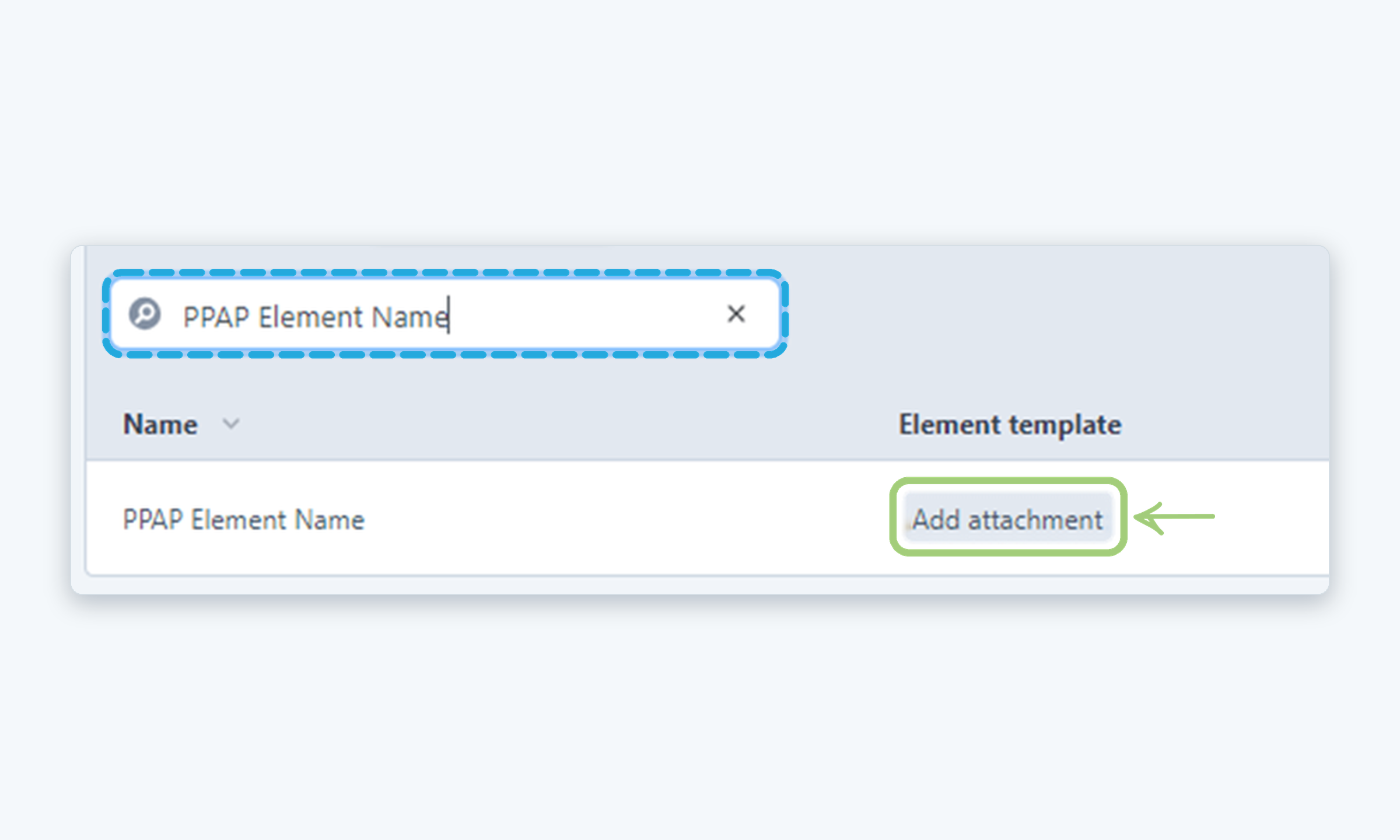
Click Add attachment
To include a template file with the instructions, search for the new element by name and click Add attachment in the Element template column.
6
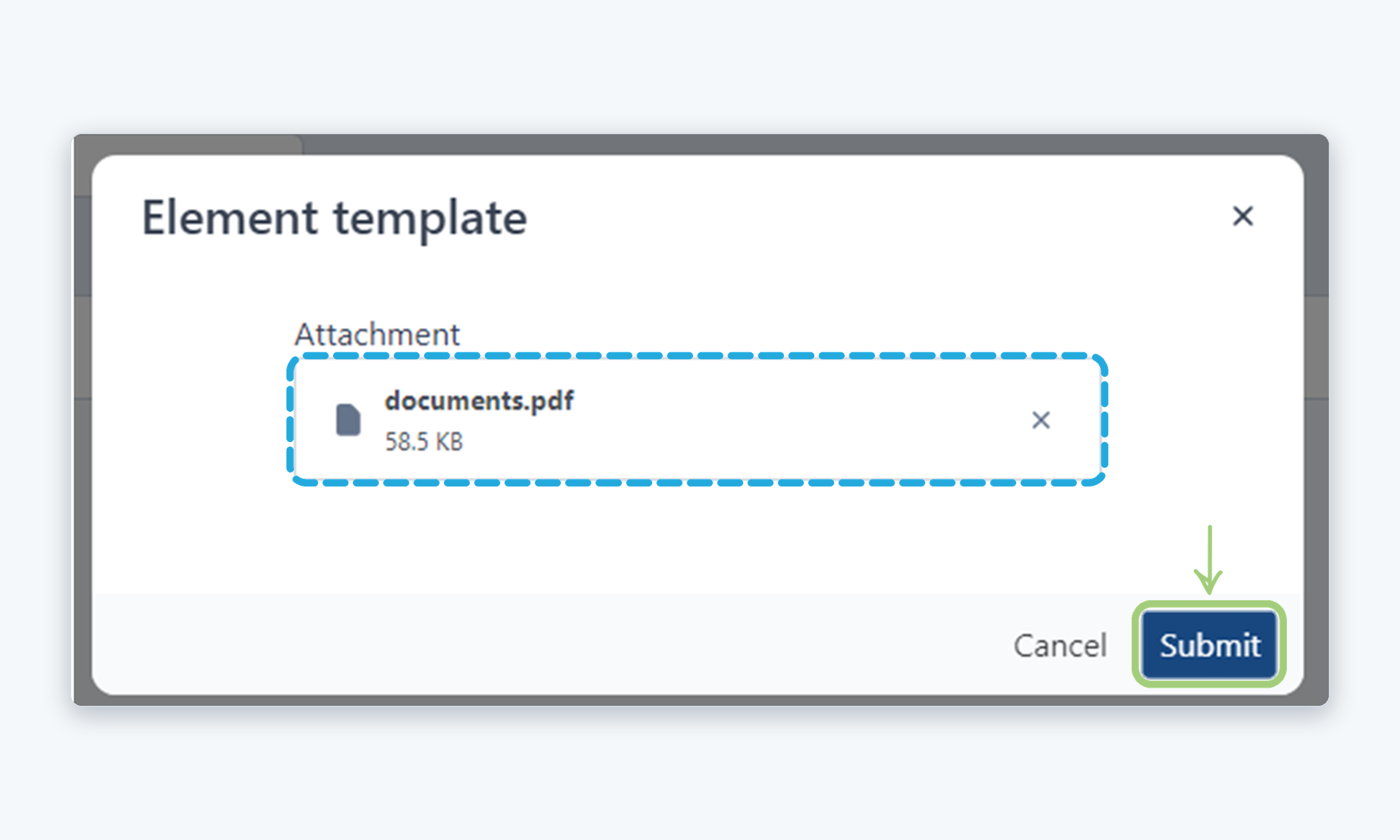
Attach the file
In the Element template window, add the file in Attachment (for example, documents.pdf) and click Submit.
7
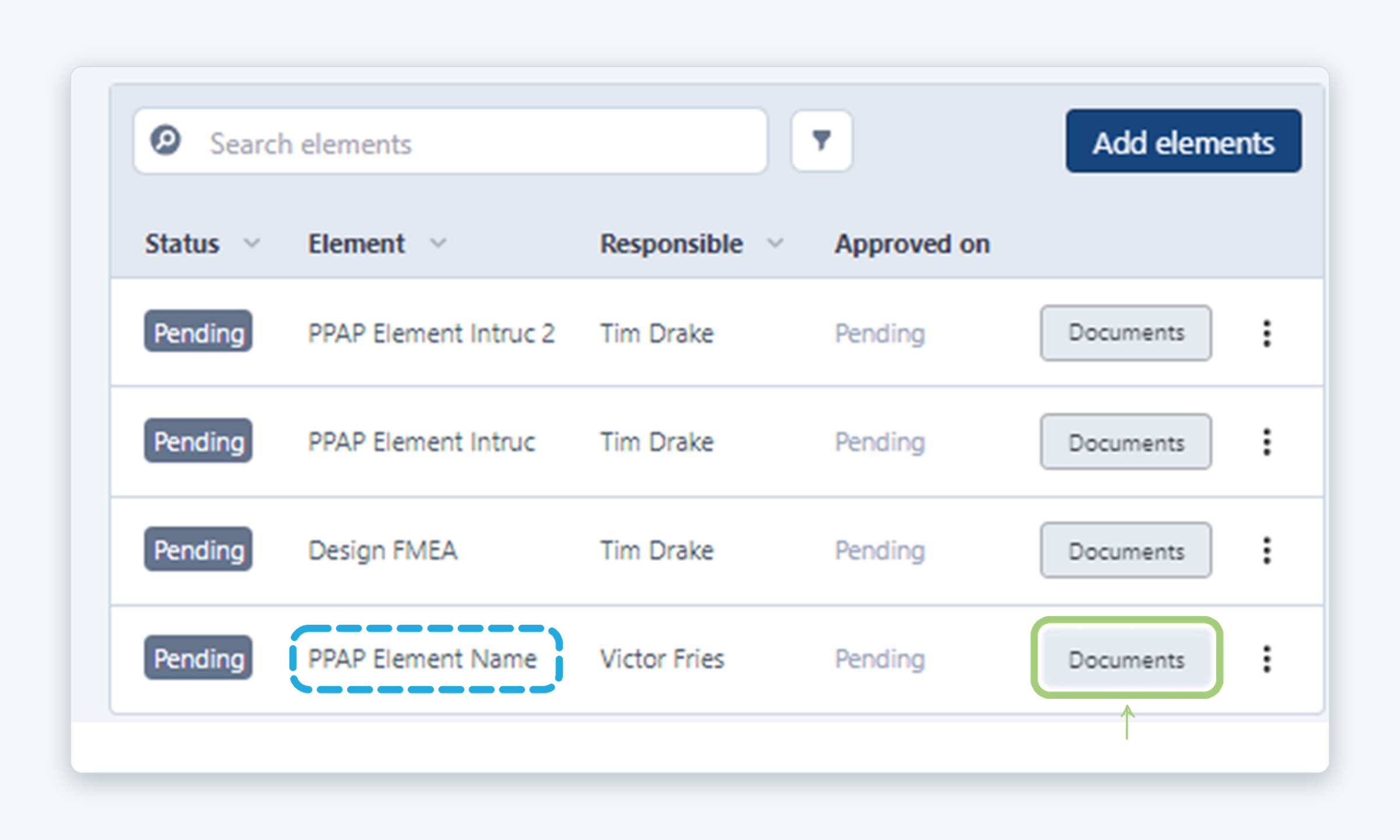
Open the element in a PPAP
To see how the element looks for users, open a PPAP that includes it and click Documents on the element’s row.
8
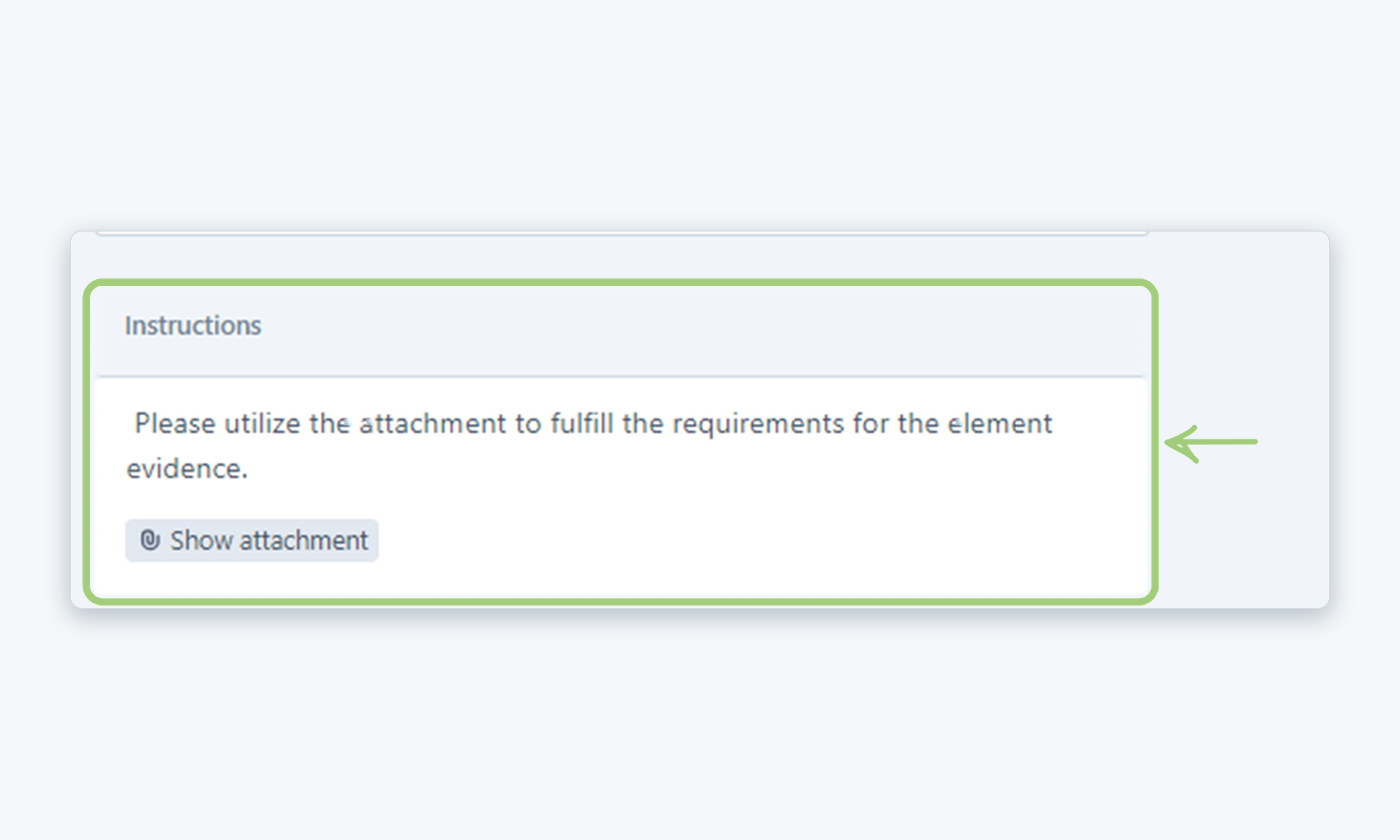
Check the instructions
On the element page, the Instructions section shows the text you wrote. If you added a template, click Show attachment to open the file.
Need more help?
If you have any questions or concerns, please contact Kiuey Support by submitting a ticket or through any of our support channels. Our team will be happy to assist you.