approve elements, approve PPAP, grant disposition, accept, reject, interim approved, disposition, review element, APQP
OVERVIEW
This guide explains how to review a submitted element and grant a disposition (accept, reject or approve it with an interim approval).
Who is this for? Internal users
IMPORTANT NOTES
- Fields marked with an asterisk (*) are required.
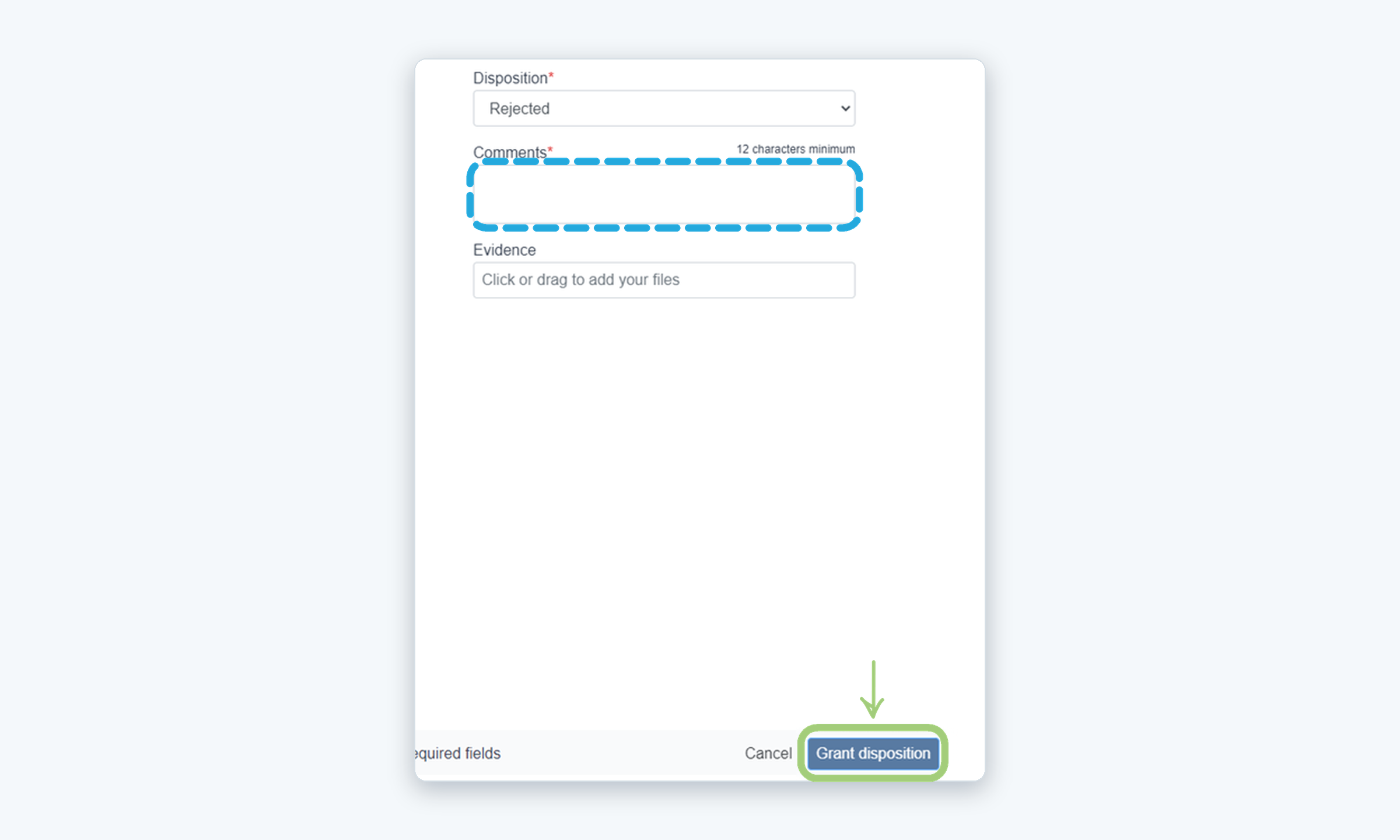
- When you select Rejected, the comment must have at least 12 characters.
- Evidence is optional; click the field or drag your files into it.
WHO CAN DO THIS
Approver: Can review the submitted element and grant a disposition.
Steps
1
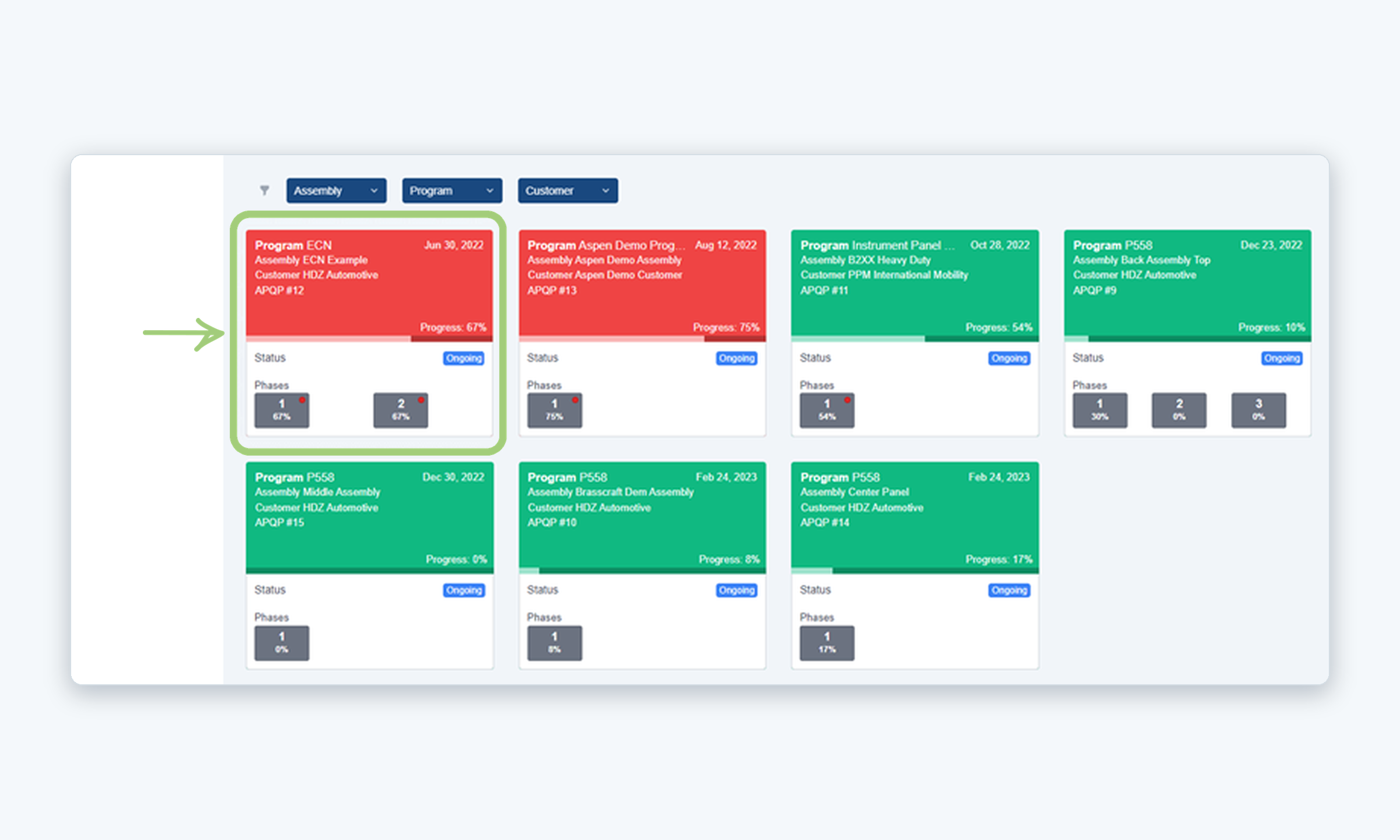
Open the APQP
On the Dashboard, open the APQP/MLA section and click the APQP card that contains the element you want to review (for example, APQP #12).
2
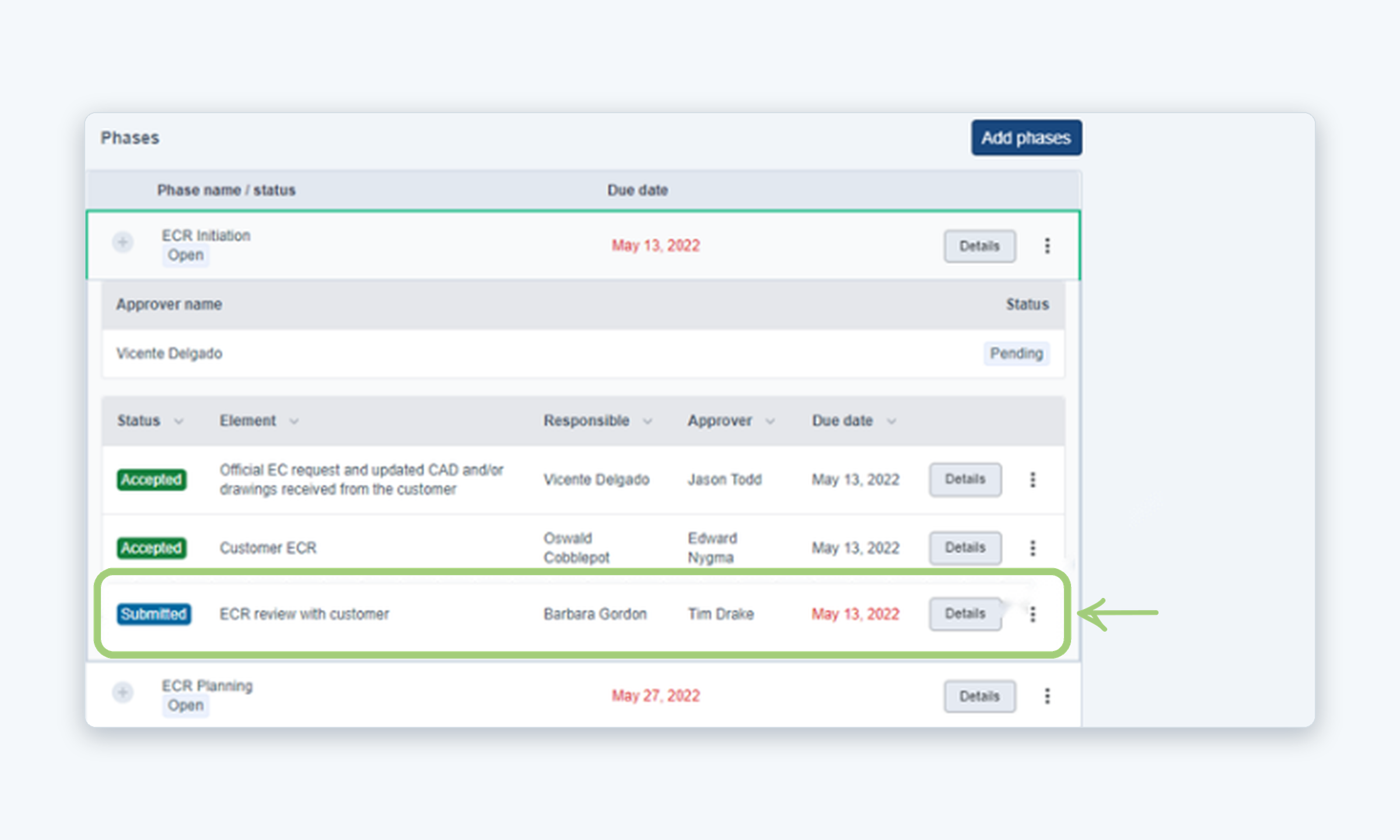
Click Details on the element
On the APQP page, expand the phase and find the element in Submitted status. Click Details on its row.
3
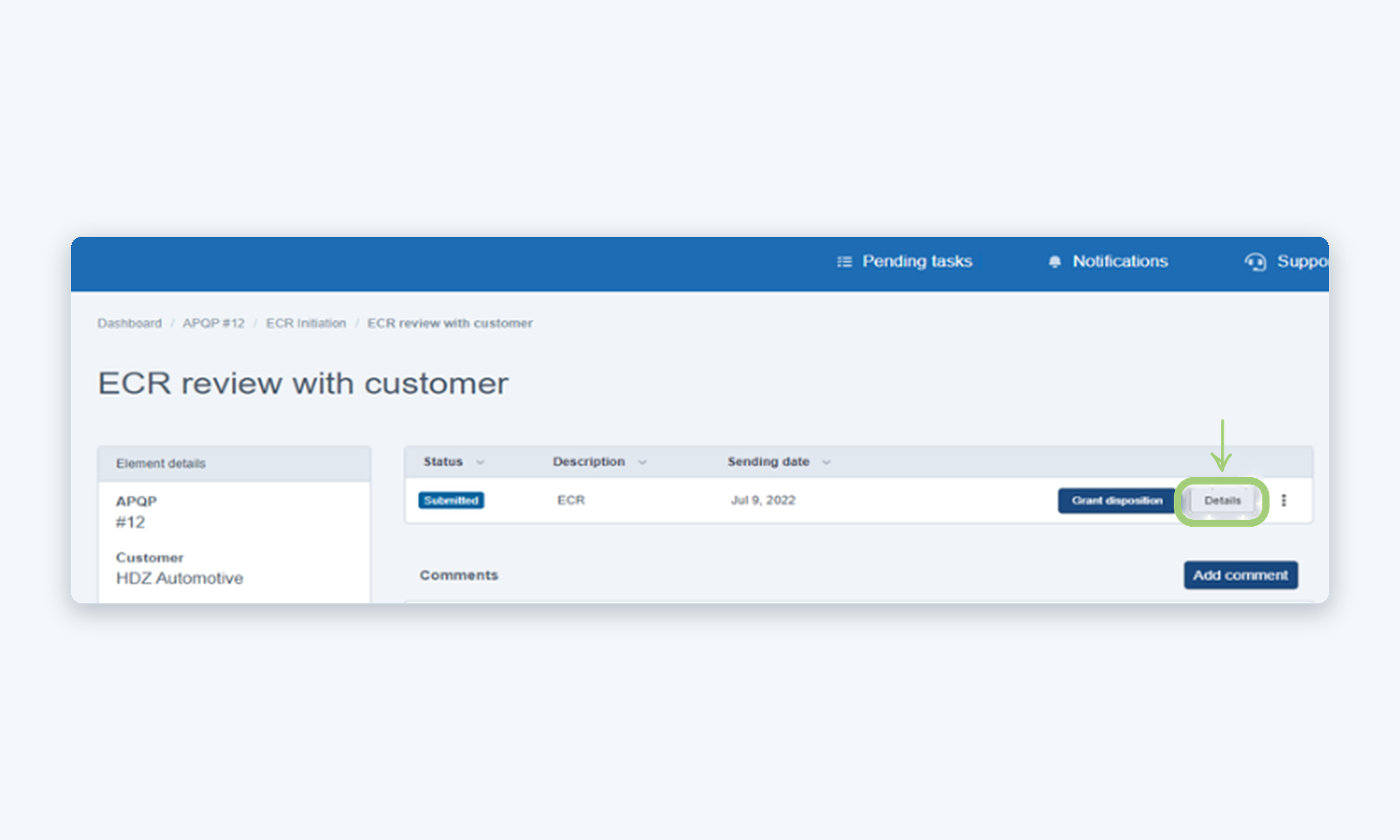
Click Details on the document
On the element page, click Details on the submitted document.
4
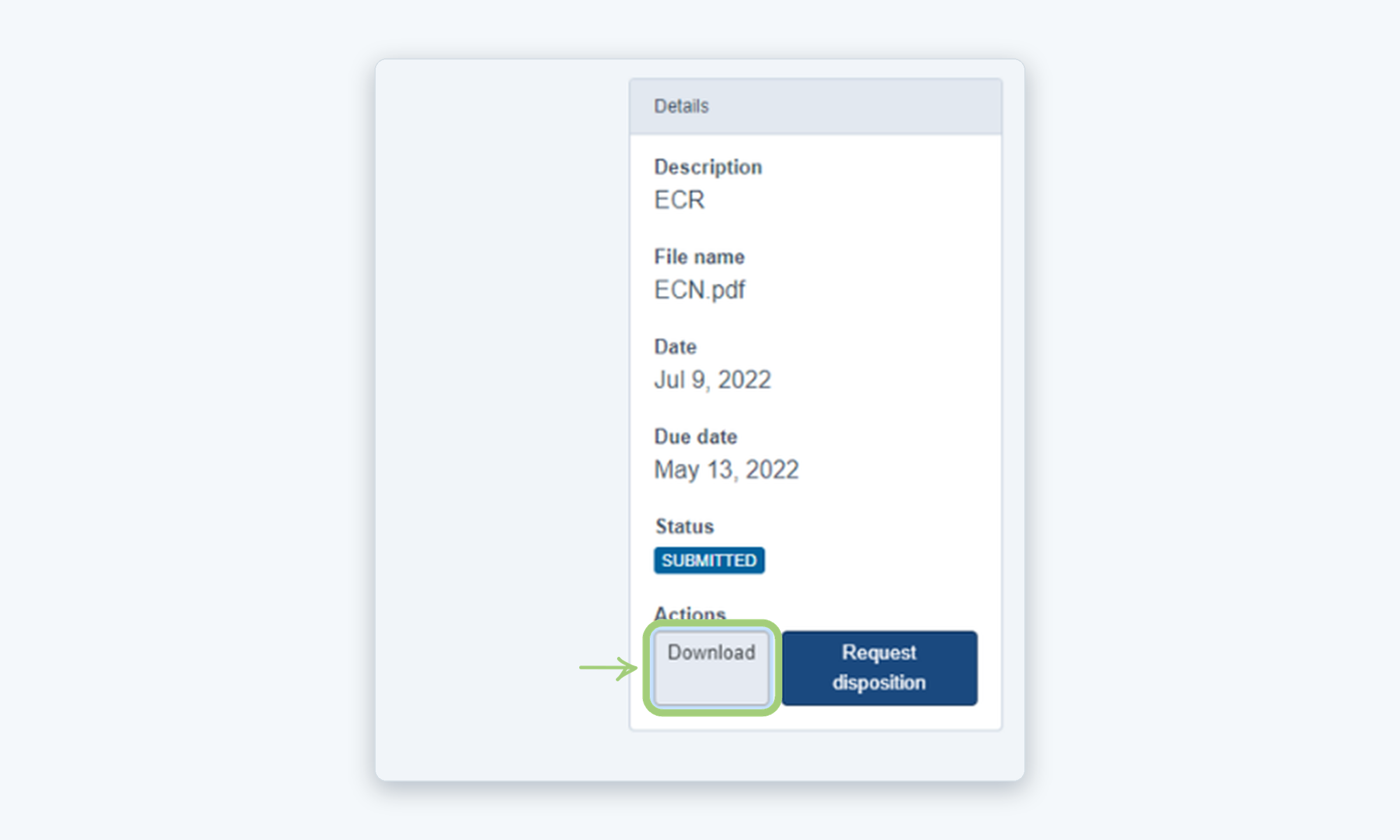
Review the document
On the document page, review the details of the submission. To open the file, click Download in the Actions section.
5
Check the downloaded file
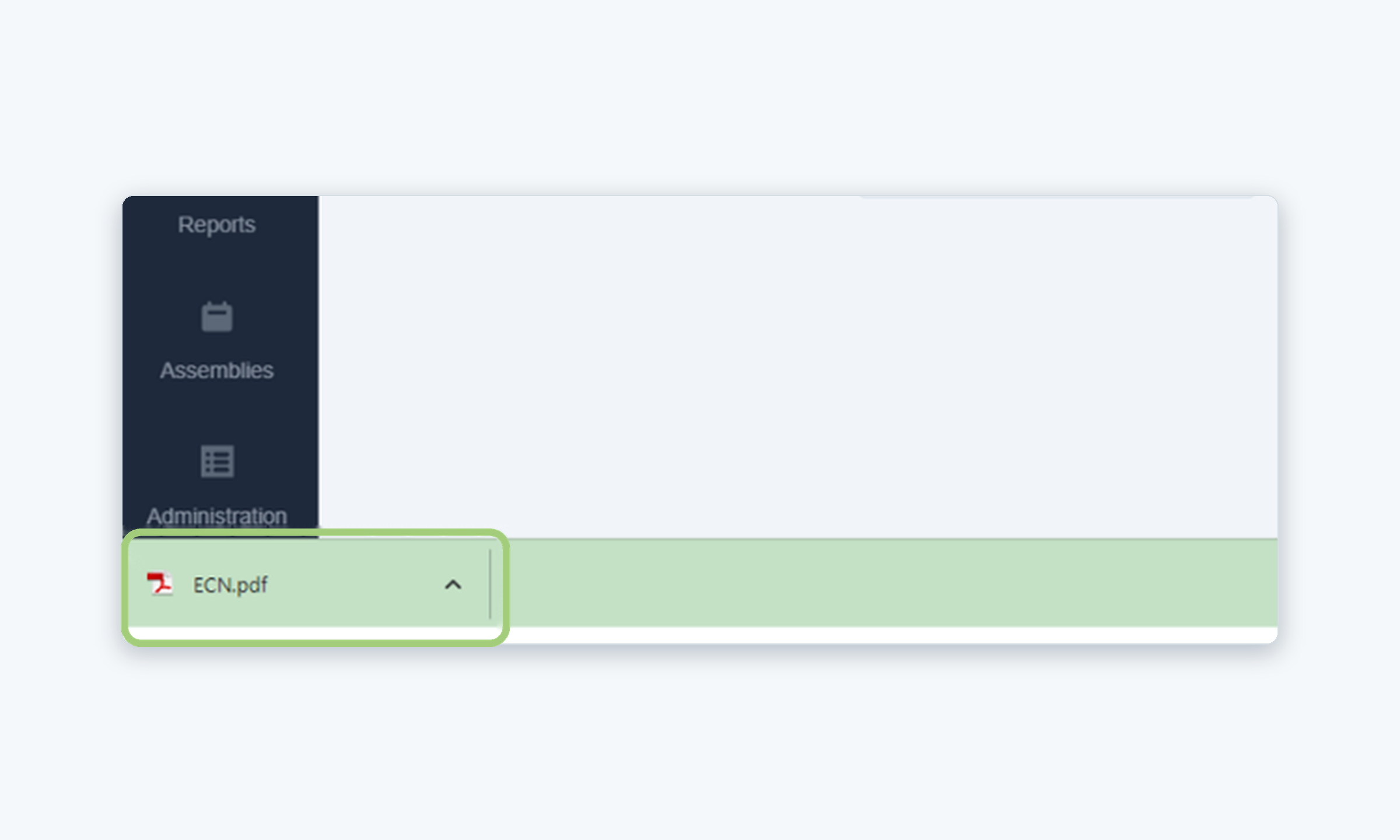
The document is downloaded to your computer. Open it to review it before giving your disposition.
6
Click Grant disposition
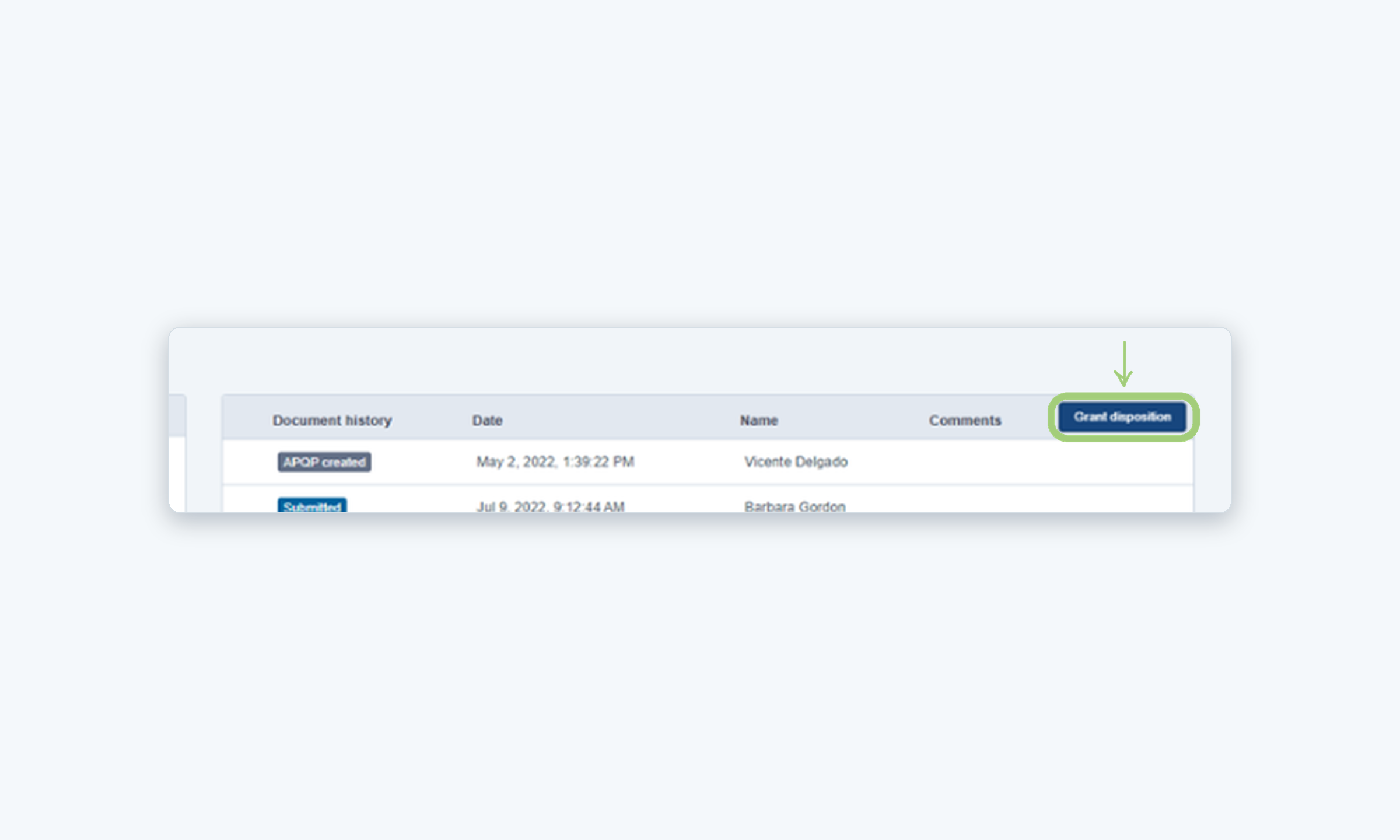
On the document page, click Grant disposition.
7
Select the disposition
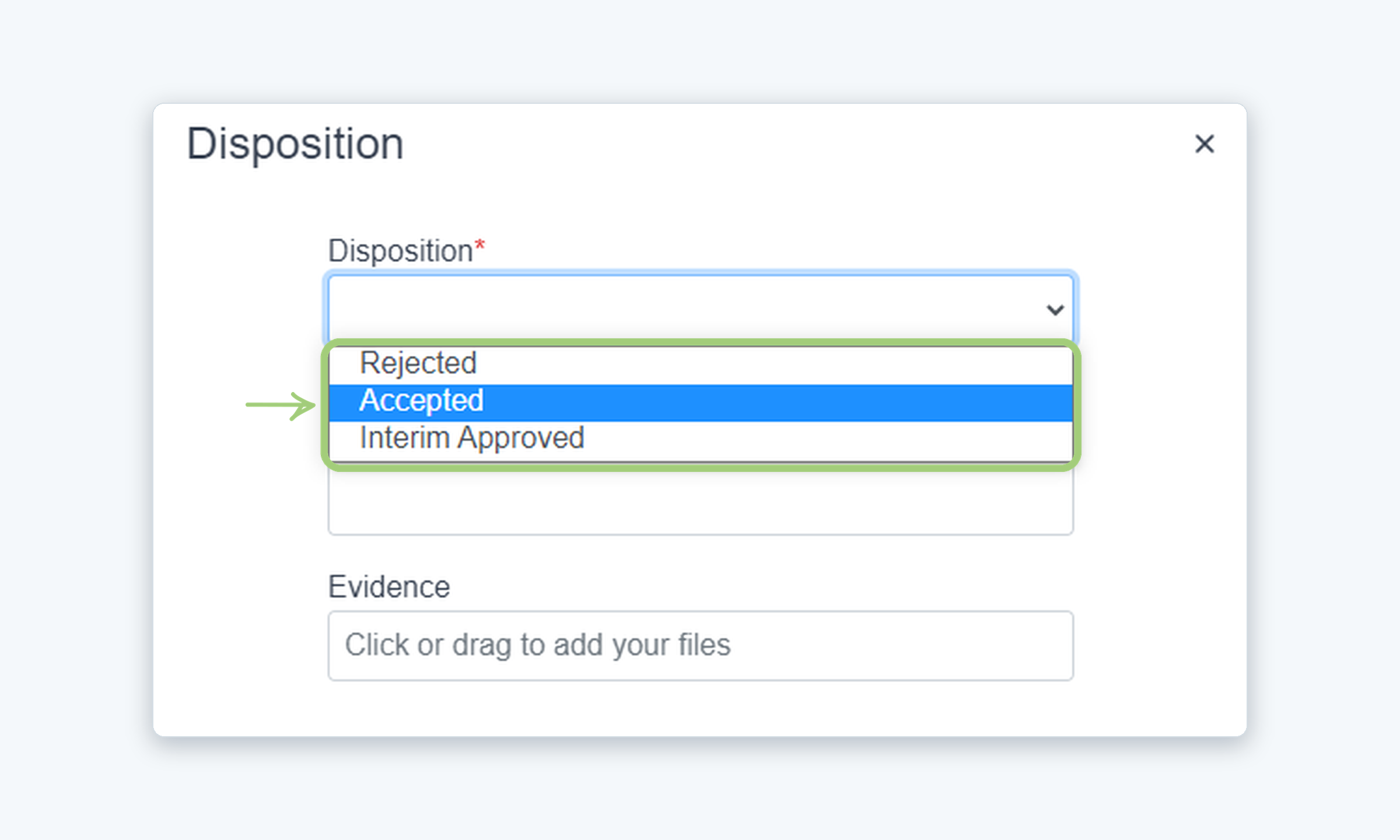
In the Disposition window, open the Disposition list and select one option: Rejected, Accepted or Interim Approved.
8
Accept the element
If you select Accepted, you can add a comment and evidence (both optional). Click Grant disposition to save.
9
Reject the element
If you select Rejected, Comments are required (12 characters minimum). Enter your comment, add evidence if needed and click Grant disposition.
10
Check the new status
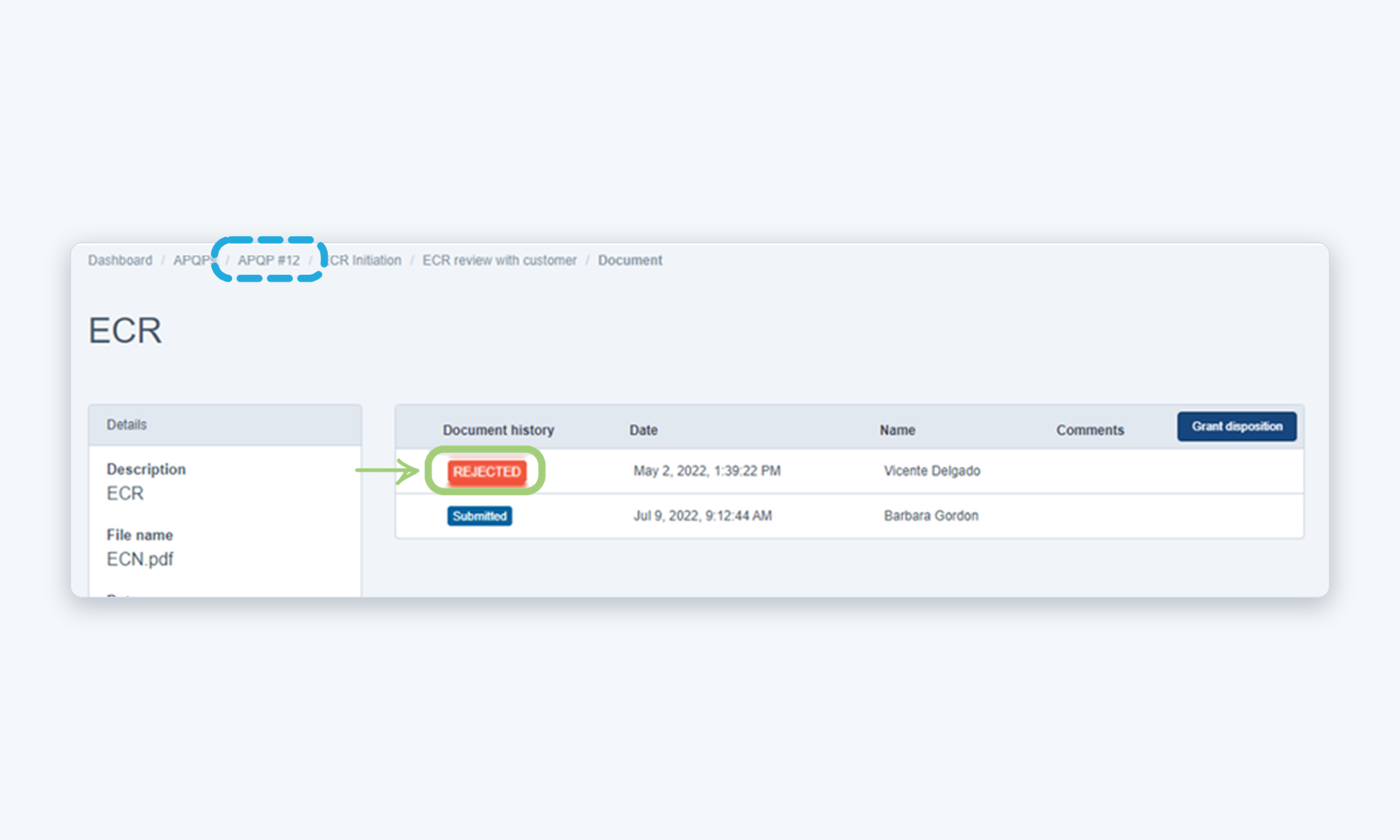
The document history shows the disposition you granted (for example, Rejected). To go back to the APQP, click APQP #12 in the breadcrumb at the top.
Need more help?
If you have any questions or concerns, please contact Kiuey Support by submitting a ticket or through any of our support channels. Our team will be happy to assist you.