[Parts] How to Create New Parts

Created by Kiuey Support, Modified on Wed, Nov 18 at 1:24 PM by Kiuey Support Representative

create part, new part, add part, parts, administration, part number, inspection instruction

OVERVIEW

This guide explains how to create a new part from the Parts page so it can be used in assemblies and PPAPs.

Who is this for?  Internal users

IMPORTANT NOTES

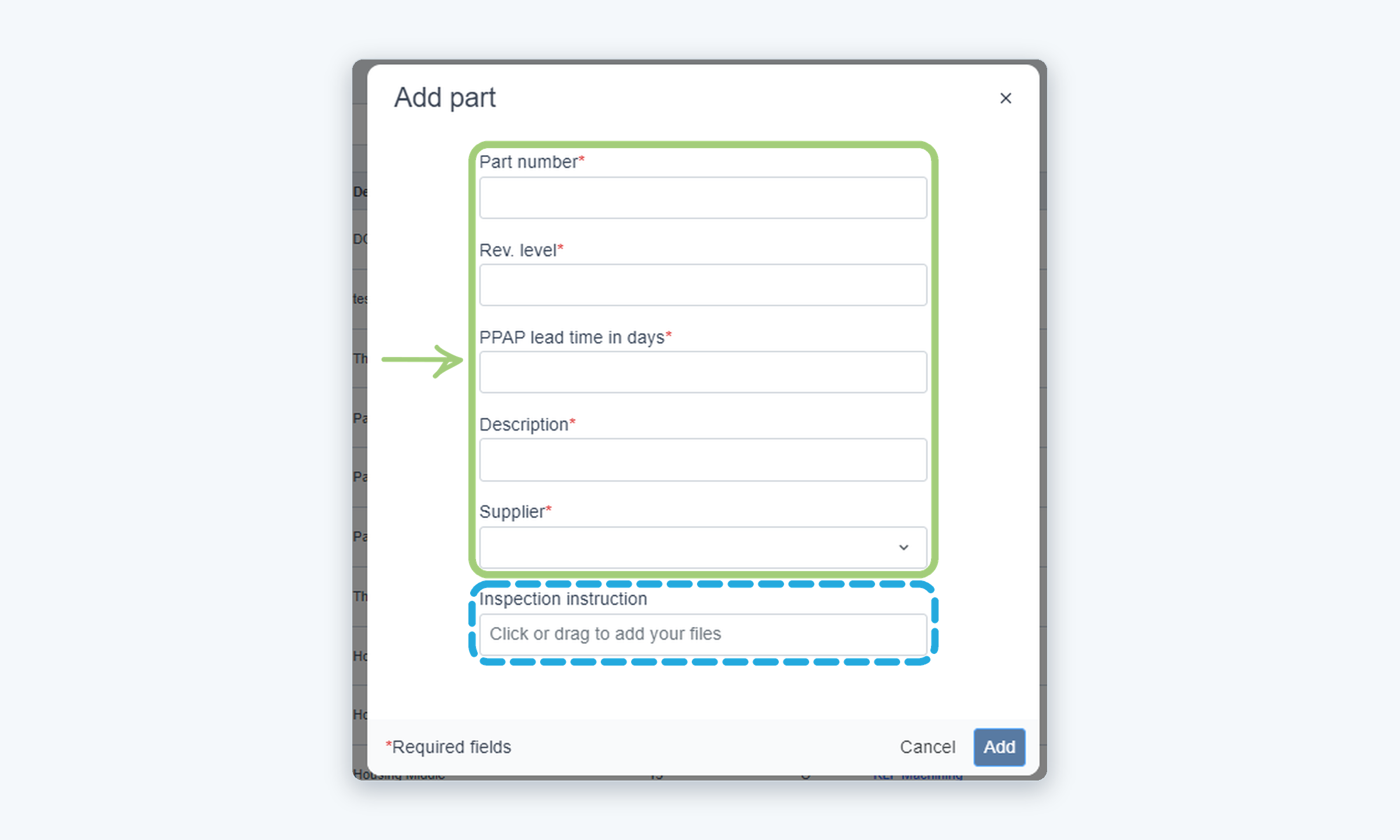
  • Fields marked with an asterisk (*) are required.
  • Inspection instruction is optional.

WHO CAN DO THIS

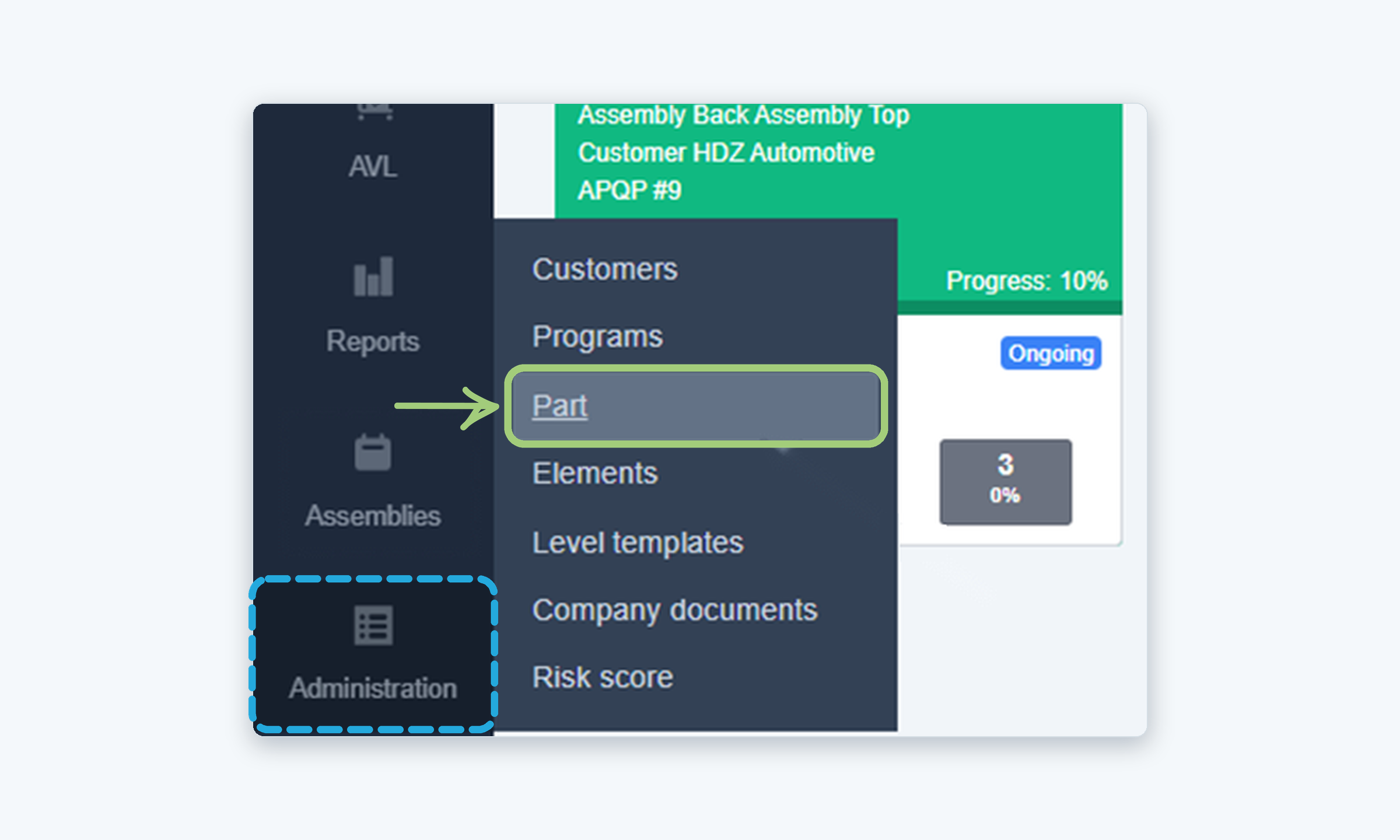
Internal user: Can create parts from Administration > Part.

Steps
1

Open the Parts list

In the left menu, hover over Administration and click Part.

2

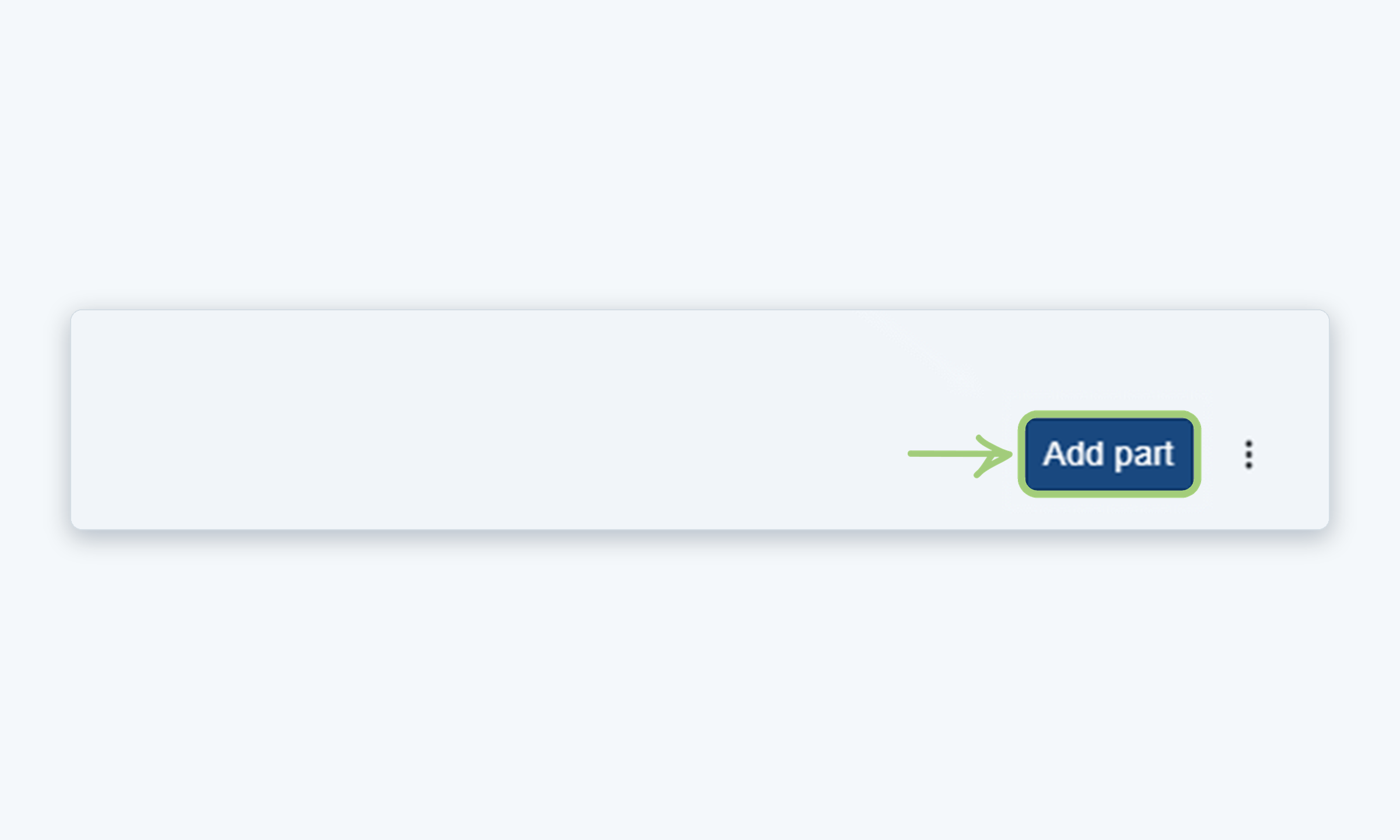
Click Add part

On the Parts page, click Add part.

3

Enter the part details

In the Add part window, complete the Part number, Rev. level, PPAP lead time in days, Description and Supplier fields. Optionally, add the Inspection instruction by clicking the field or dragging your files into it.

4

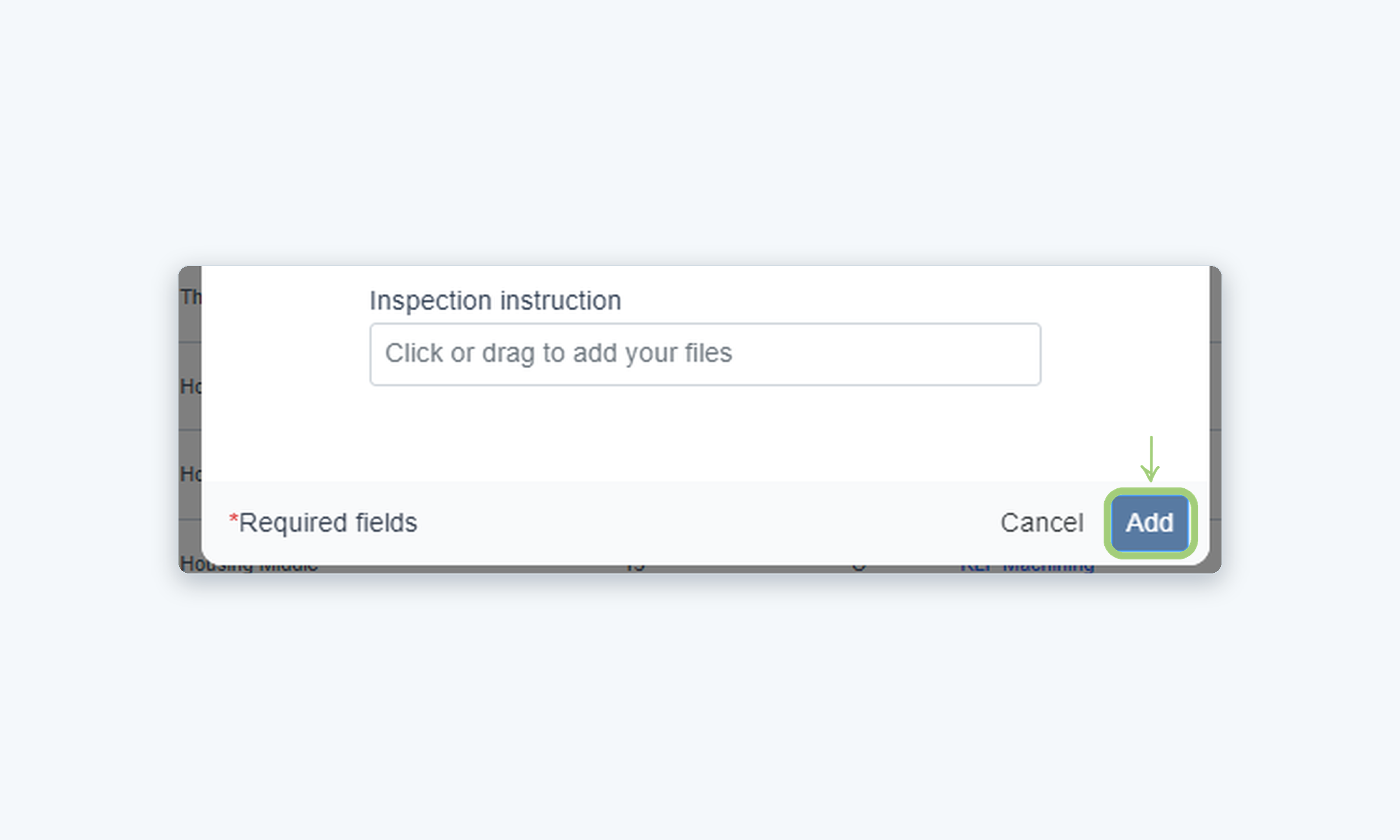
Click Add

Click Add to create the part. It will appear in the Parts list.

Need more help?

If you have any questions or concerns, please contact Kiuey Support by submitting a ticket or through any of our support channels. Our team will be happy to assist you.

Was this article helpful?

That’s Great!

Thank you for your feedback

Sorry! We couldn't be helpful

Thank you for your feedback

Let us know how can we improve this article!

Select at least one of the reasons

Feedback sent

We appreciate your effort and will try to fix the article