add part revision, new revision level, add existing part to assembly, add part to assembly, part revision, parts, assemblies
OVERVIEW
This guide explains how to create a new revision level for an existing part and add that part to an assembly.
Who is this for? Internal users
IMPORTANT NOTES
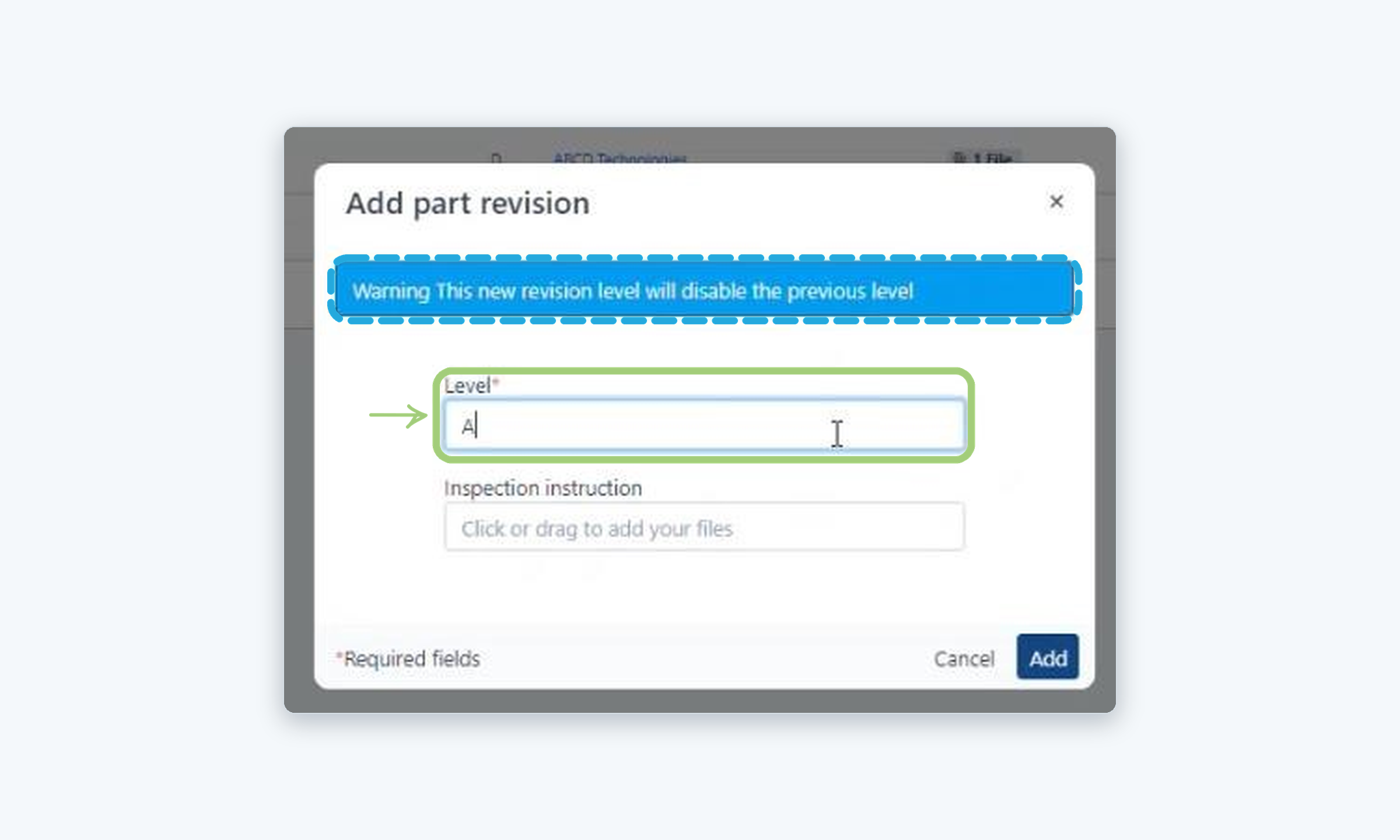
- The new revision level disables the previous level of the part.
- Fields marked with an asterisk (*) are required.
- Inspection instruction is optional.
WHO CAN DO THIS
Internal user: Can add part revisions from Administration > Parts and add parts to an assembly.
Steps
1
Open the Parts list
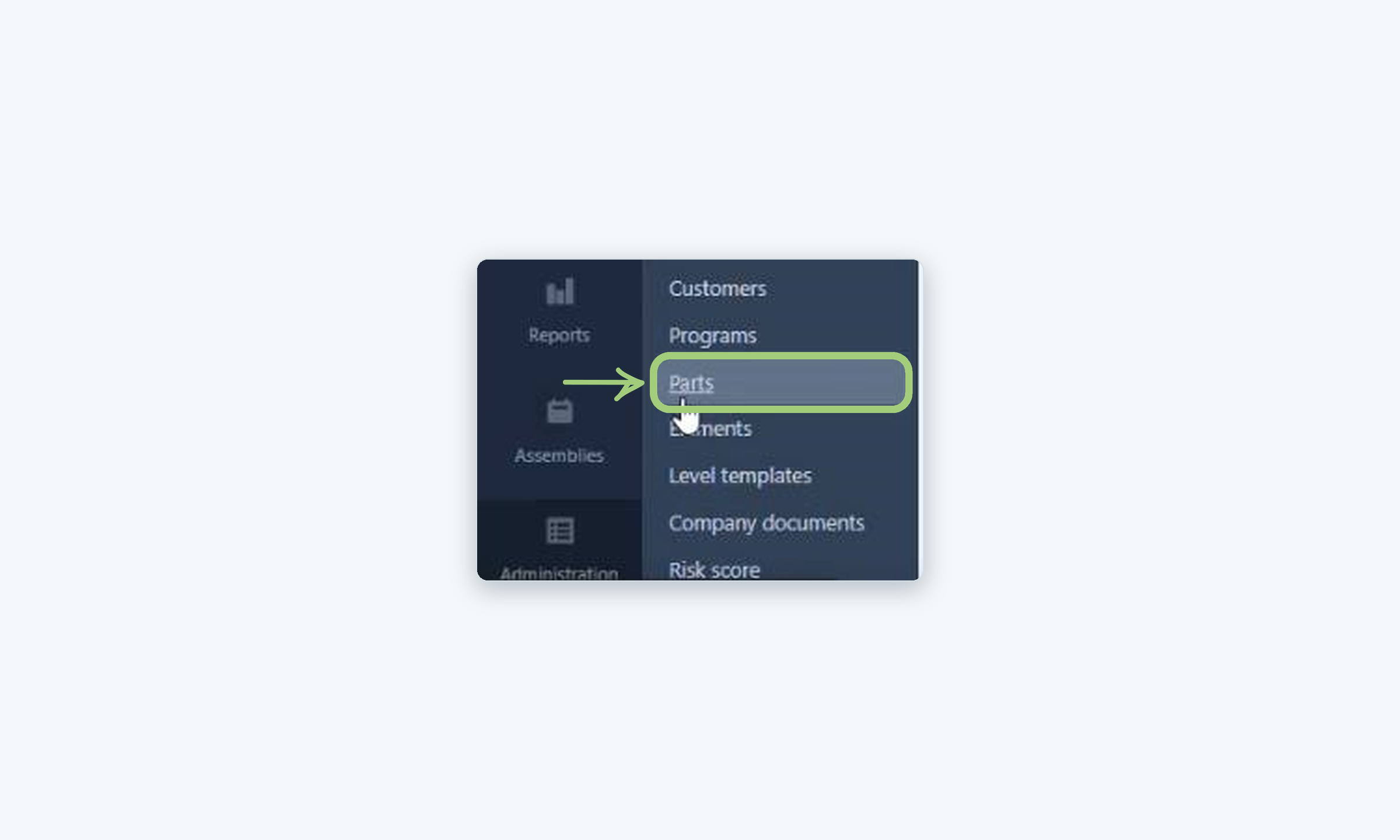
In the left menu, hover over Administration and click Parts.
2
Search for the part
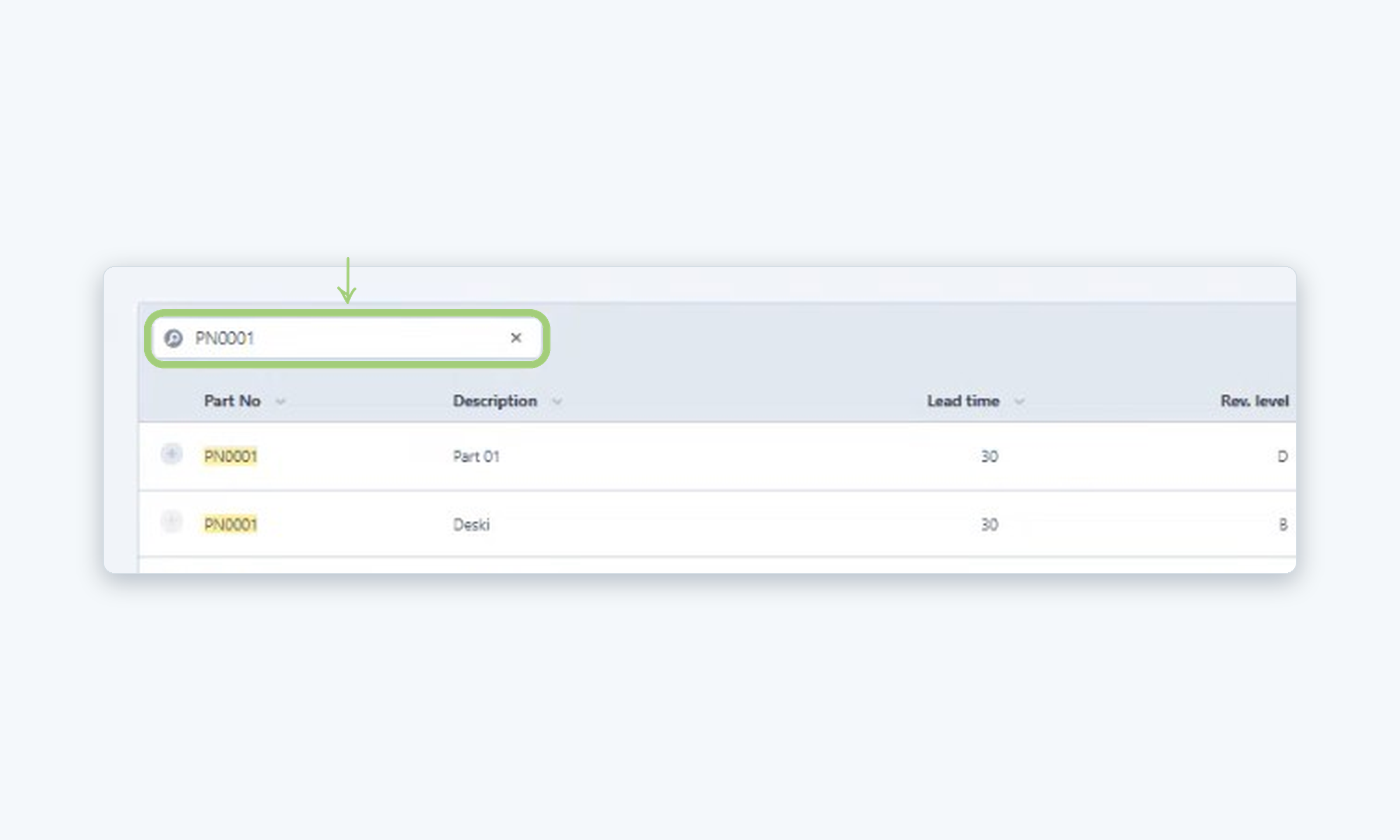
Use the search box to find the part by its part number (for example, PN0001).
3
Select Add part revision
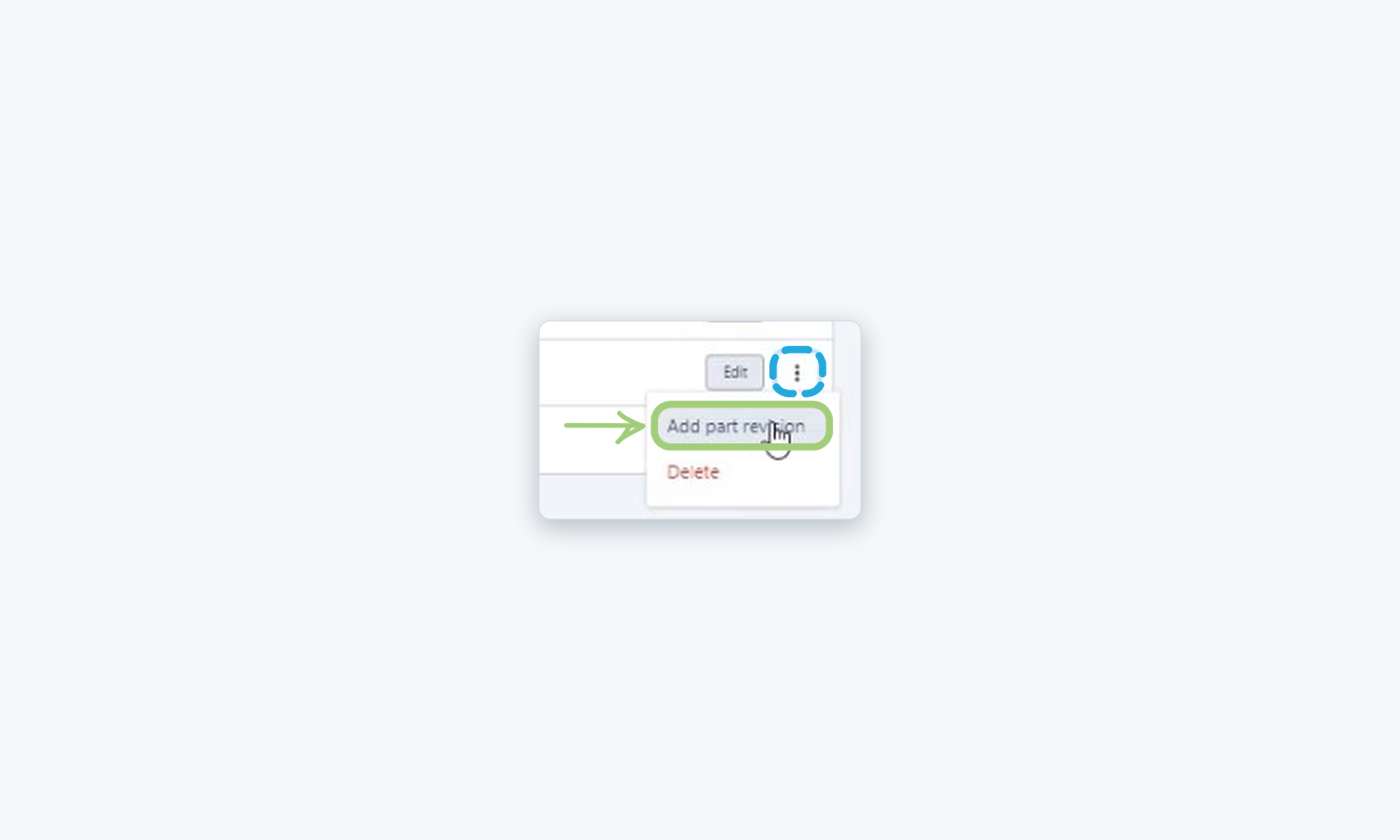
Click the three dots (⋮) at the end of the row of the part and select Add part revision. The menu also includes Delete.
4
Enter the new revision level
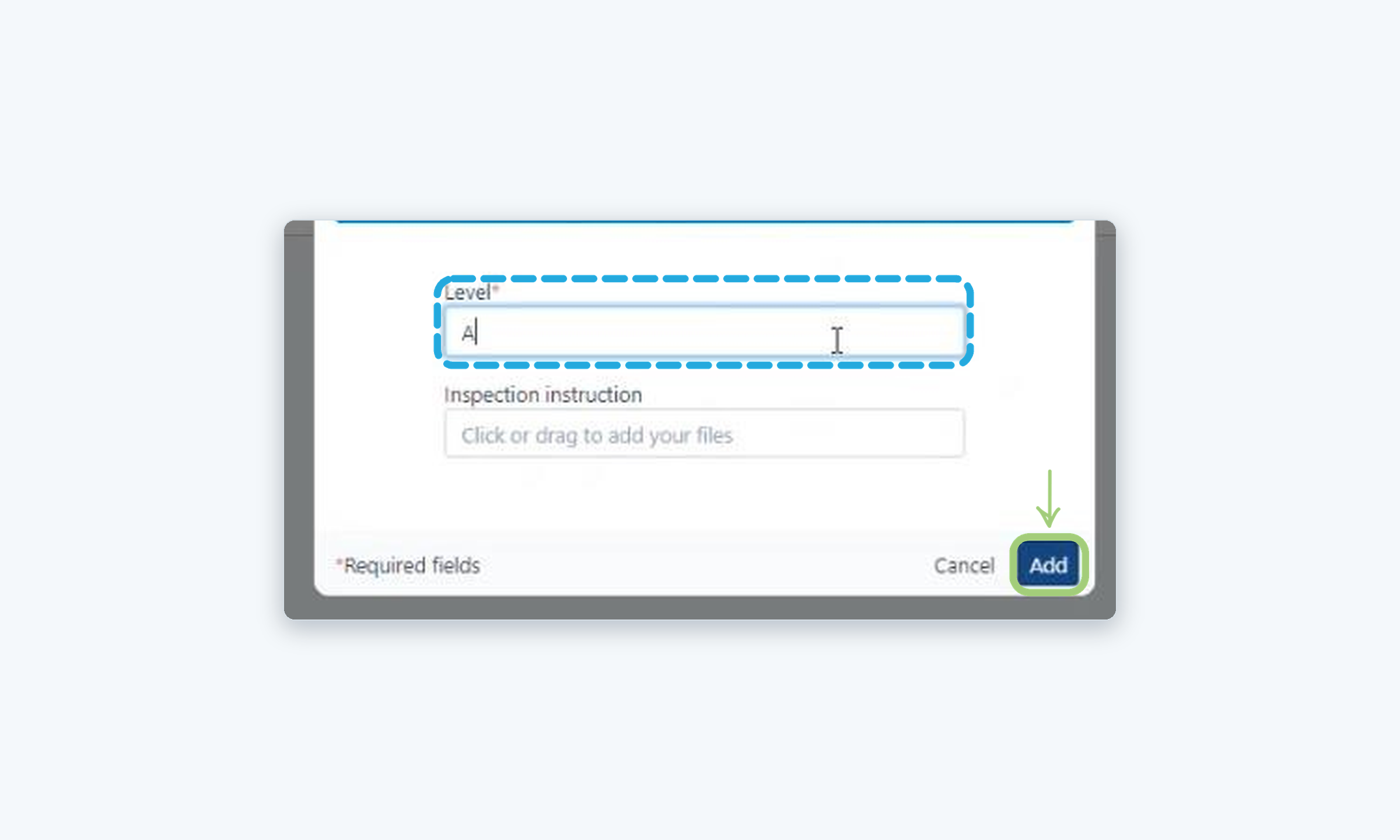
In the Add part revision window, enter the new Level. Optionally, add the Inspection instruction by clicking the field or dragging your files into it. Note the warning: the new revision level will disable the previous level.
5
Click Add
Click Add to create the new revision level.
6
Check the revision levels (optional)
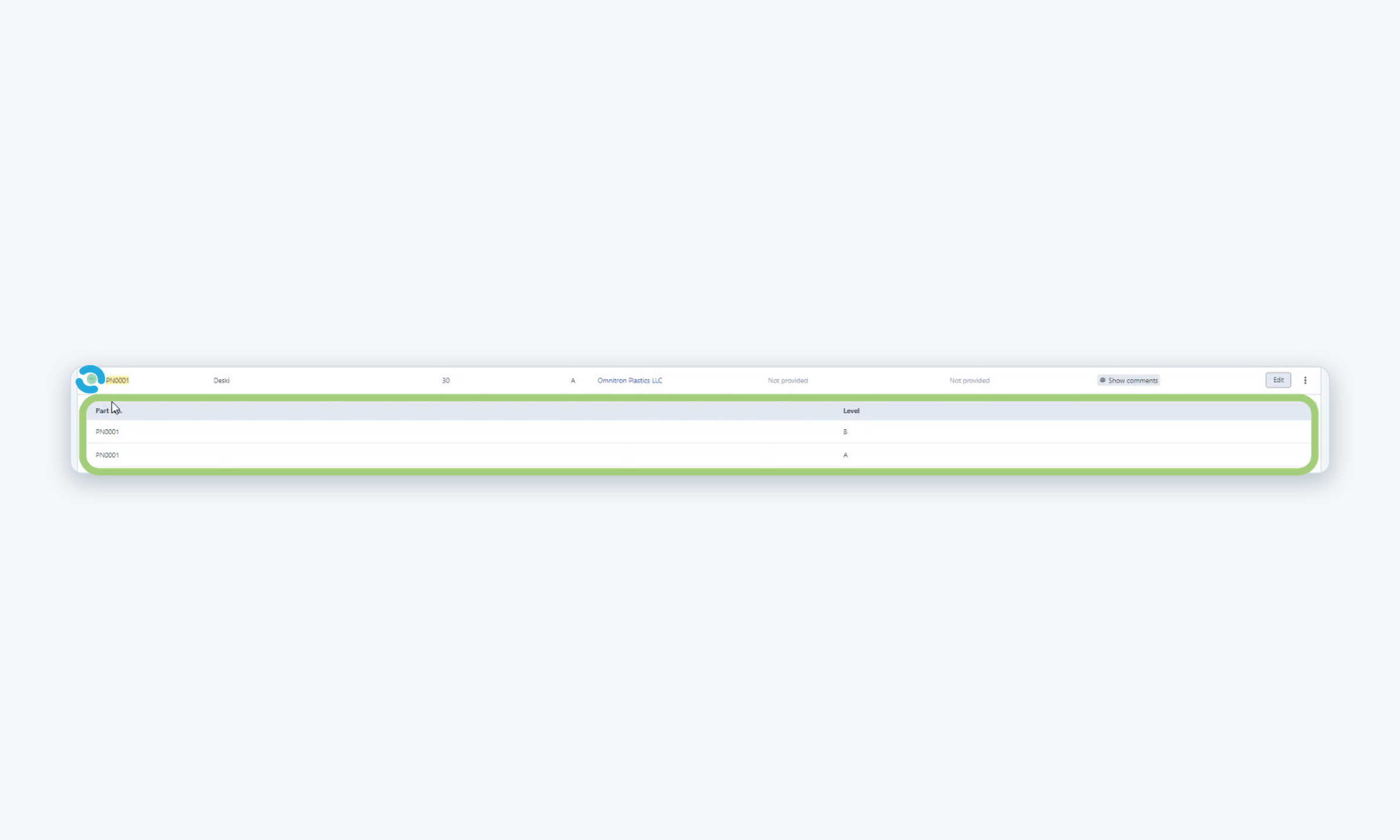
Click the icon at the beginning of the part row to expand it. The new level appears in the list of revision levels of the part.
7
Go to the assembly
In the left menu, click Assemblies, find the assembly where you want to add the part and click Details on its row.
8
Click Add part to assembly
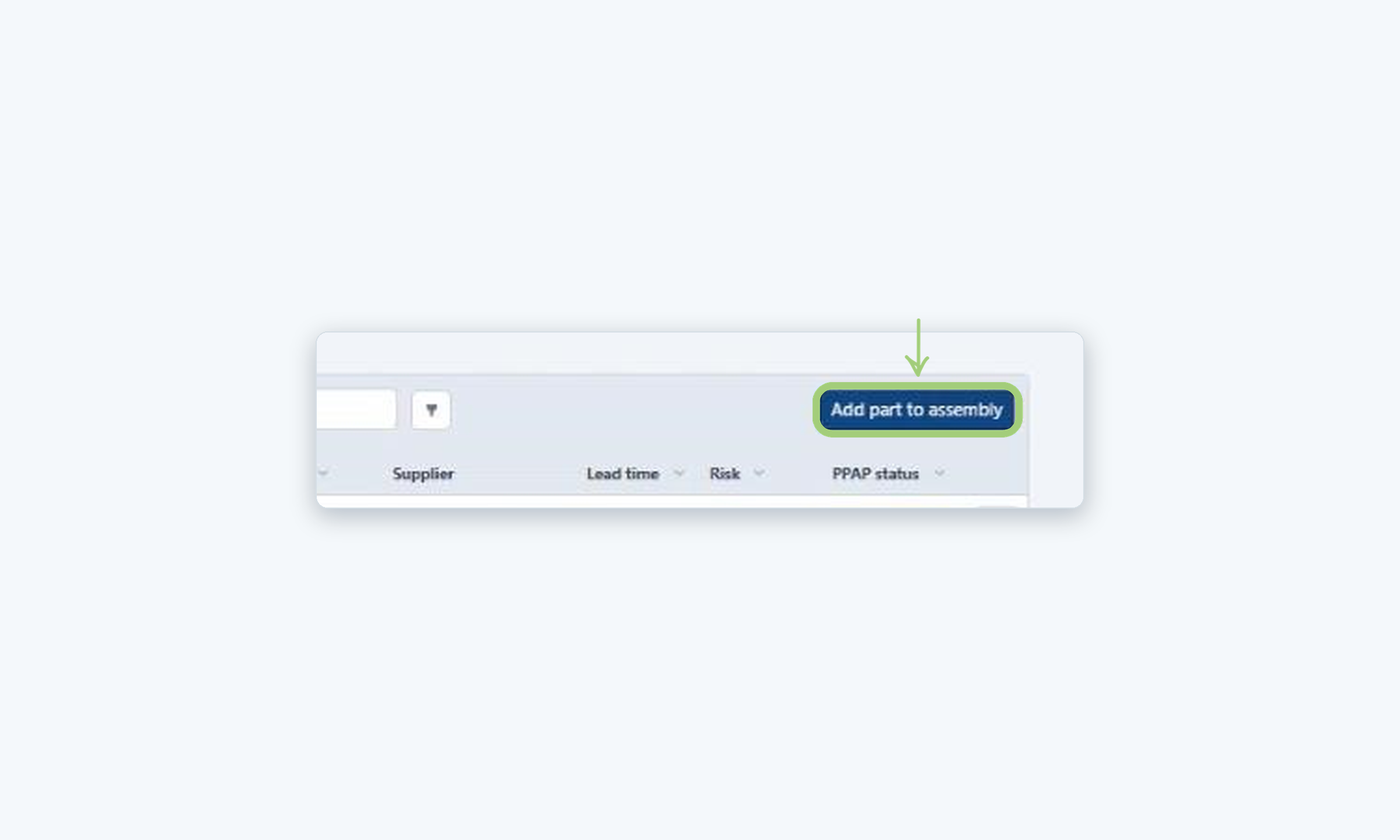
On the assembly page, in the Parts section, click Add part to assembly.
9
Select the part with the new revision level
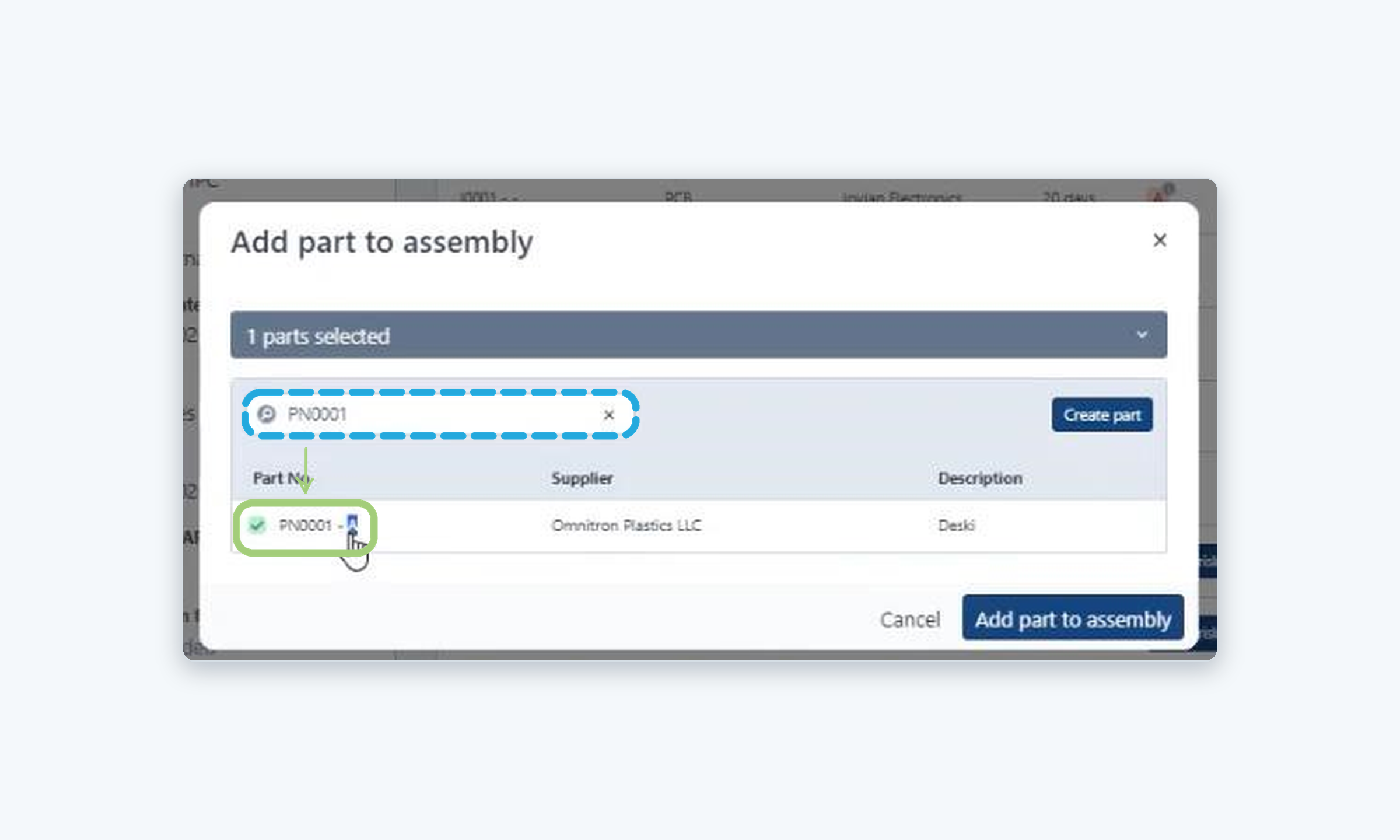
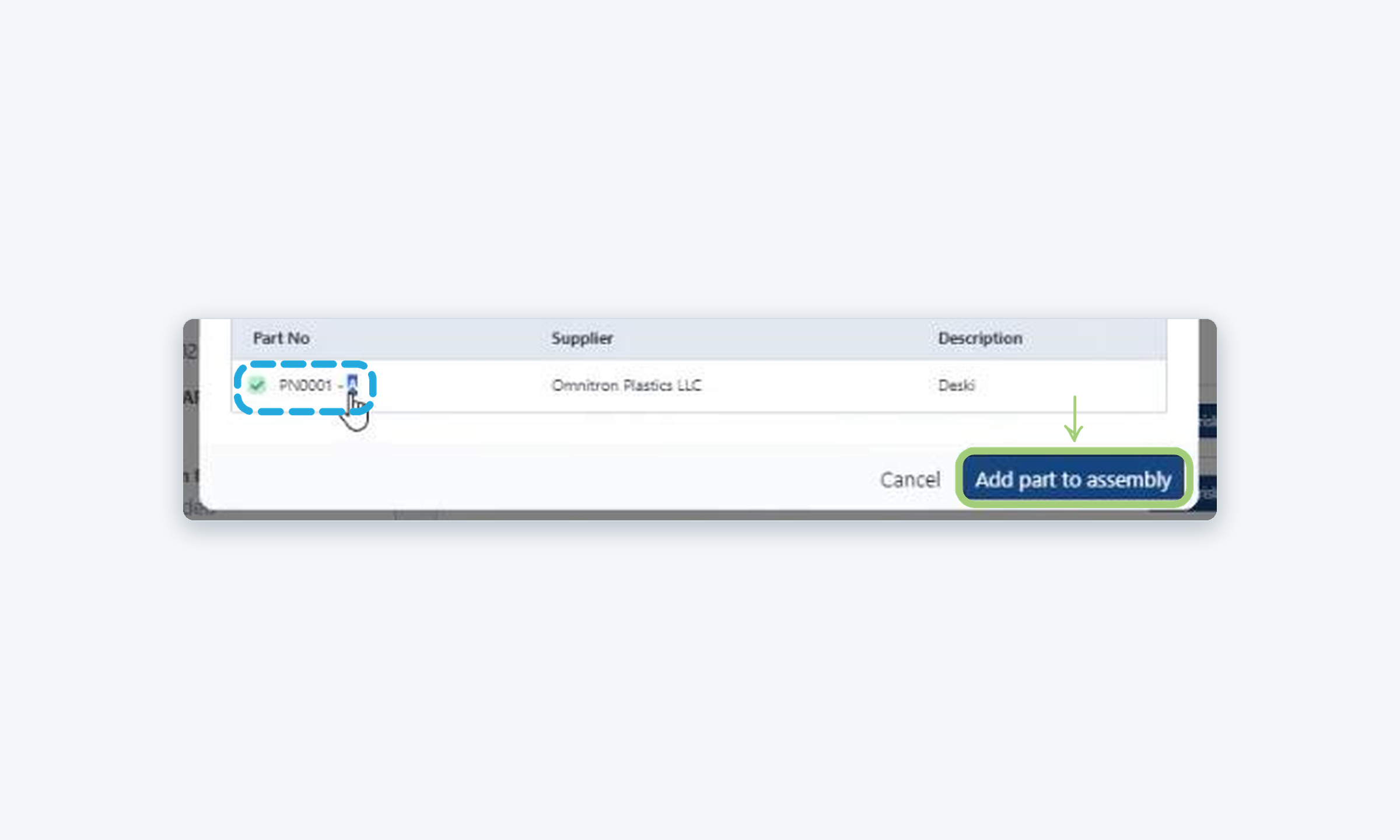
In the Add part to assembly window, search for the part number and select the part with the new revision level. The bar at the top shows how many parts are selected.
10
Click Add part to assembly
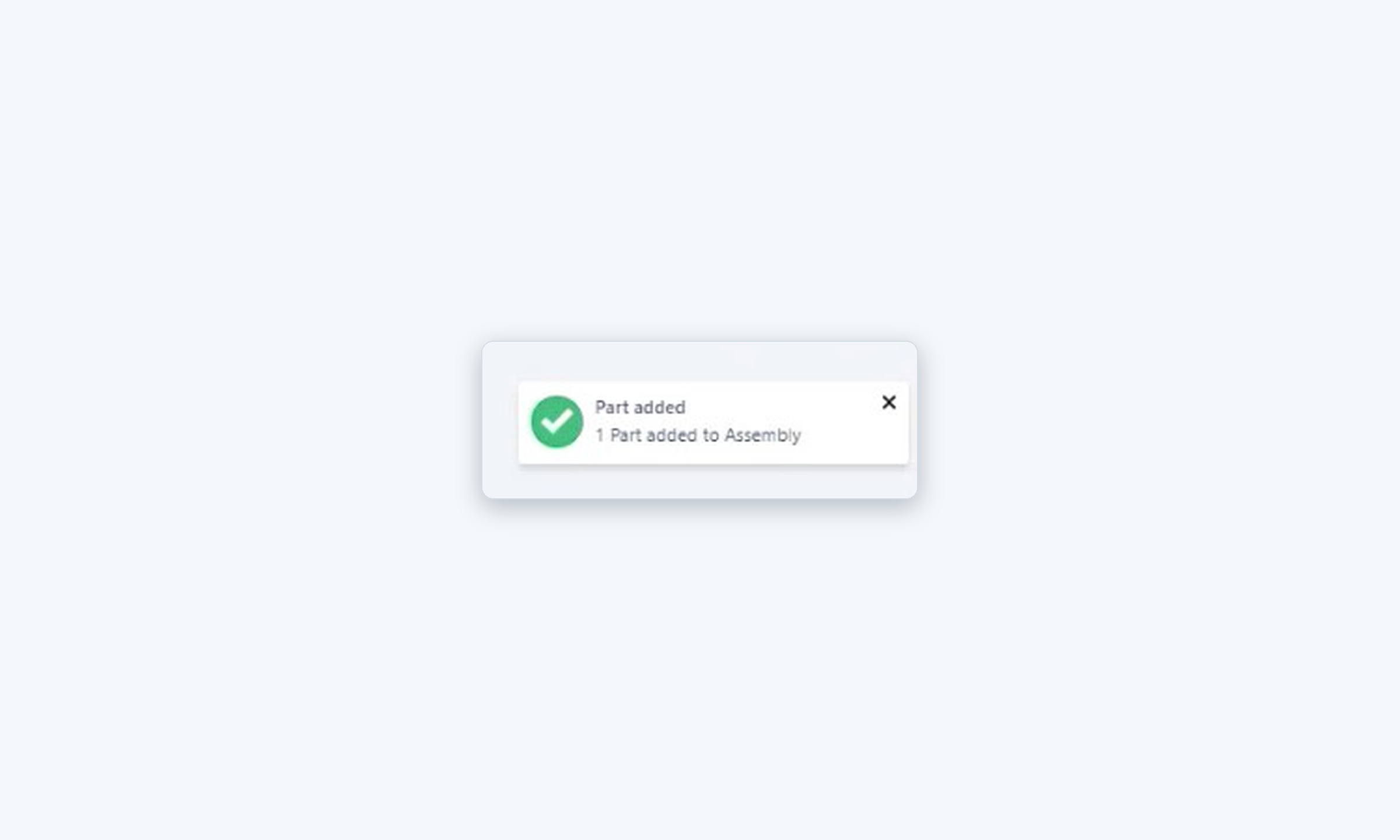
Click Add part to assembly. A message confirms that the part was added to the assembly.
Need more help?
If you have any questions or concerns, please contact Kiuey Support by submitting a ticket or through any of our support channels. Our team will be happy to assist you.