[Elements] How to Submit a Deliverable (PPAP Element)

Created by Kiuey Support, Modified on Thu, Nov 19 at 4:17 PM by Kiuey Support Representative

submit deliverable, upload deliverable, submit element, upload element, PPAP, attachment, document

OVERVIEW

This guide explains how to submit a deliverable (document) for a PPAP element.

Who is this for?  SuppliersInternal users

IMPORTANT NOTES

  • Fields marked with an asterisk (*) are required.
  • Description (up to 300 characters) and Attachment are both required.

WHO CAN DO THIS

Responsible: Can submit deliverables for the elements assigned to them.

VIDEO TUTORIAL


Steps
1

Open the PPAP

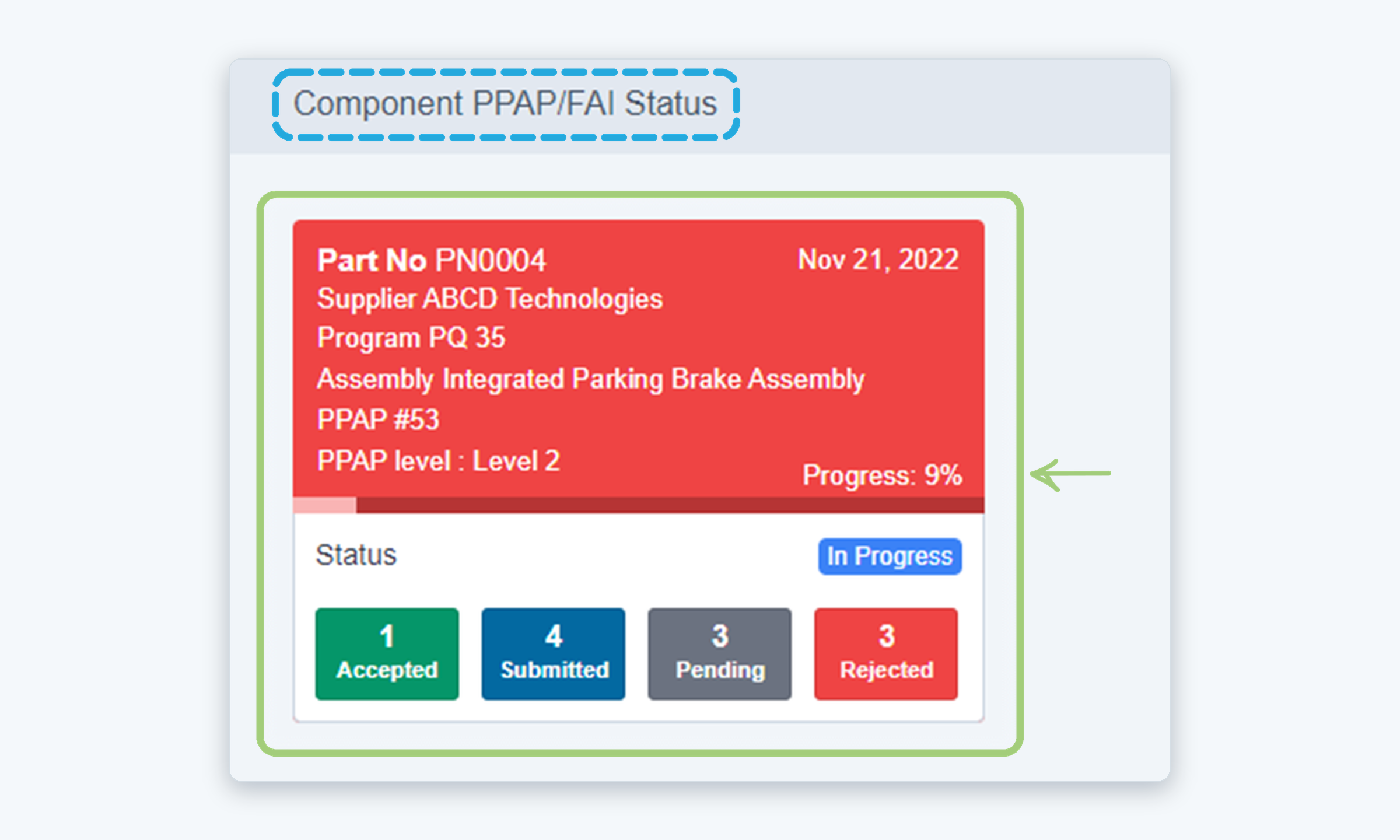
On the Dashboard, open the Component PPAP/FAI Status tab and click the card of the PPAP that has the element you need to submit (for example, PPAP #53).

2

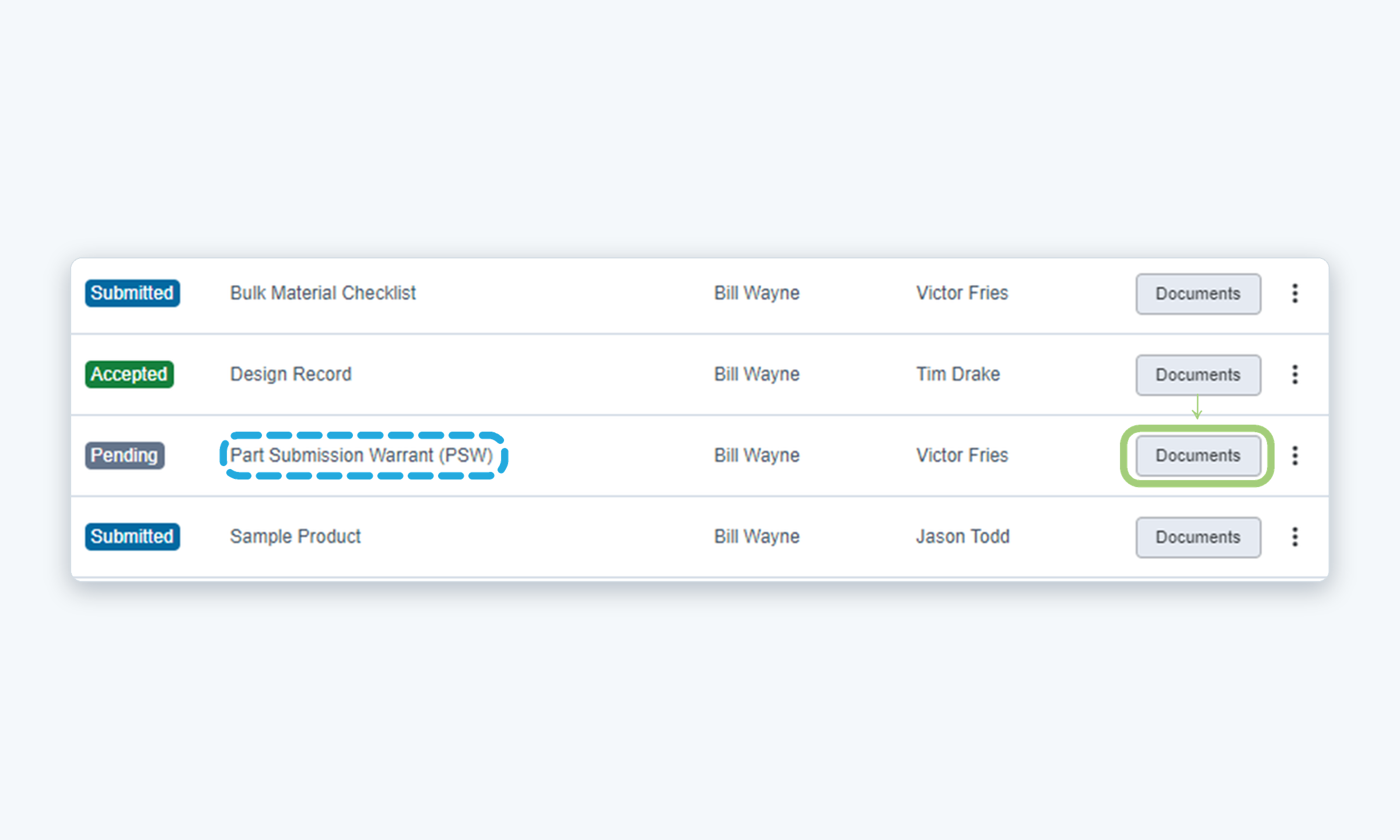
Click Documents

On the PPAP page, find the element (for example, Part Submission Warrant (PSW)) and click Documents on its row.

3

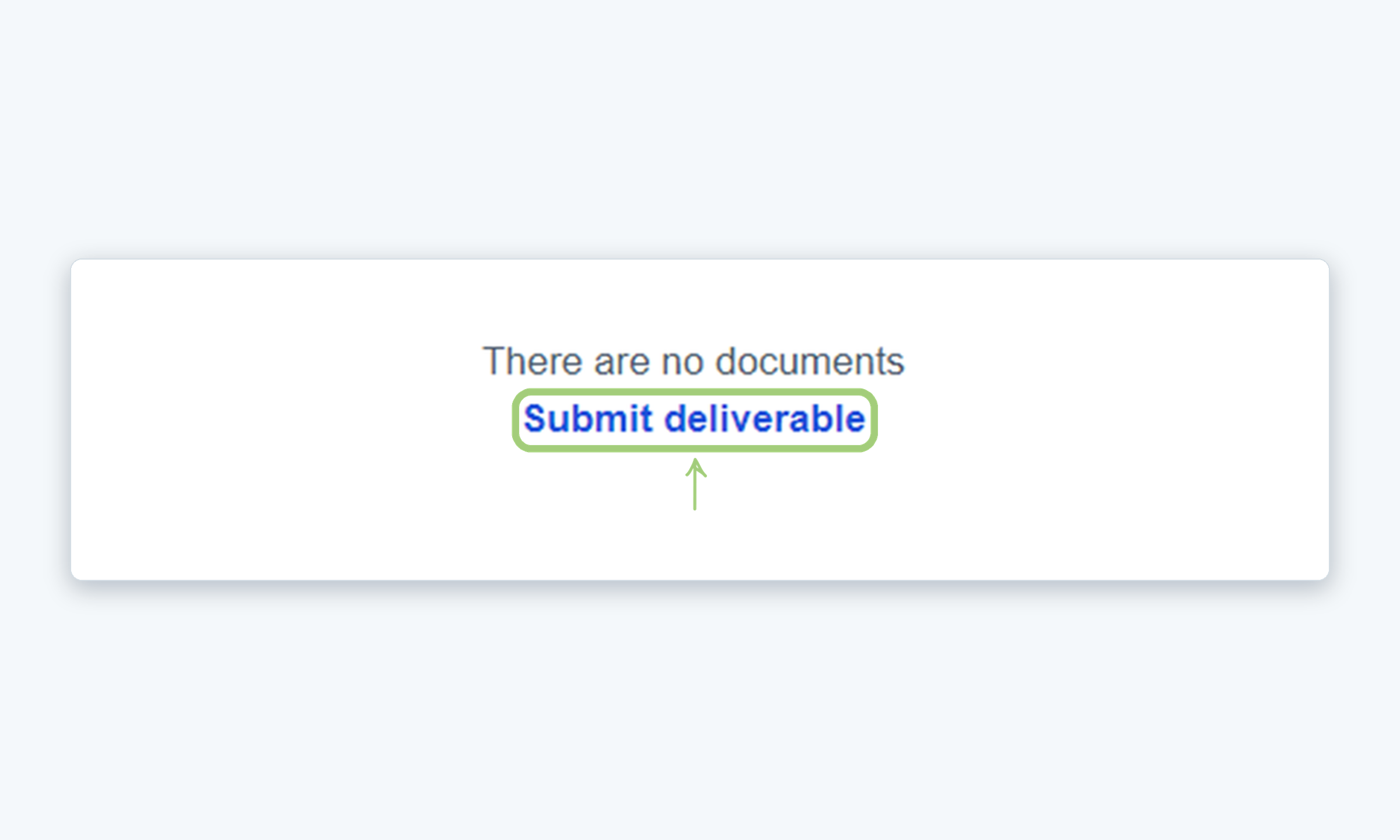
Click Submit deliverable

On the element page, where it says There are no documents, click Submit deliverable.

4

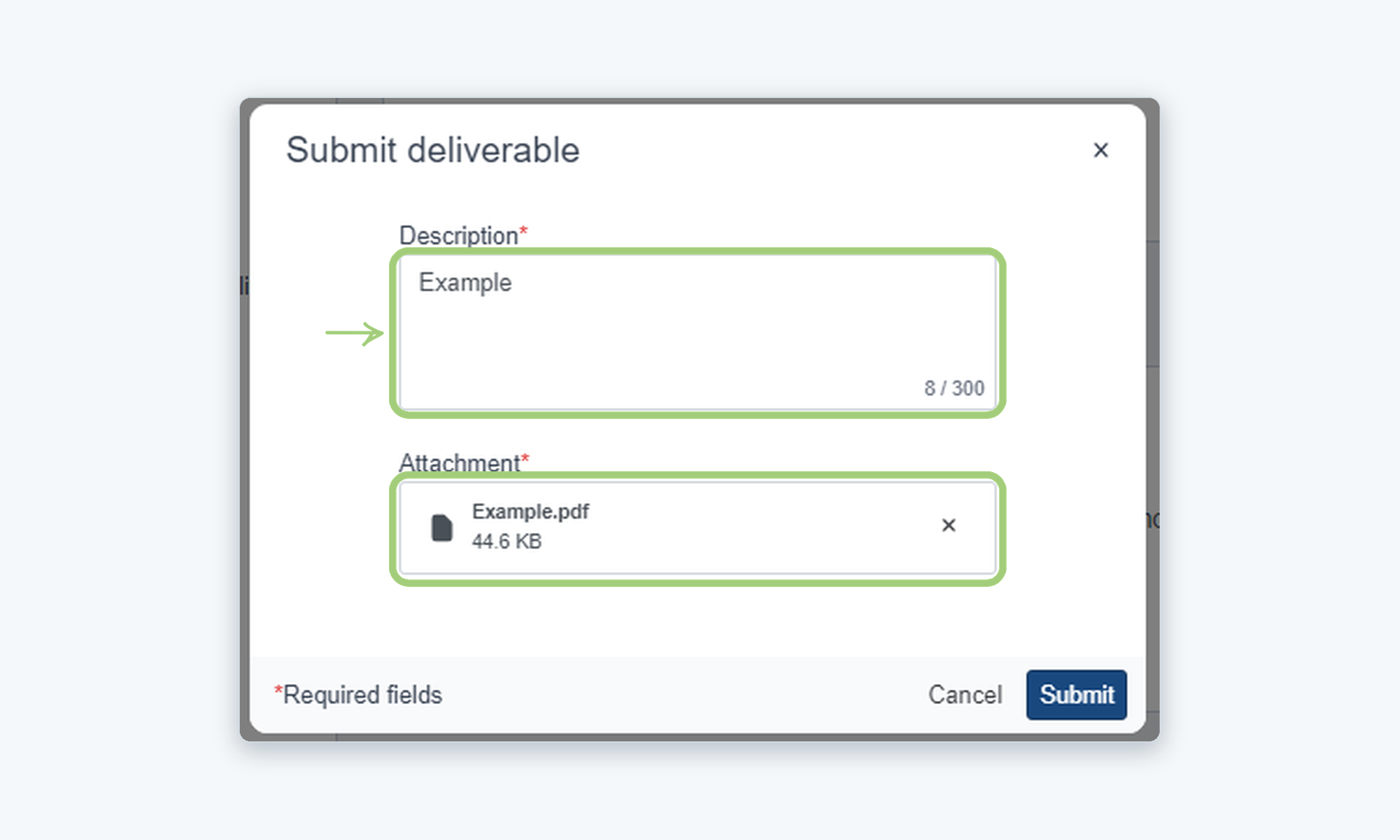
Fill in the fields

In the Submit deliverable window, enter a Description (up to 300 characters) and add the Attachment with the file you are delivering (for example, Example.pdf).

5

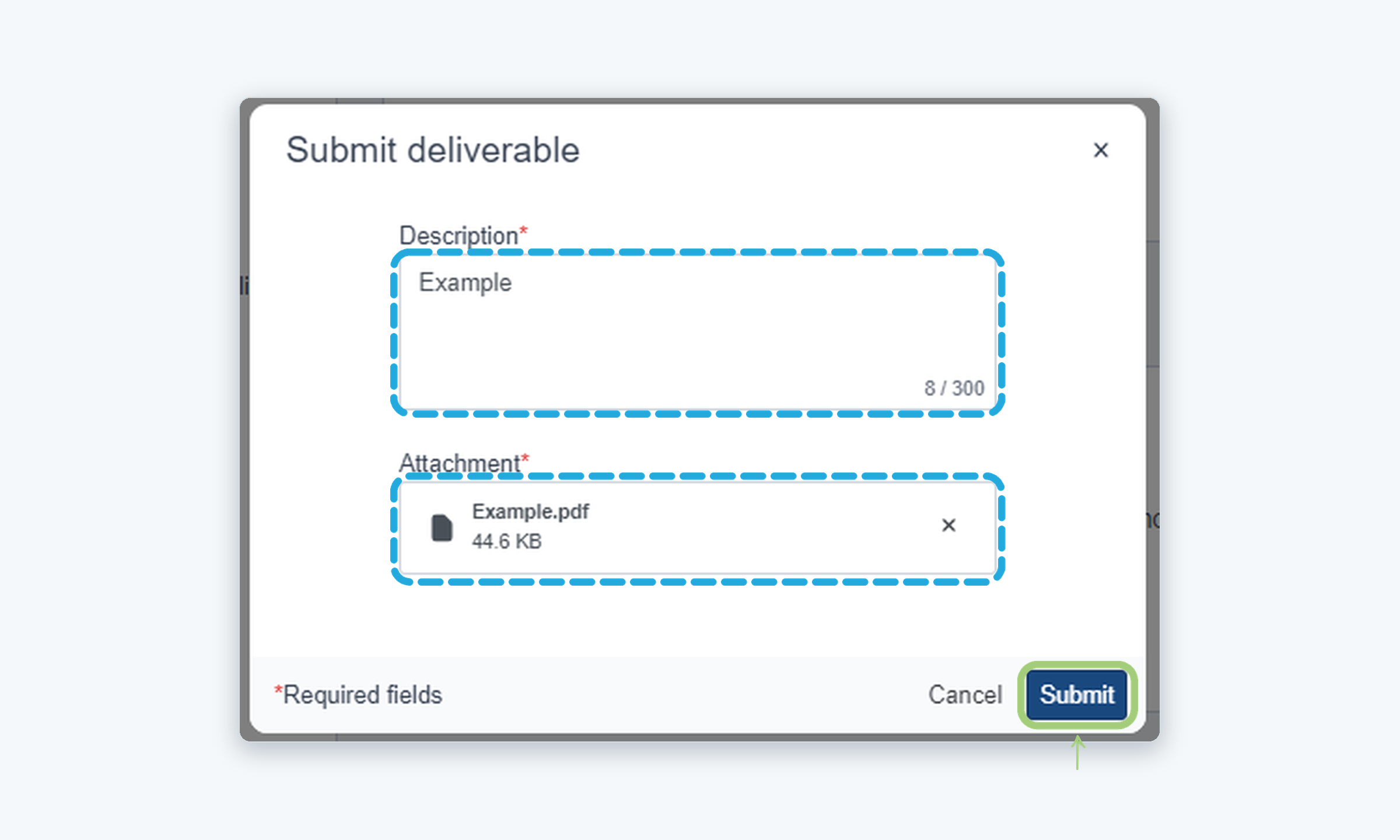
Click Submit

Click Submit to send the deliverable.

6

Check the result

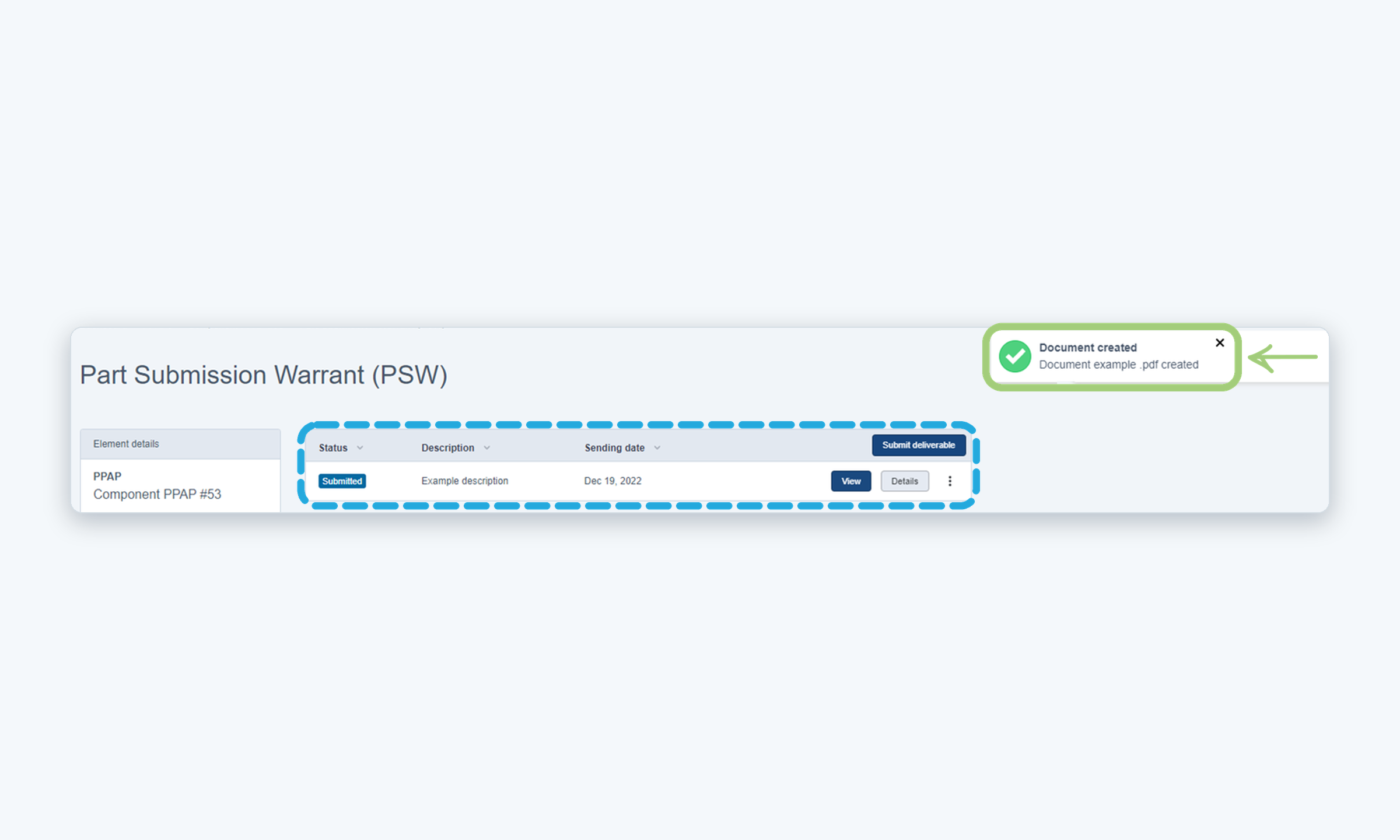
A message confirms that the document was created, and the deliverable appears in the element’s list with Submitted status.

Need more help?

If you have any questions or concerns, please contact Kiuey Support by submitting a ticket or through any of our support channels. Our team will be happy to assist you.

Was this article helpful?

That’s Great!

Thank you for your feedback

Sorry! We couldn't be helpful

Thank you for your feedback

Let us know how can we improve this article!

Select at least one of the reasons

Feedback sent

We appreciate your effort and will try to fix the article