How to Request a Certification from your Supplier

Created by Kiuey Support, Modified on Wed, Nov 11 at 1:08 PM by Kiuey Support Representative

request certification, request a certification from your supplier, how to request a certification, supplier certification, AVL certification, certification request, IATF 16949, ISO 9001, ISO 14001, supplier certifications tab, certifications tab, add certification, approver, required certification, request evidence, AVL, suppliers, grant disposition, internal user

OVERVIEW

This article explains how to request a certification (for example, IATF 16949 or ISO 9001) from a supplier in your Approved Vendor List (AVL), so the supplier can upload its evidence.

Who is this for?  Internal users

IMPORTANT NOTES

  • When you send the request, the supplier receives an email with a link to upload the evidence. See How to: Upload a requested AVL Certification as a Supplier.
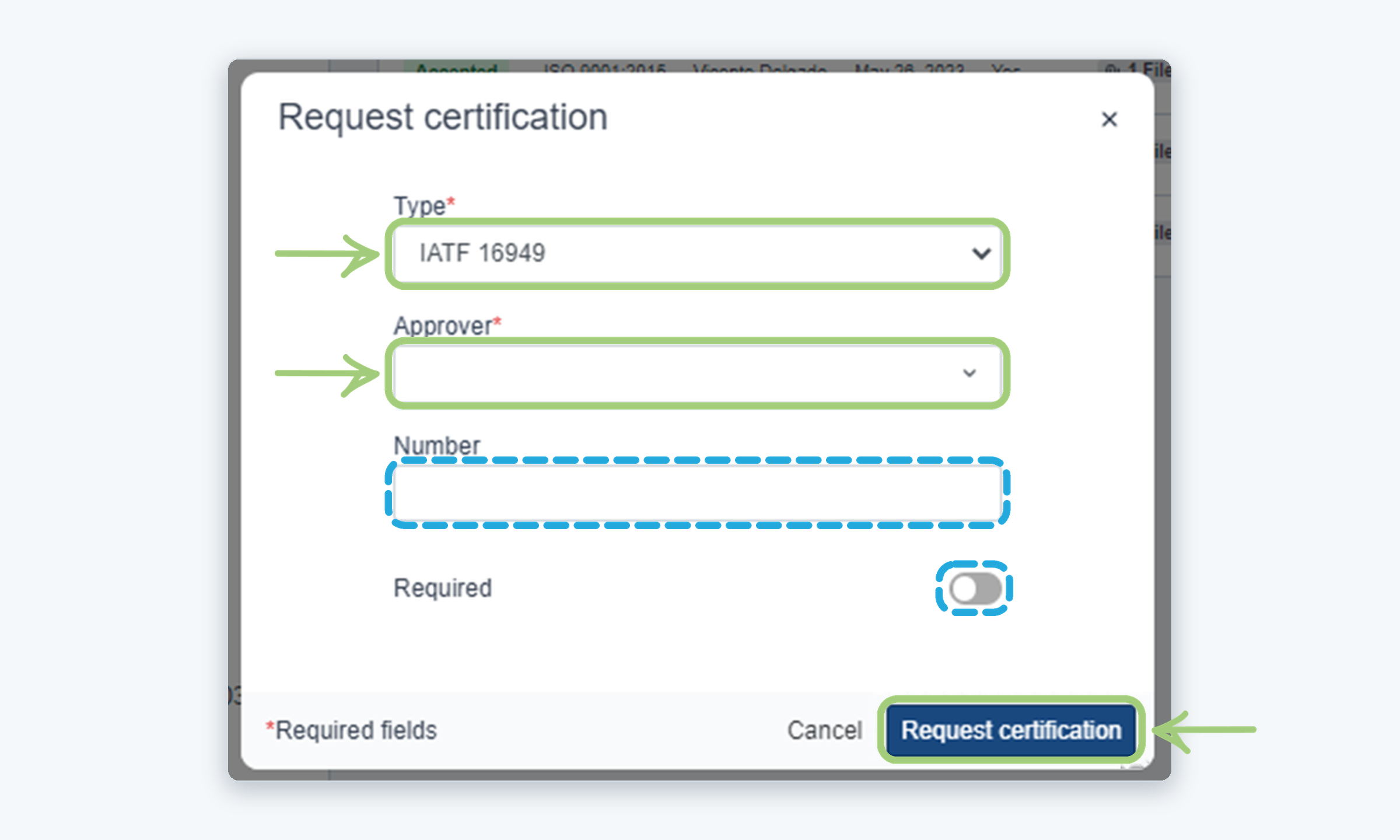
  • Type and Approver are required fields in the request window. Number and the Required toggle are optional.
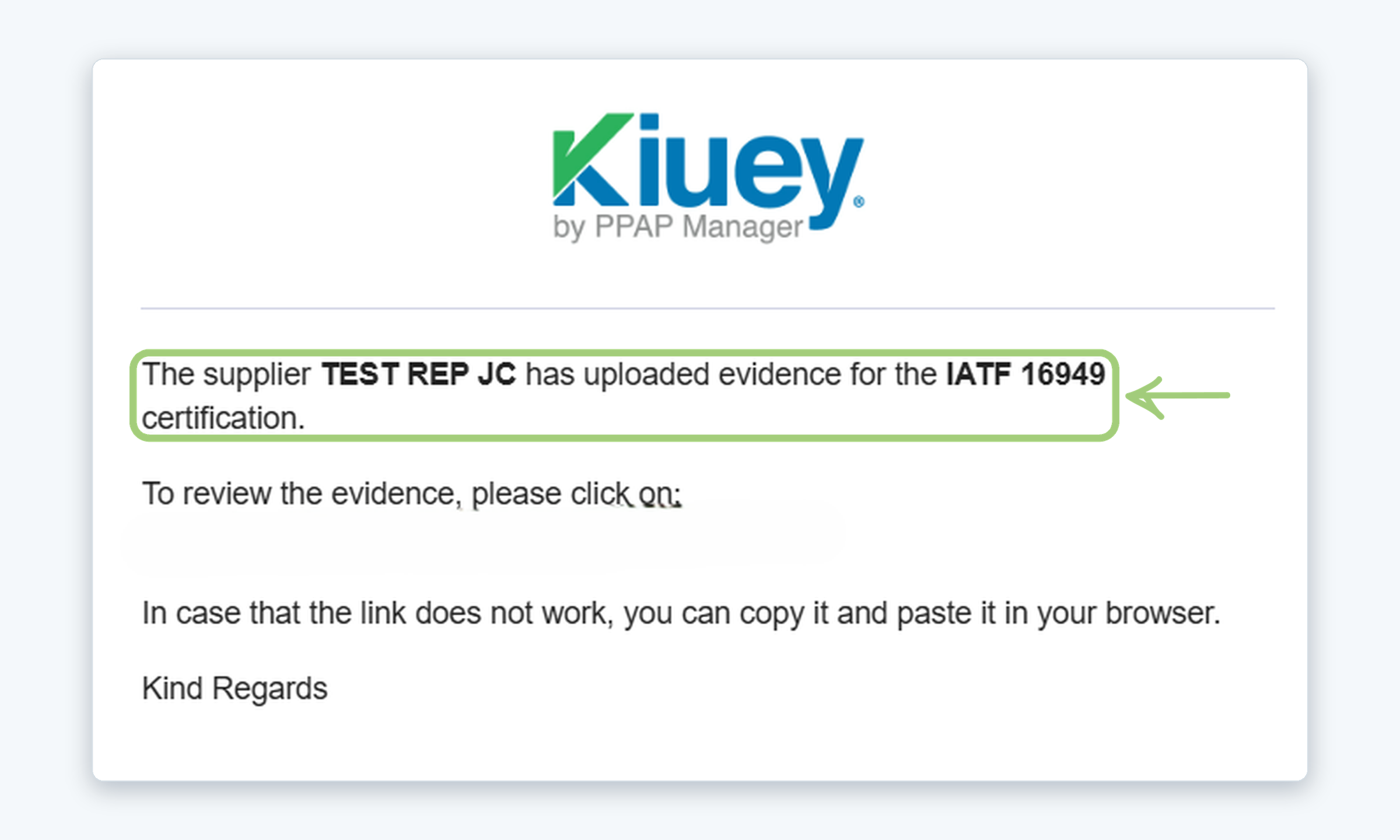
  • When the supplier uploads the evidence, you will receive an email notification so you can review it.
  • The Accepted disposition exists, but it does not send an email to the supplier.

WHO CAN DO THIS

Internal user: Can request certifications from the suppliers in the AVL.

Steps
1

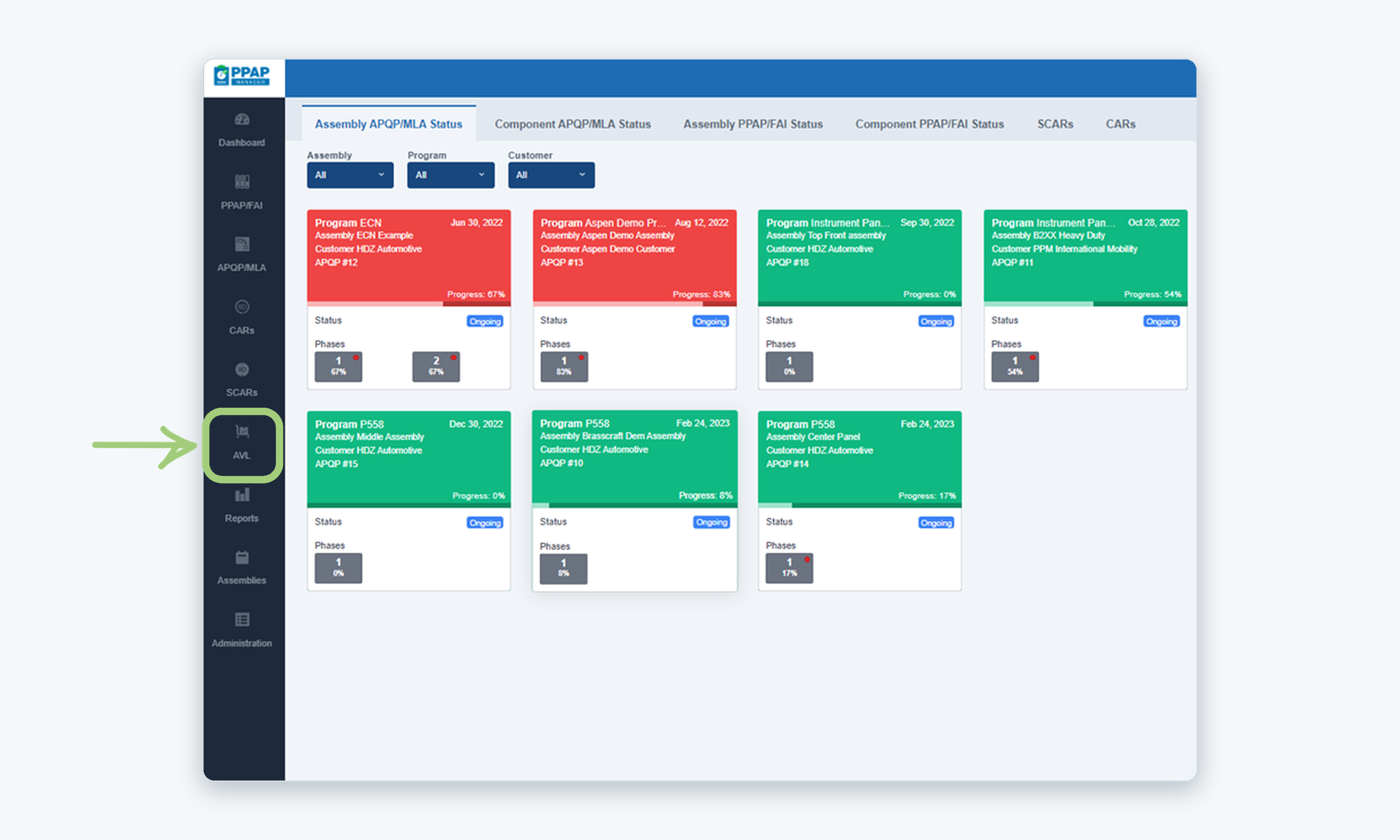
Go to the AVL

From the left navigation menu, click AVL.

2

Select the supplier

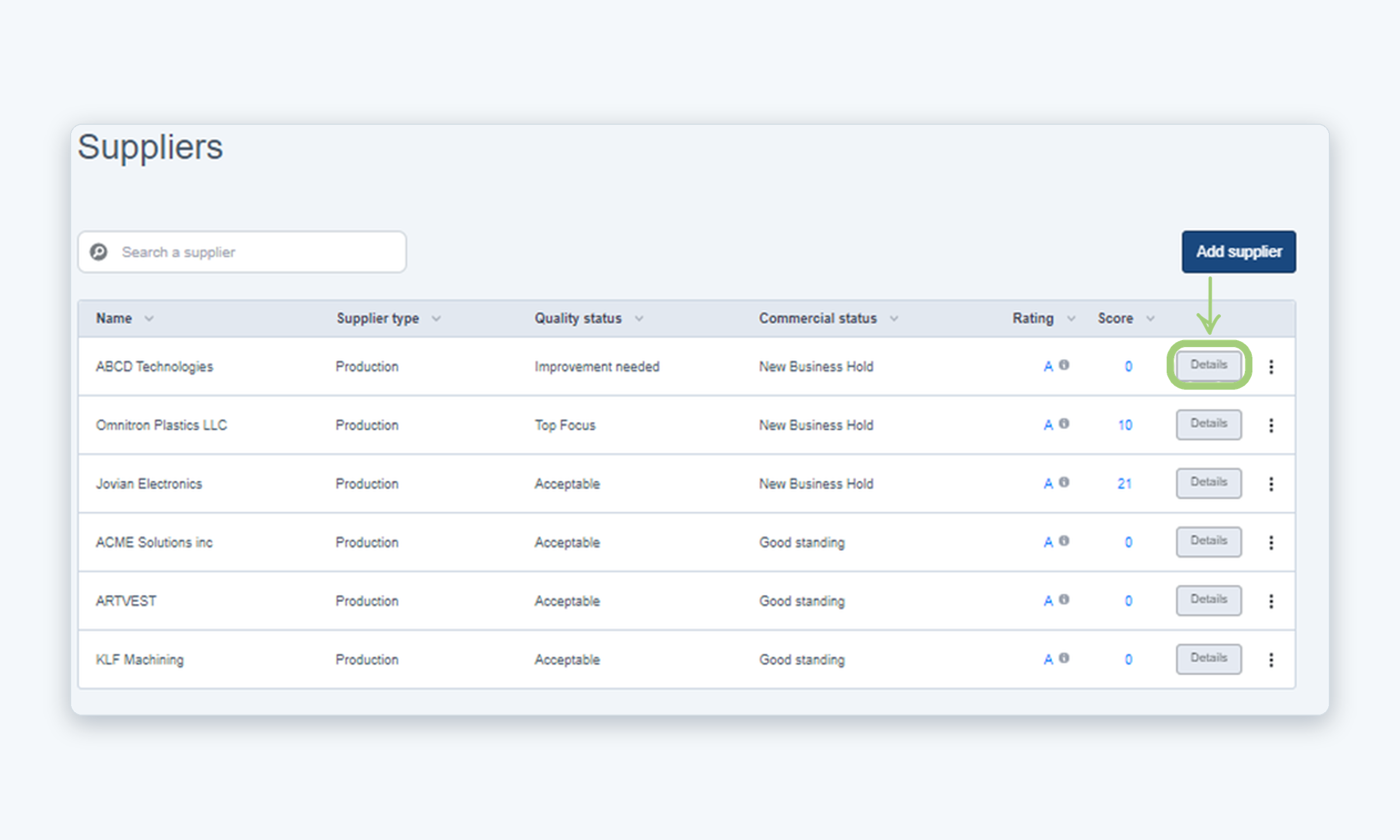
On the Suppliers list, find the supplier you want to request the certification from and click Details.

3

Click “Request certification”

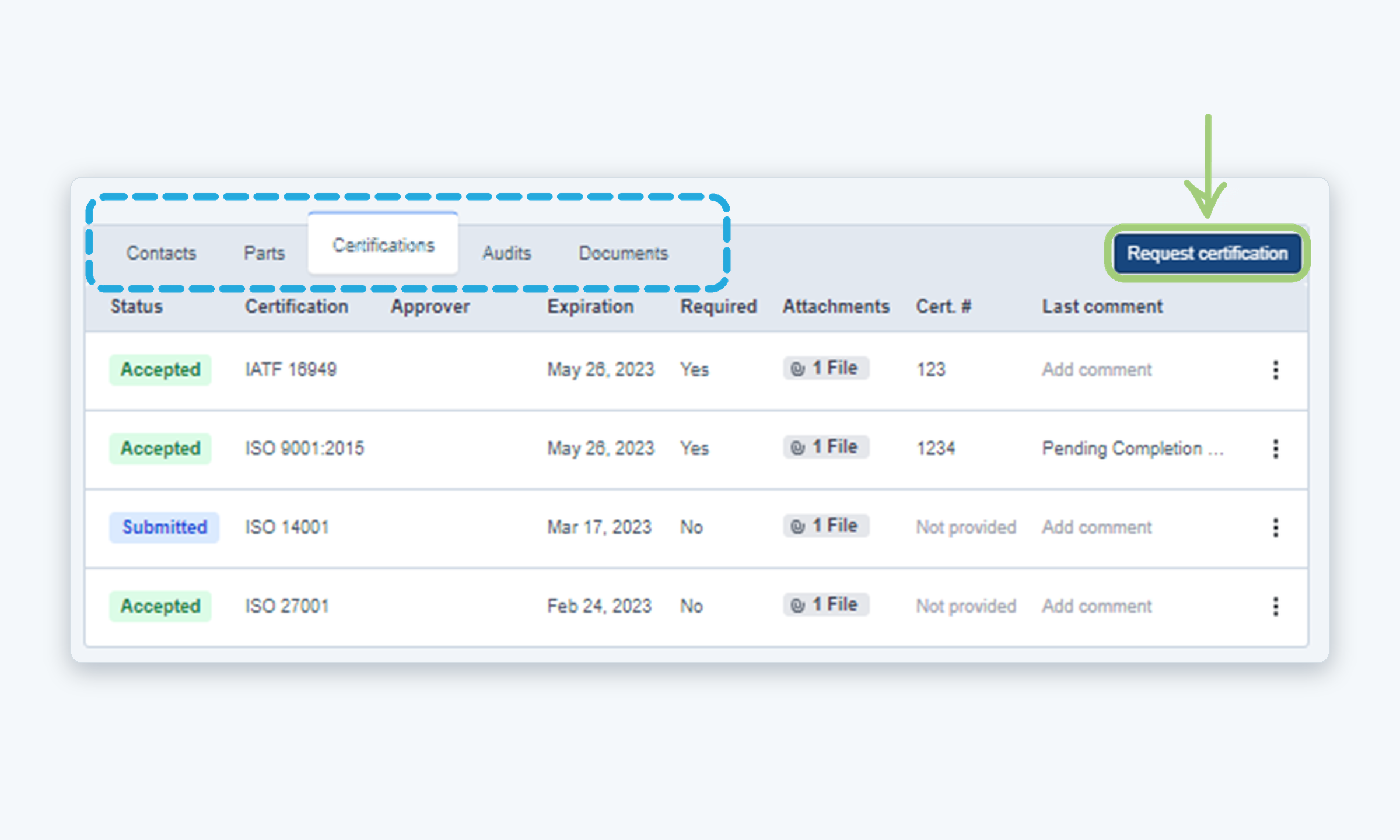
On the supplier’s page, open the Certifications tab and click Request certification.

4

Complete the request window

Select the certification Type and the Approver. You can also enter a certification Number and use the Required toggle to mark it as required. Then click Request certification.

5

The supplier receives the request

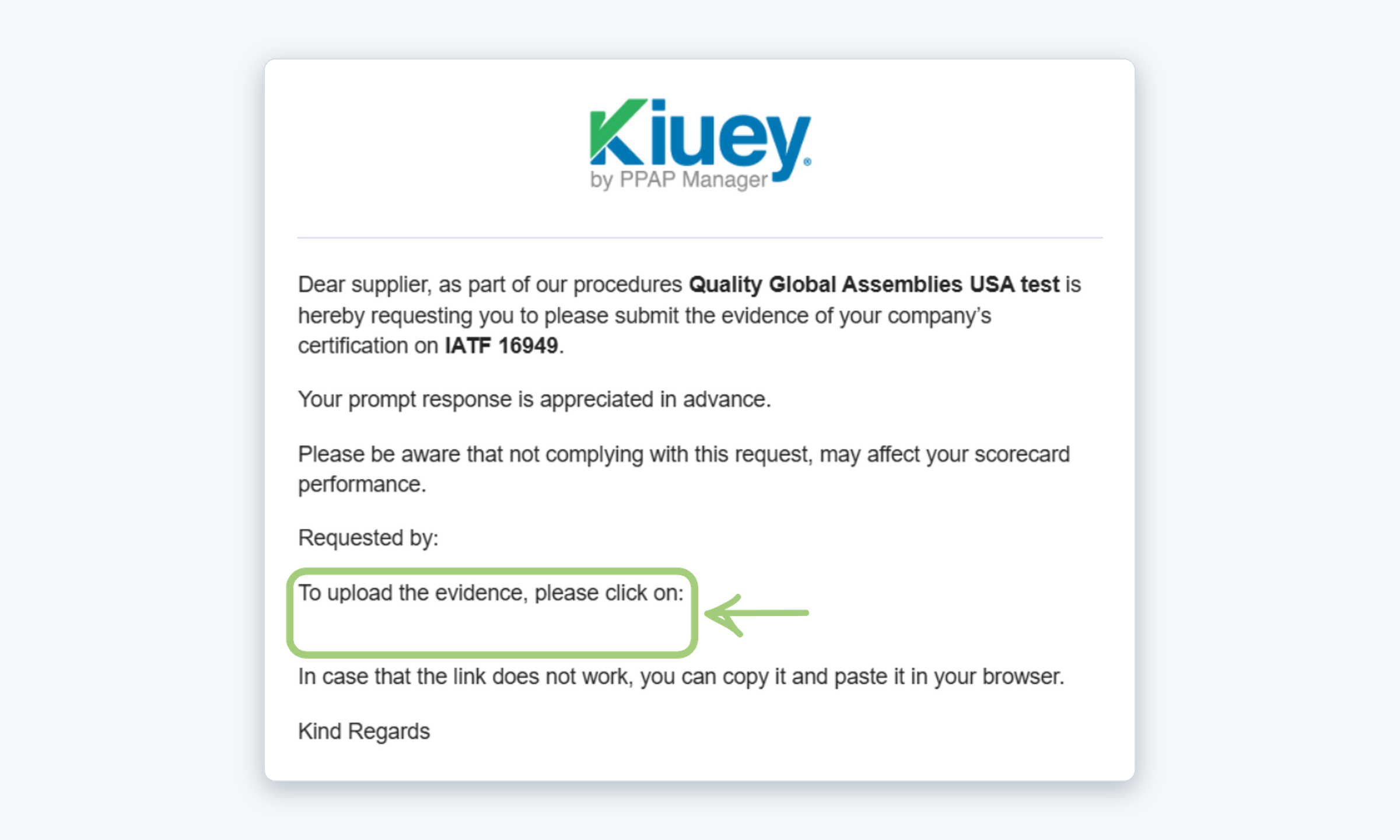
The supplier contacts receive an email asking them to submit the evidence of the certification, with a link to upload it.

6

Review the evidence

When the supplier uploads the evidence, you will receive an email notification. Open the link to review it and, from the certification’s three-dot menu, select Grant disposition.

Need more help?

If you have any questions or concerns, please contact Kiuey Support by submitting a ticket or through any of our support channels. Our team will be happy to assist you.

Was this article helpful?

That’s Great!

Thank you for your feedback

Sorry! We couldn't be helpful

Thank you for your feedback

Let us know how can we improve this article!

Select at least one of the reasons

Feedback sent

We appreciate your effort and will try to fix the article