Who this is for: supplier contacts who receive a request to provide a new or updated document.
Steps
1. Receive the request email.
When a customer requests a document, you receive an email. Check your inbox (and spam folder if you don’t see it).
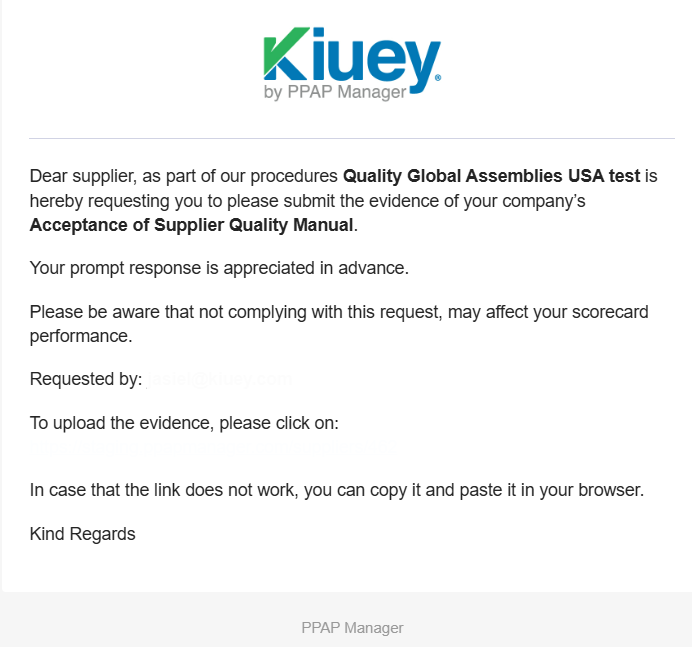
2. Click the link in the email.
Click the button or link inside the email. It takes you directly to your documents in the platform.
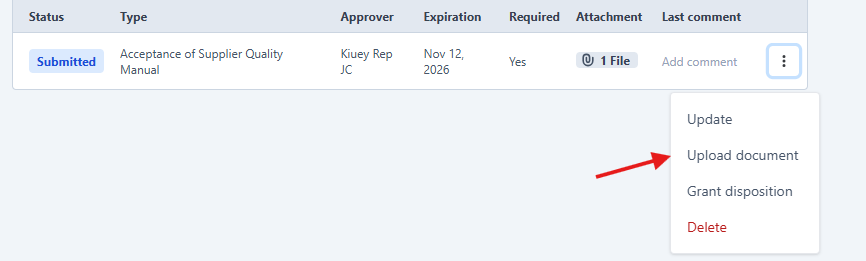
3. Open the three-dot menu and select “Upload document”.
Find the document being requested in the list. Click the three-dot menu (⋮) at the end of its row and select Upload document.
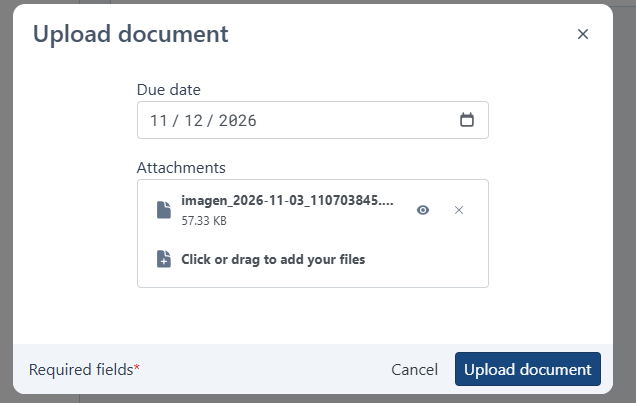
4. Fill in the form and submit.
In the window that opens, complete all the required fields, attach your document, and click Upload document.
5. Wait for the customer’s review.
Once uploaded, the document is sent to the customer for review. You will receive an email if the document is marked Invalid or Conditionally accepted. If it is Accepted, no email is sent; you can check the status directly in the platform.
Possible dispositions
Accepted
Your document met all the requirements. No email is sent for this disposition, so you can check the status directly in the platform. No further action is needed.
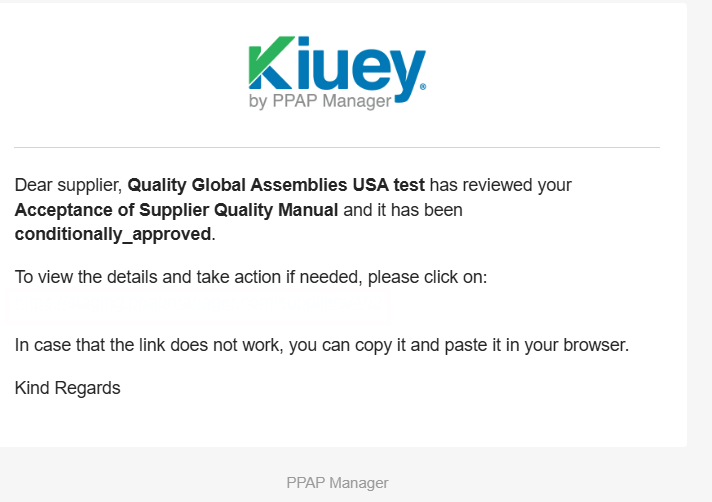
Conditionally Approved
Your document was approved, but the customer has set conditions that you need to meet. You will receive an email describing them. Read the conditions carefully and follow the instructions in the email.
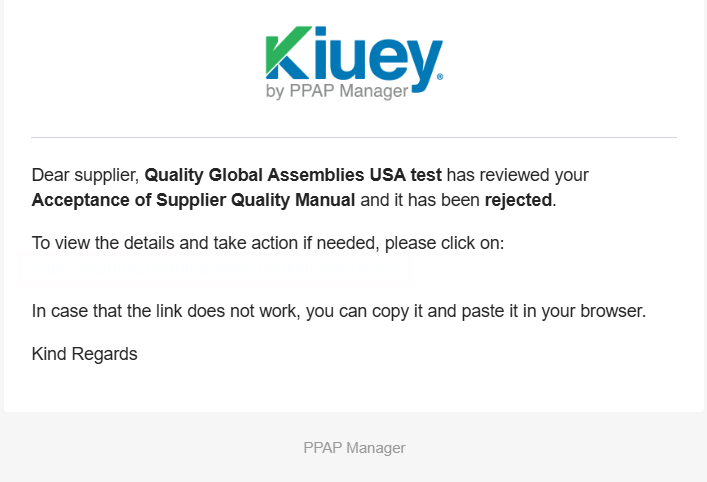
Rejected
Your document did not meet the requirements. You will receive an email with the reason for the rejection. Review it, prepare a corrected document and upload it again by repeating steps 2–4.
Was this article helpful?
That’s Great!
Thank you for your feedback
Sorry! We couldn't be helpful
Thank you for your feedback
Feedback sent
We appreciate your effort and will try to fix the article