respond to a scar, scar, supplier corrective action request, assigned scar, 8d, d3, d4, d5, d7, interim containment actions, root cause analysis, add analysis, corrective actions, prevent recurrence, preventive action, modified document, request disposition, close action, supplier response
OVERVIEW
This guide shows how a supplier responds to a SCAR assigned to them in Kiuey: adding the interim containment actions, the root cause analysis, the corrective actions and the actions to prevent recurrence.
Who is this for? Suppliers
IMPORTANT NOTES
- You can respond only to a SCAR that is assigned to you.
- Each action, analysis or document stays Pending until the customer reviews it.
- Use Request disposition at the end of each stage so your answers can be reviewed.
- Add evidence files whenever you can; they support your answers.
WHO CAN DO THIS
Supplier: The supplier contact assigned to the SCAR responds in each stage (D3 to D7).
Steps
1
D3 · Add an interim containment action
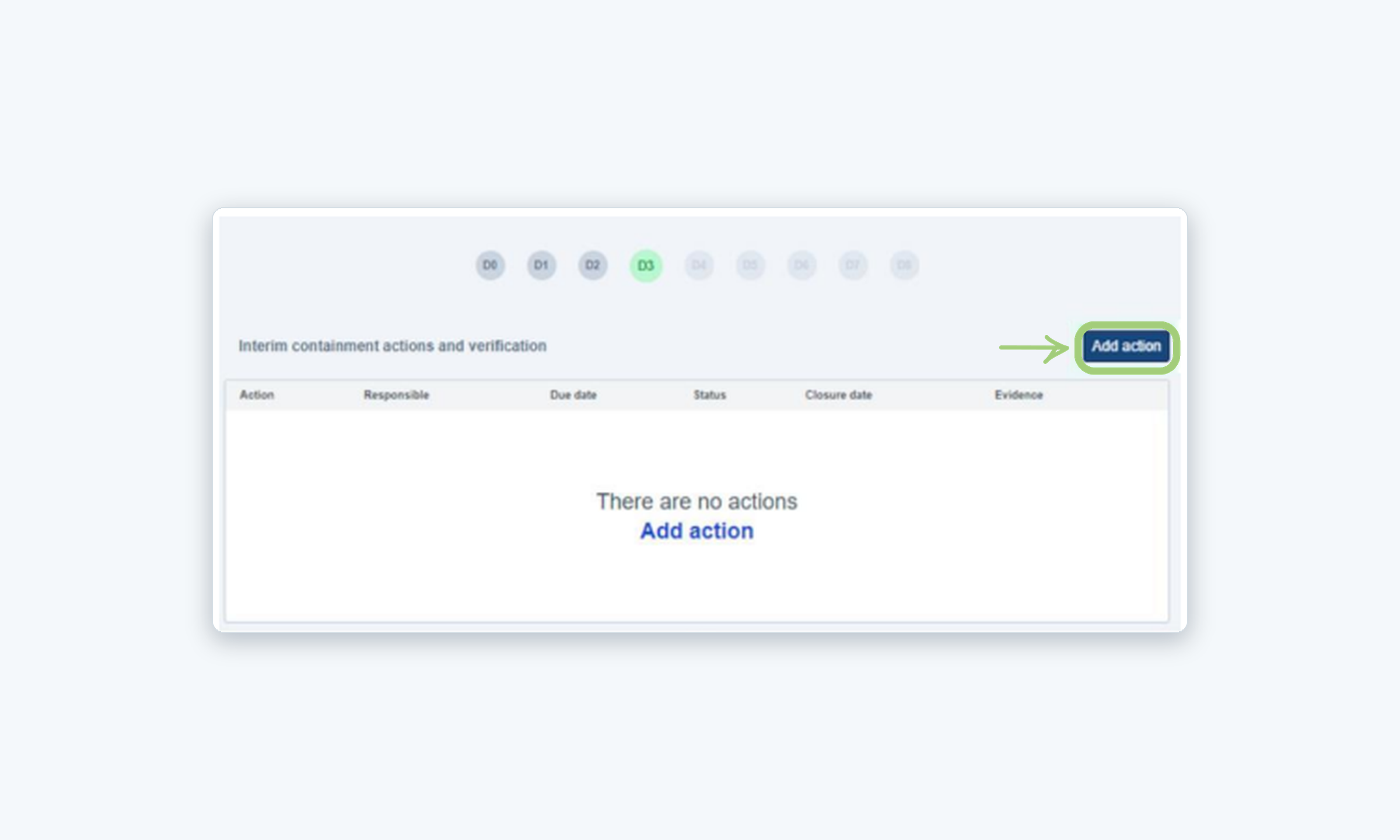
Open the SCAR assigned to you and go to D3, Interim containment actions and verification. Click Add action.
2
Complete the Add action form
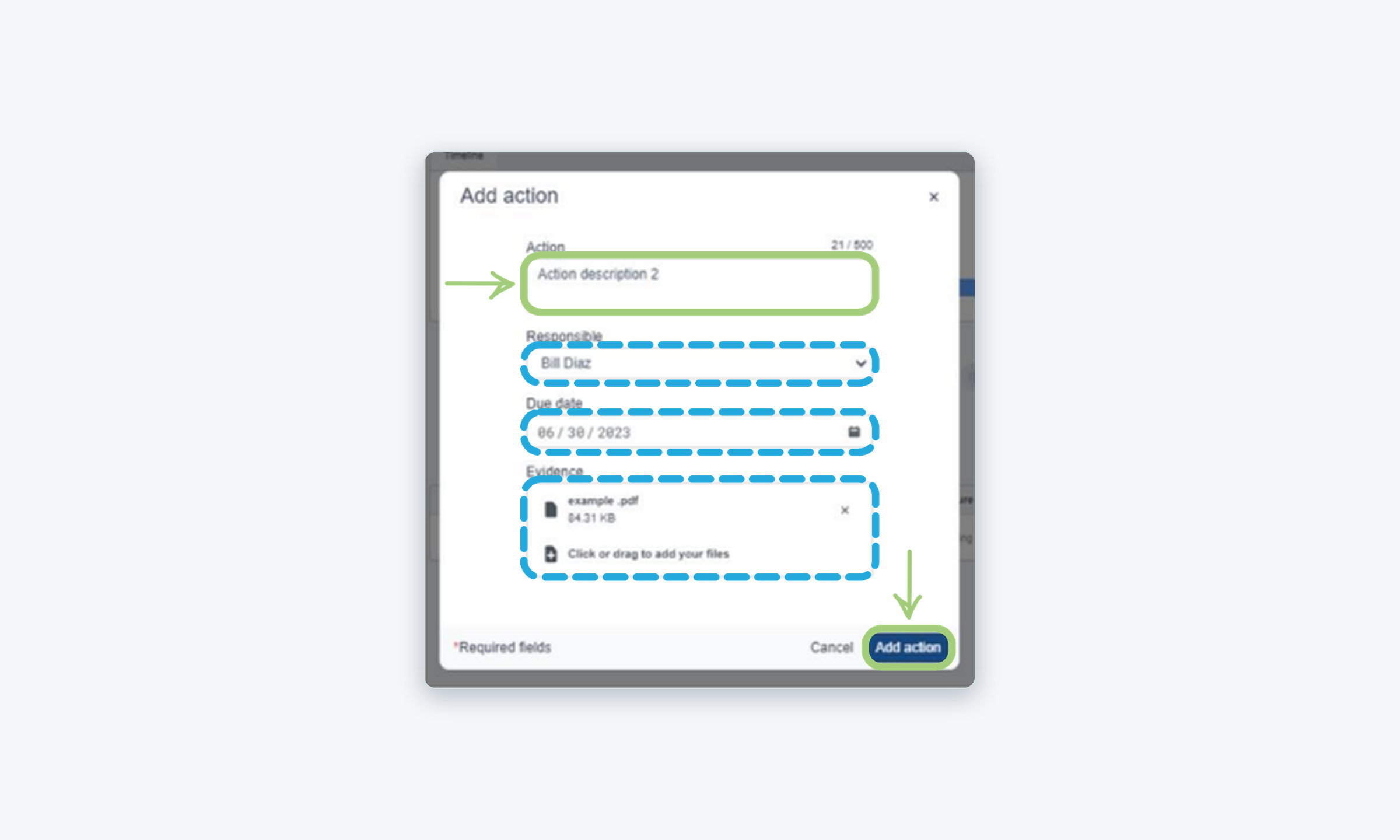
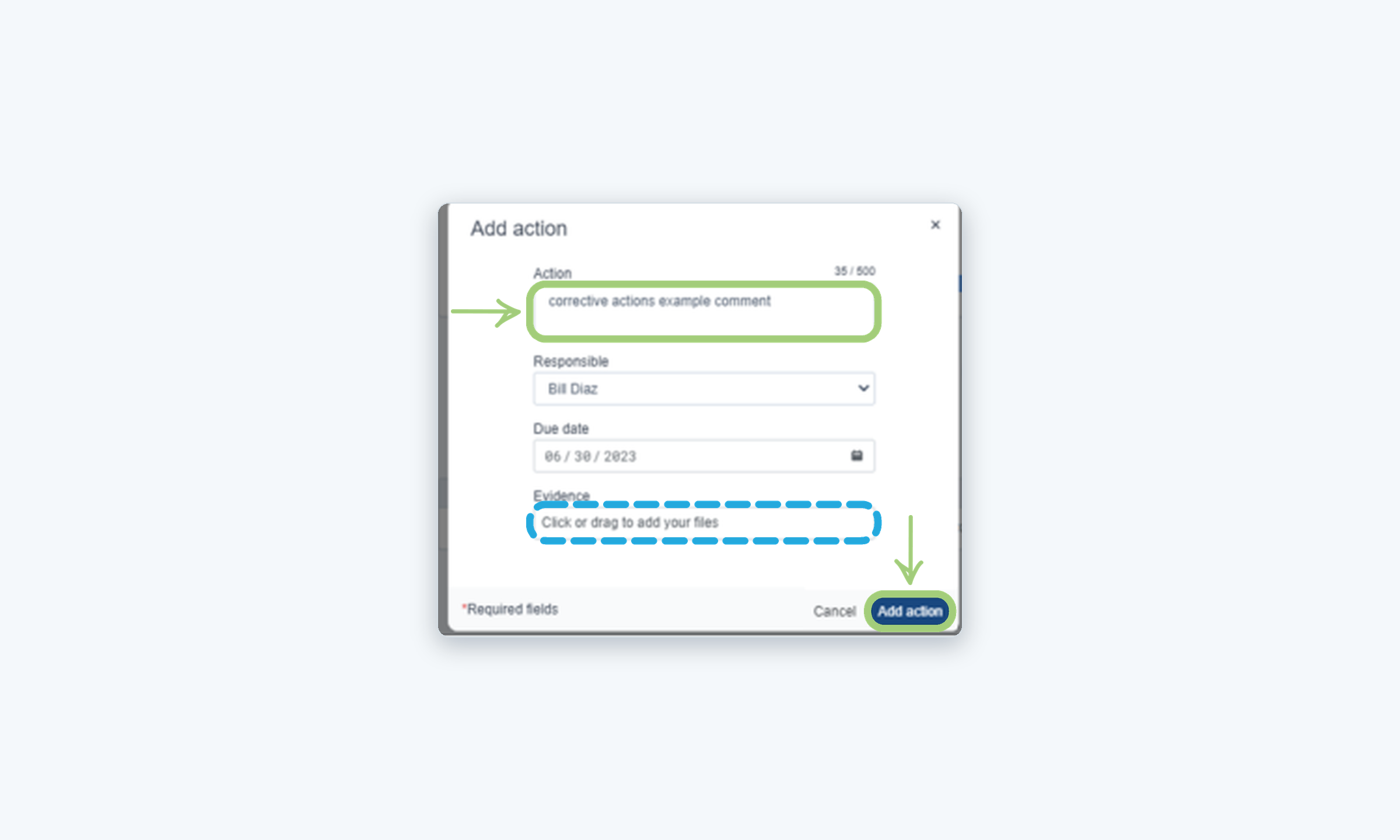
Describe the Action, select the Responsible, set the Due date and add the Evidence files. Then click Add action. Repeat for every action you need.
3
Request disposition
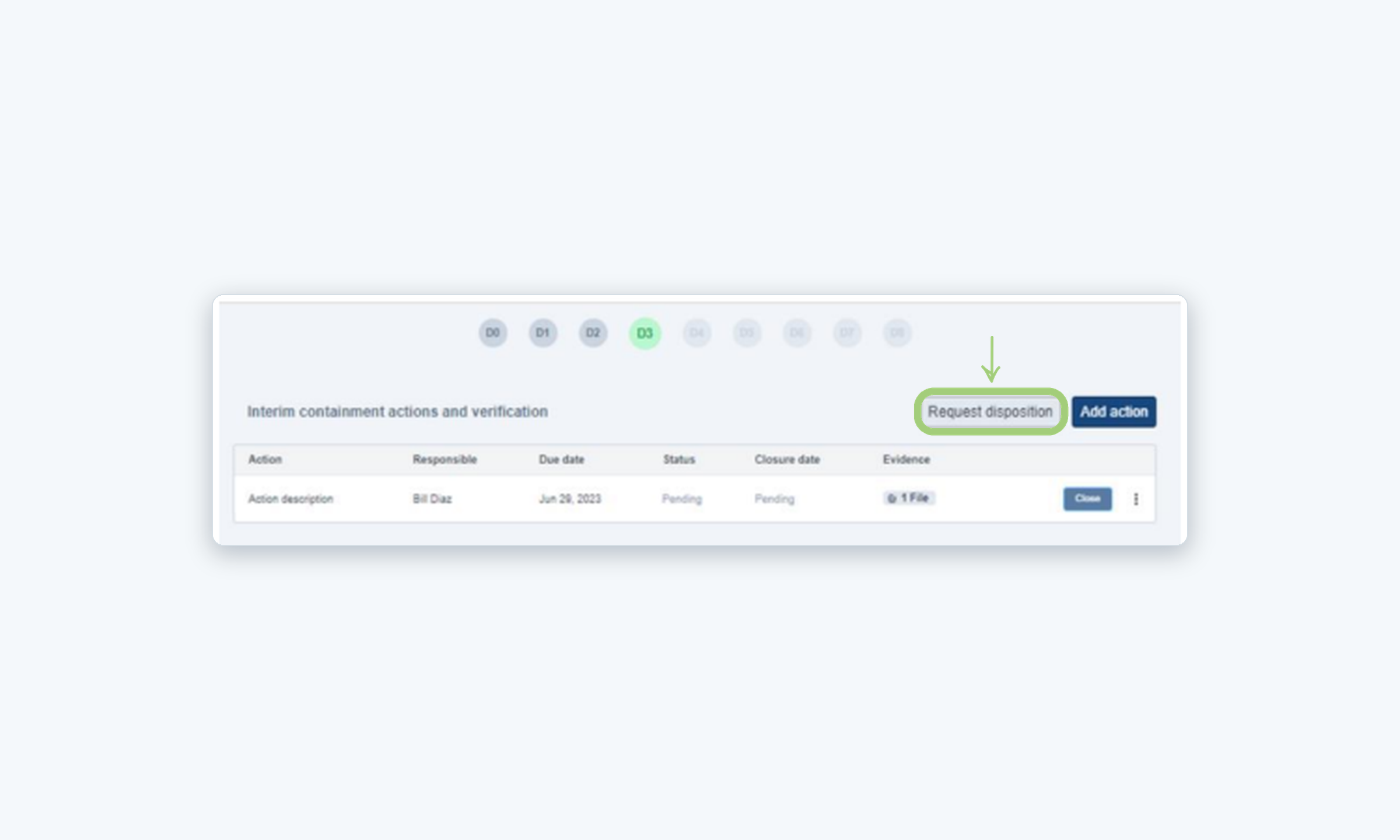
Once your actions are added, click Request disposition so the customer can review them. Each action shows as Pending until it is reviewed.
4
Close the accepted action
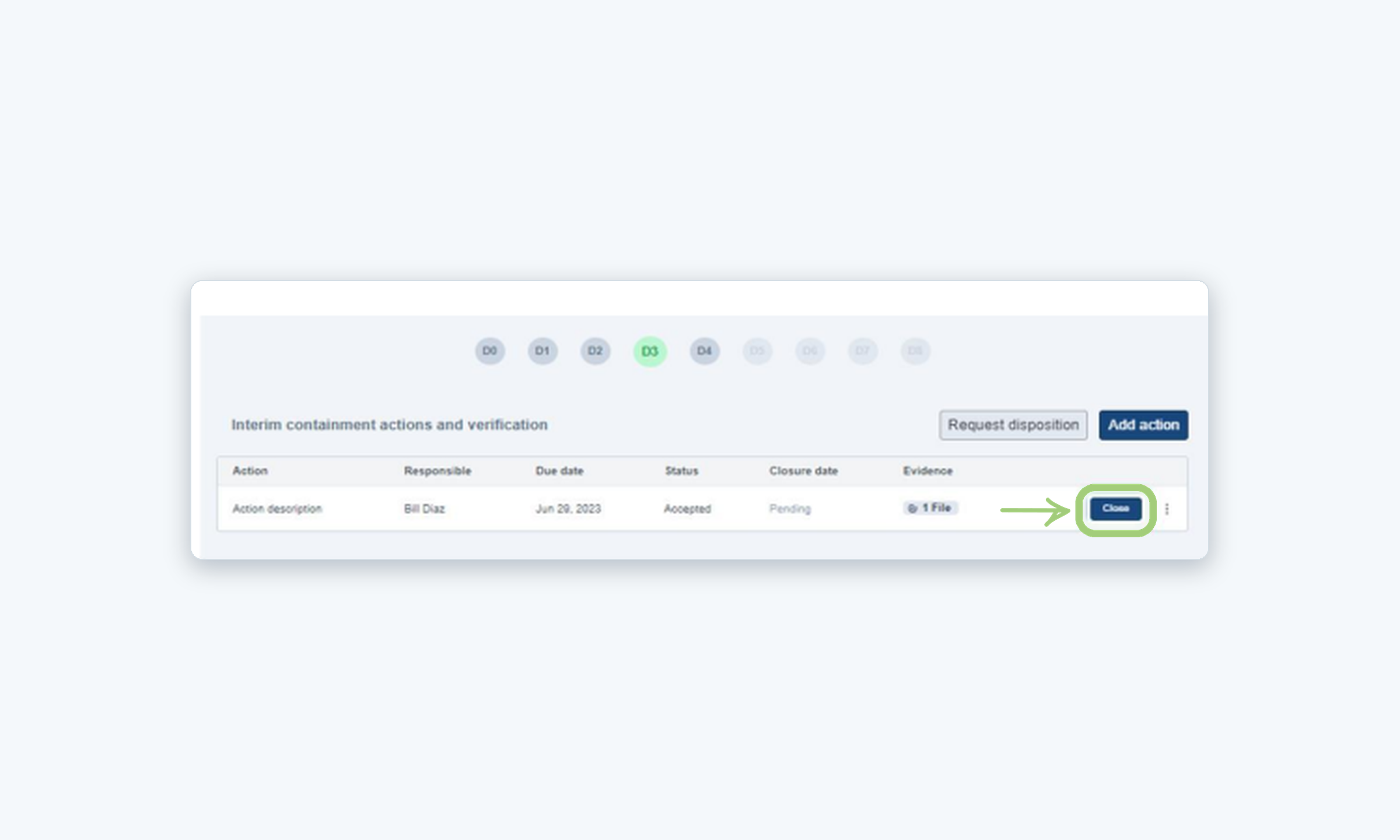
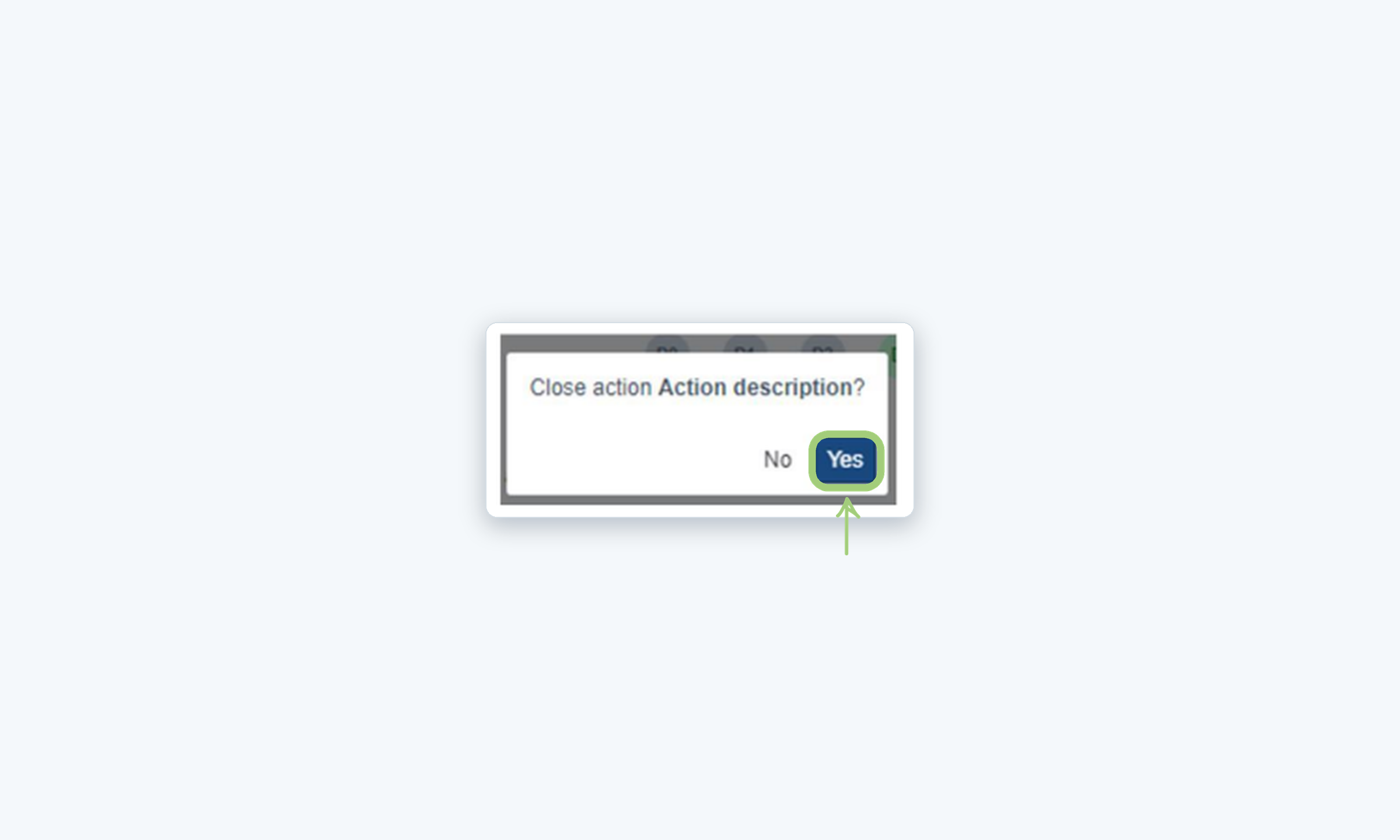
When an action is Accepted, click Close in its row and confirm by clicking Yes. The closure date is then registered.
5
D4 · Add a root cause analysis
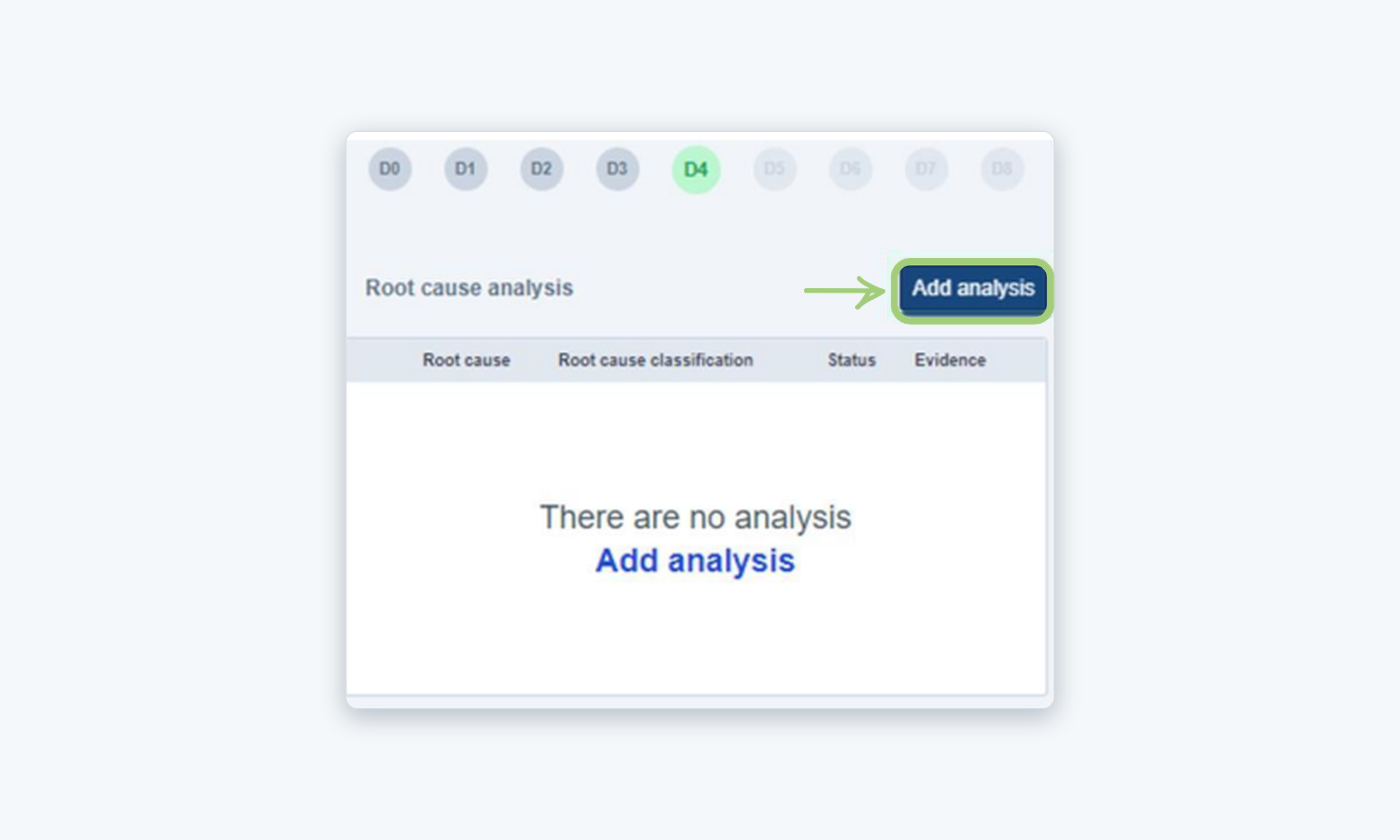
Go to D4, Root cause analysis, and click Add analysis.
6
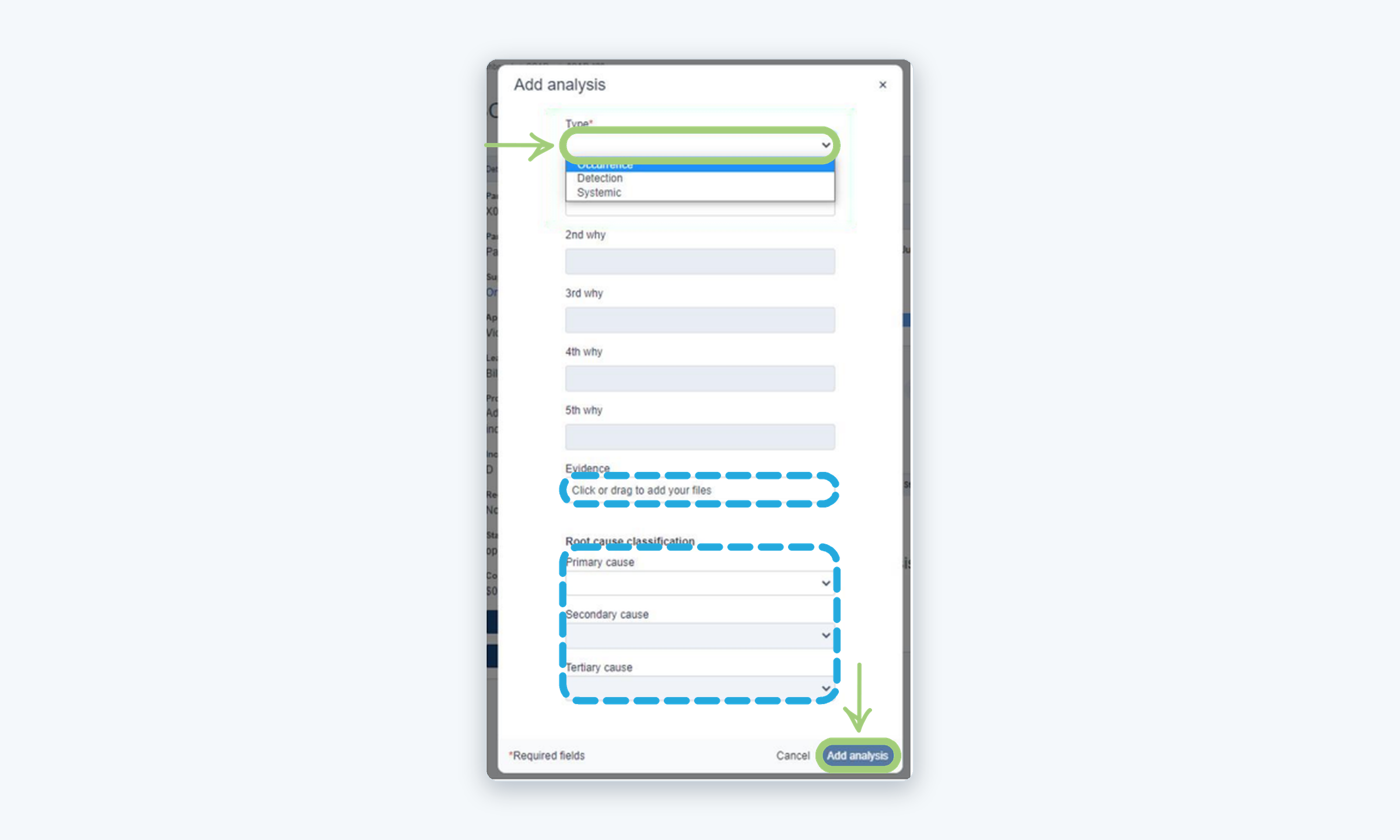
Complete the Add analysis form
Select the Type (Occurrence, Detection or Systemic), answer the whys, add the Evidence and select the Root cause classification (Primary, Secondary and Tertiary cause). Then click Add analysis.
7
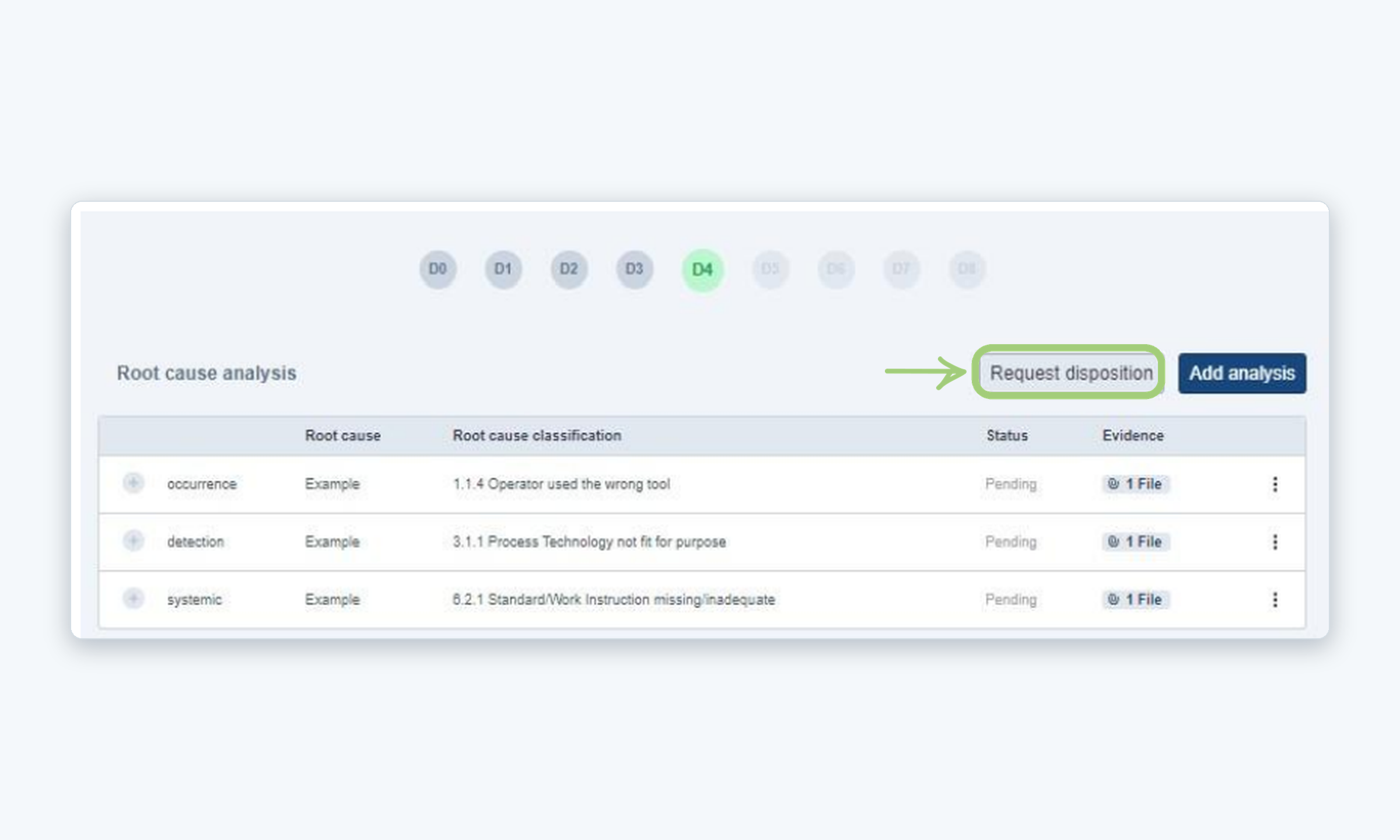
Request disposition for the analysis
Review the analyses you added (for example, one for each type) and click Request disposition to send them for review.
8
D5 · Define the corrective actions
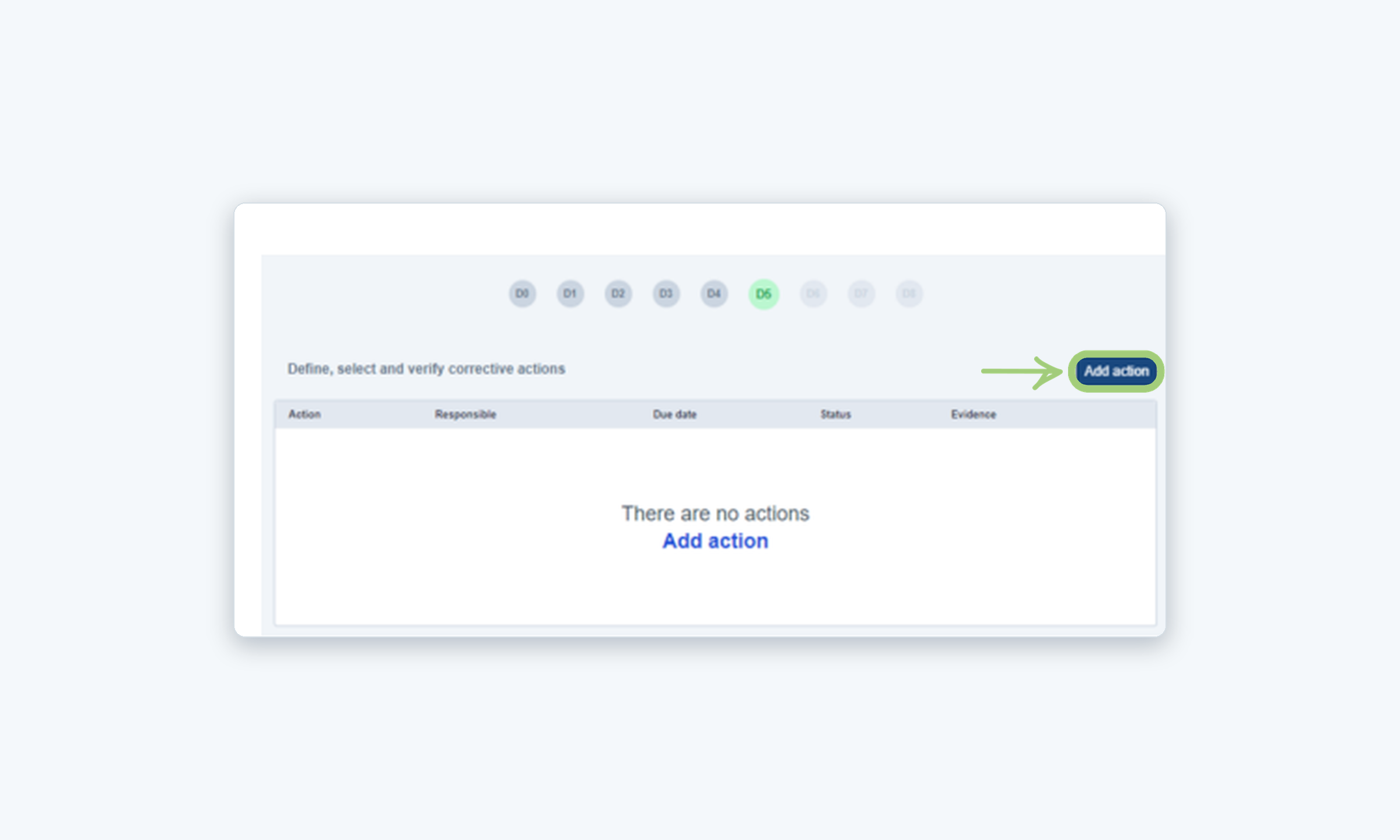
Go to D5, Define, select and verify corrective actions, and click Add action. Fill in the Action, Responsible, Due date and Evidence, then click Add action.
9
D7 · Prevent recurrence
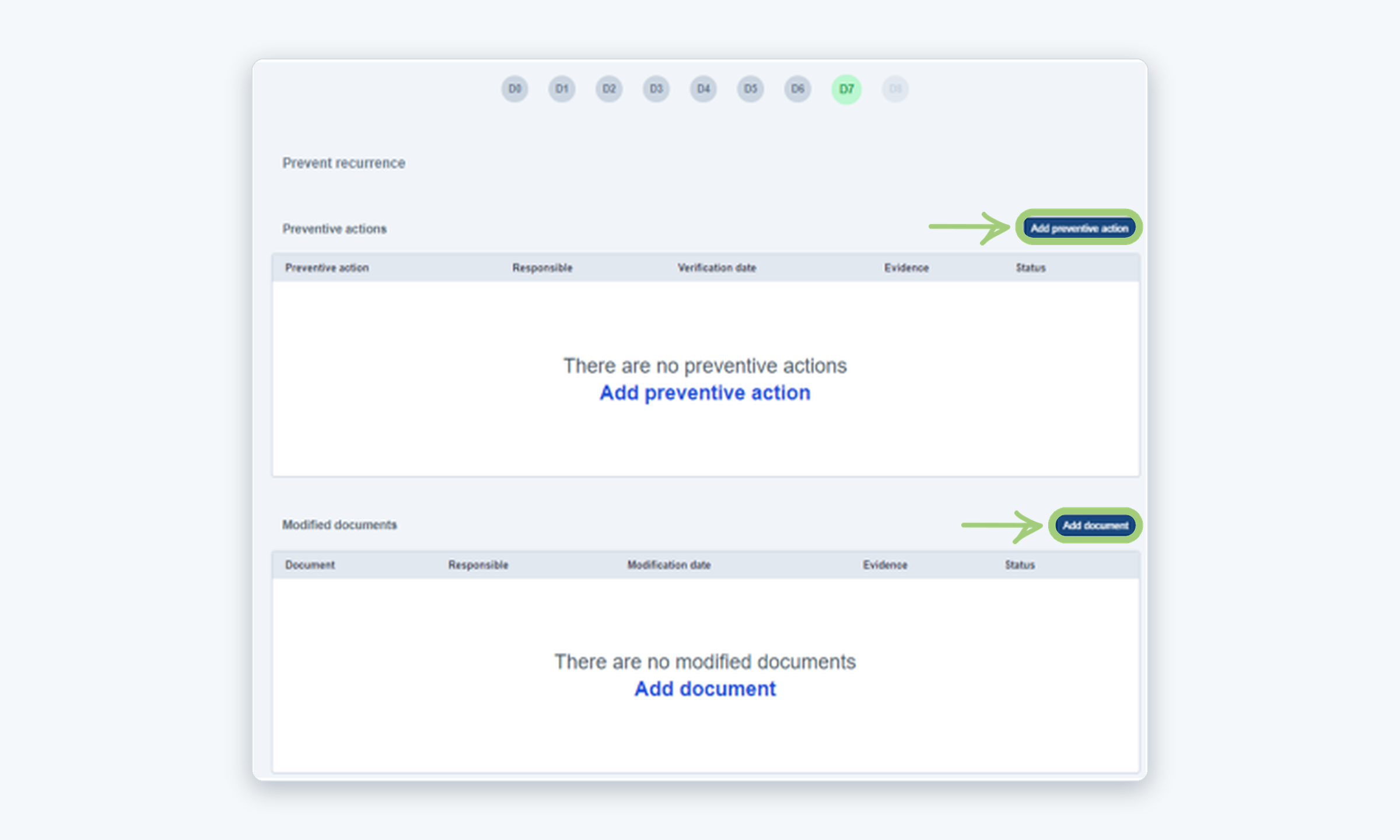
Go to D7, Prevent recurrence. Click Add preventive action to register each preventive action, and Add document to register every document that was modified.
10
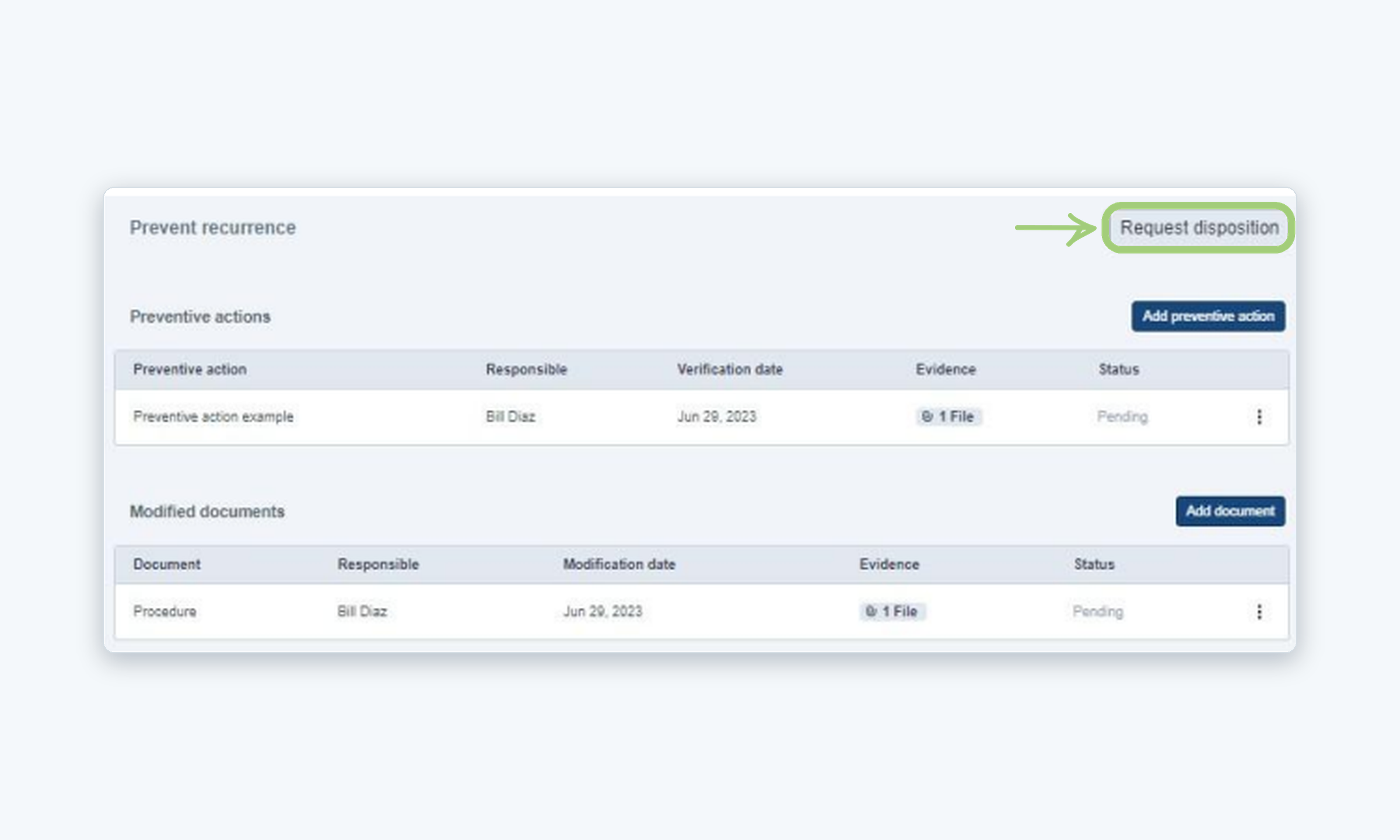
Request the final disposition
When all your preventive actions and modified documents are added, click Request disposition.
Need more help?
If you have any questions or concerns, please contact Kiuey Support by submitting a ticket or through any of our support channels. Our team will be happy to assist you.