manage a scar, scar, approver, supplier corrective action request, accept incident, request scar, request rps, 8d, d0, d1, d2, d3, d4, d5, d6, d7, d8, notify scar to supplier, team leader, grant disposition, accept disposition, reject disposition, close scar, close action, closure
OVERVIEW
This guide shows how an Approver manages a SCAR in Kiuey: accepting the incident, notifying the supplier, reviewing each stage of the 8D (D0 to D7) by granting dispositions and closing the SCAR in D8.
Who is this for? Internal usersApprovers
IMPORTANT NOTES
- The supplier cannot move forward until you grant a disposition for the items they submit.
- Use Rejected with a comment so the supplier knows what to fix.
- The SCAR can be closed in D8 only after the previous stages are completed.
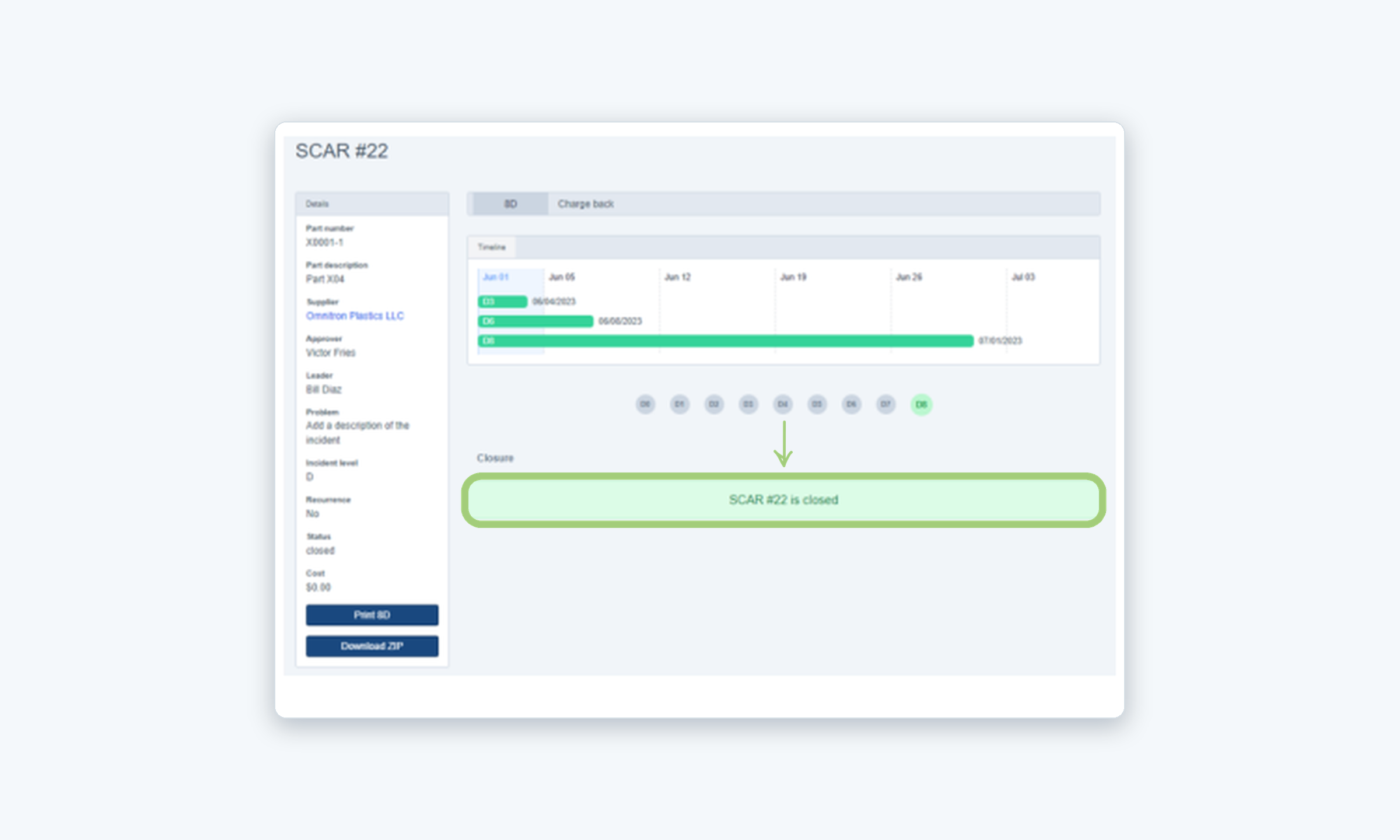
- Once closed, the page shows SCAR is closed and the status is closed.
WHO CAN DO THIS
Approver: Accepts the incident, notifies the supplier, grants dispositions and closes the SCAR.
Supplier: Responds to the SCAR (D3 to D7). See How to Respond to an Assigned SCAR (Supplier).
Steps
1
Review the incident
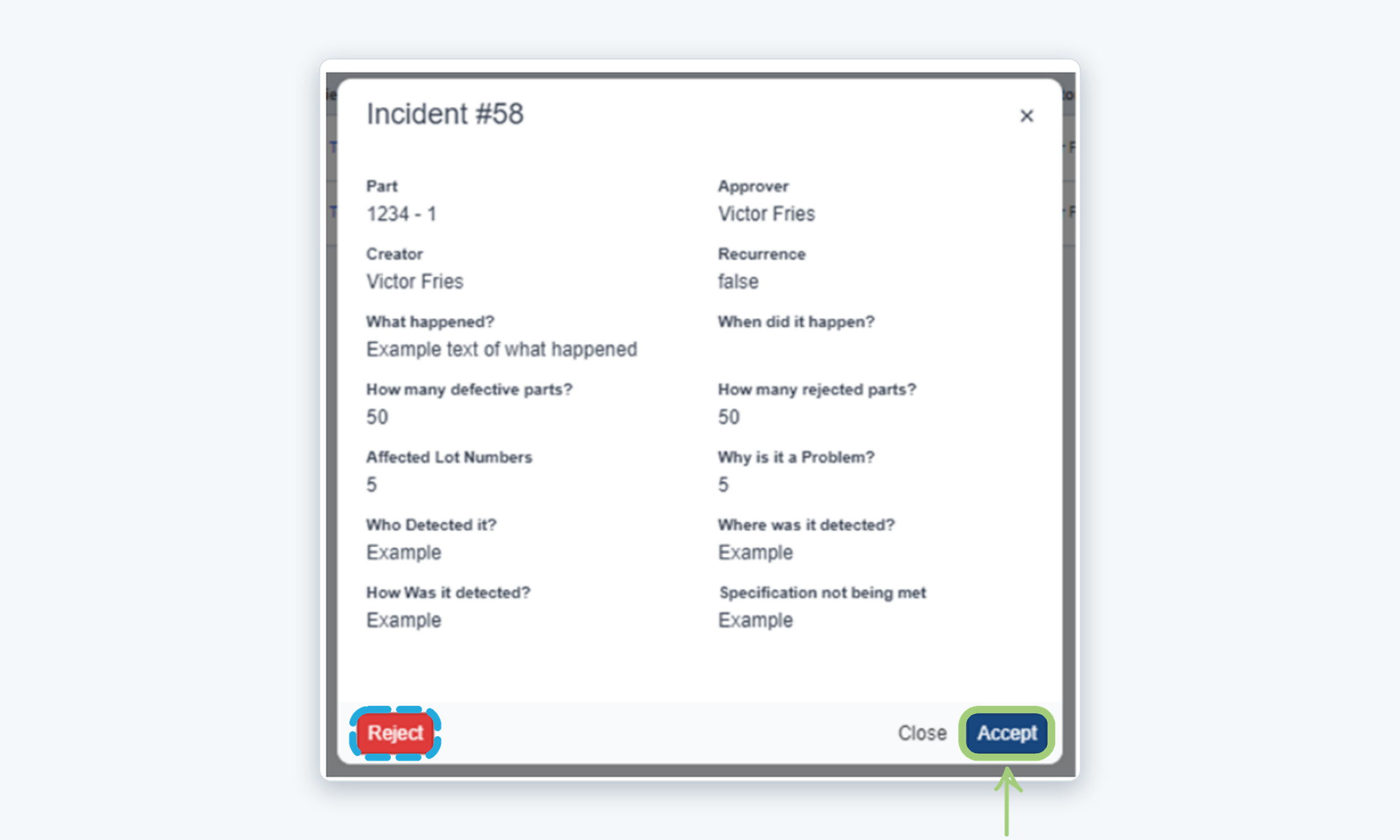
Open the incident to review its details. Click Accept to continue, or Reject if it does not proceed. Click Close to leave the window without a decision.
2
Choose how to solve it
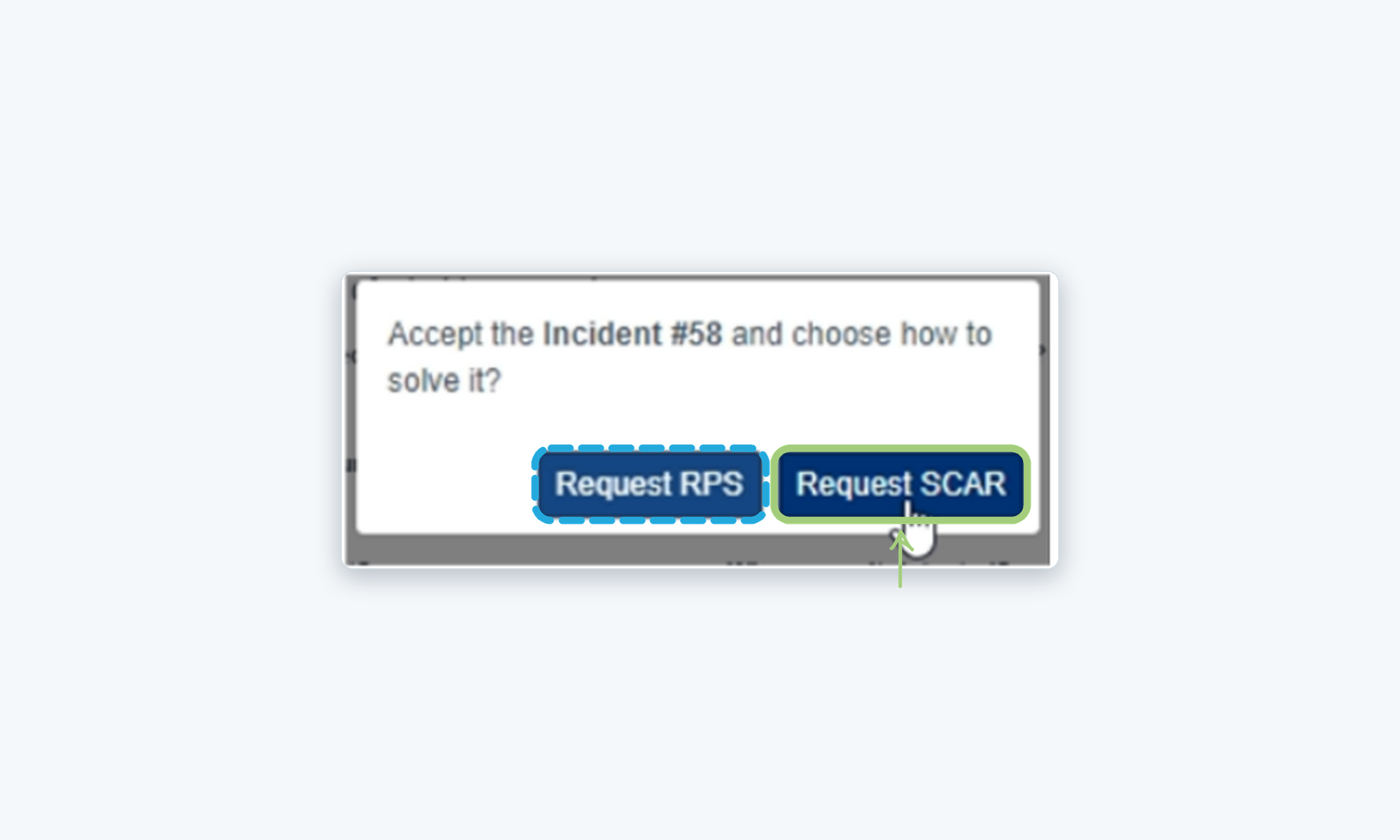
After you accept the incident, choose how it will be solved: Request SCAR or Request RPS. To manage a SCAR, click Request SCAR.
3
D0 · Review the symptoms
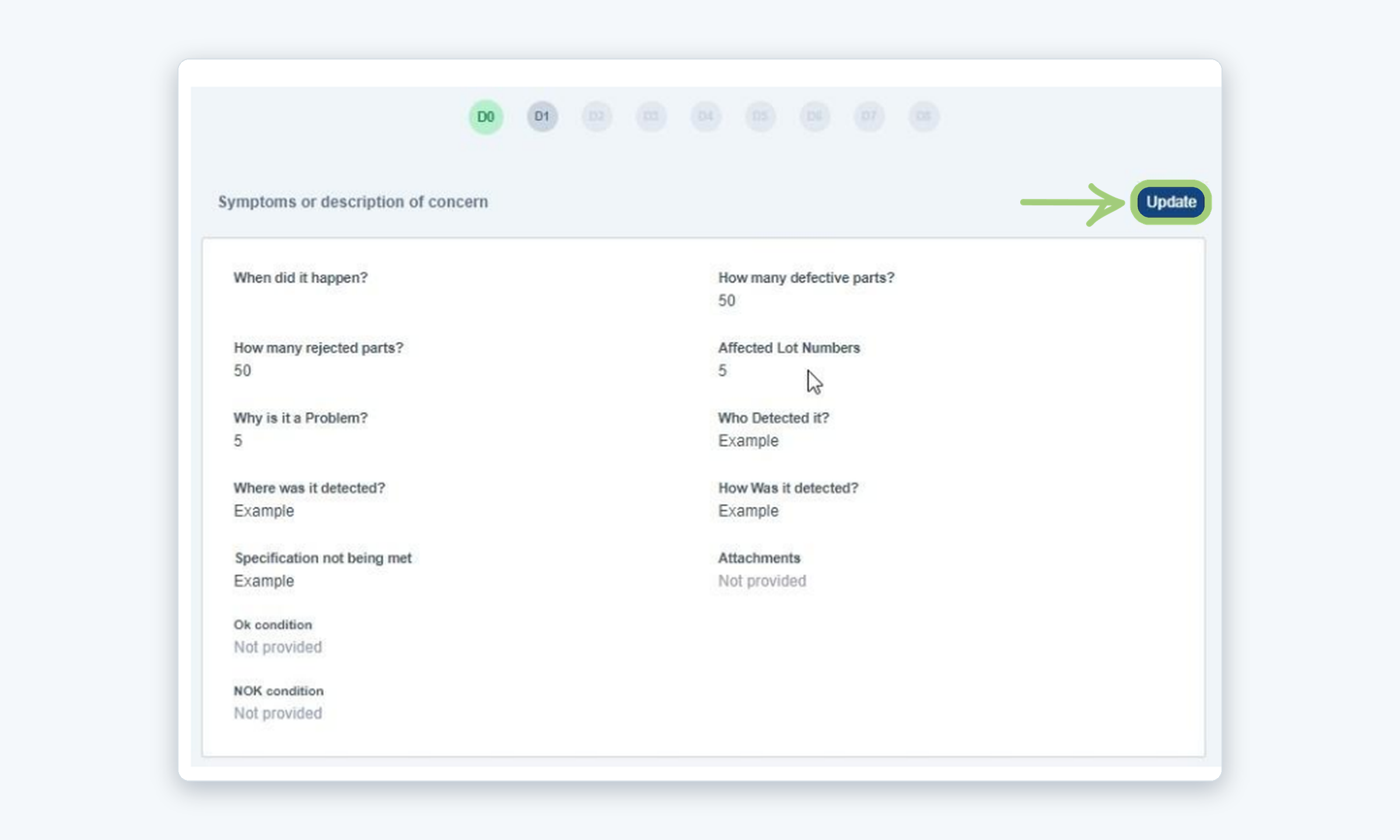
In D0, Symptoms or description of concern, review the information of the incident. If something needs to change, click Update.
4
D1 · Establish the team
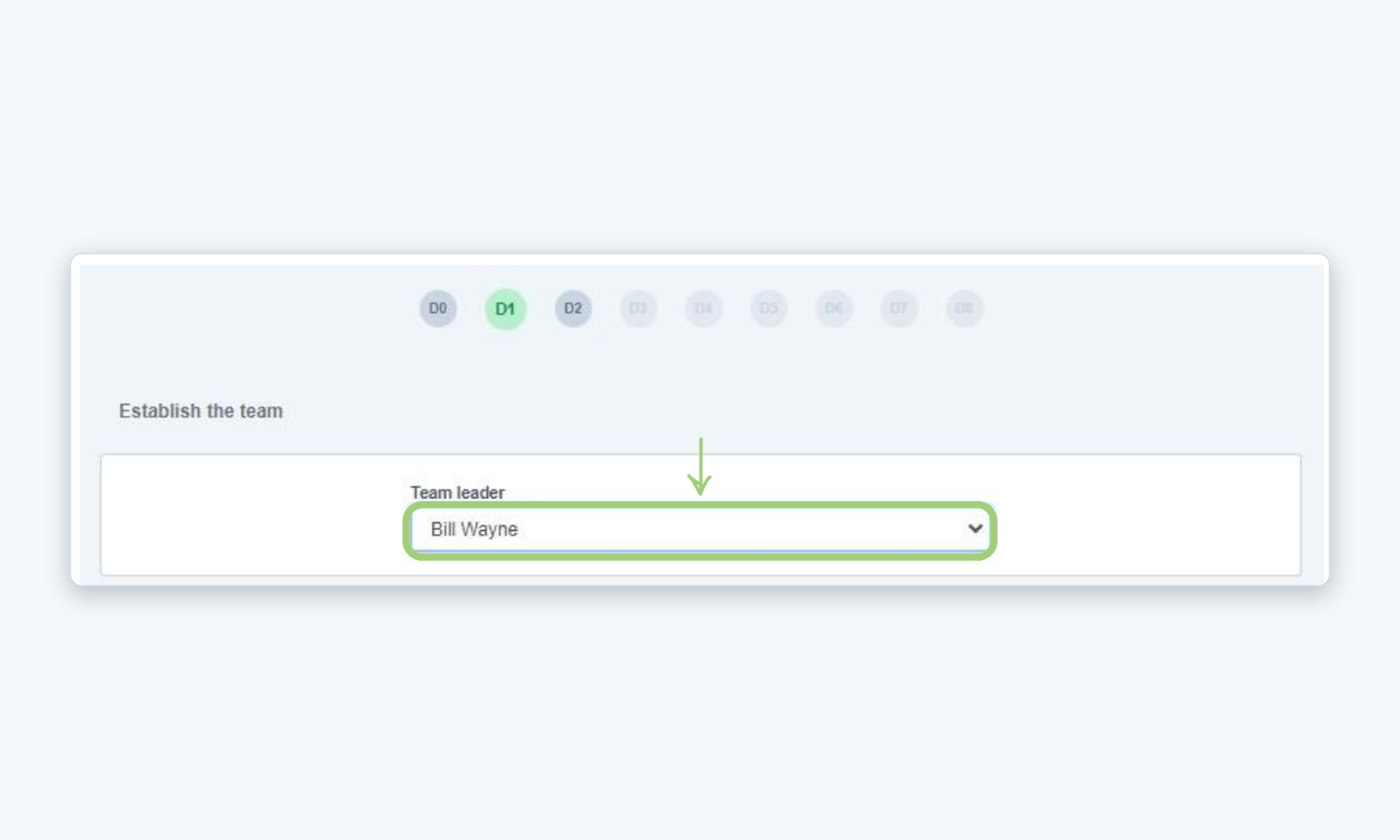
In D1, select the Team leader from the list.
5
D2 · Notify the SCAR to the supplier
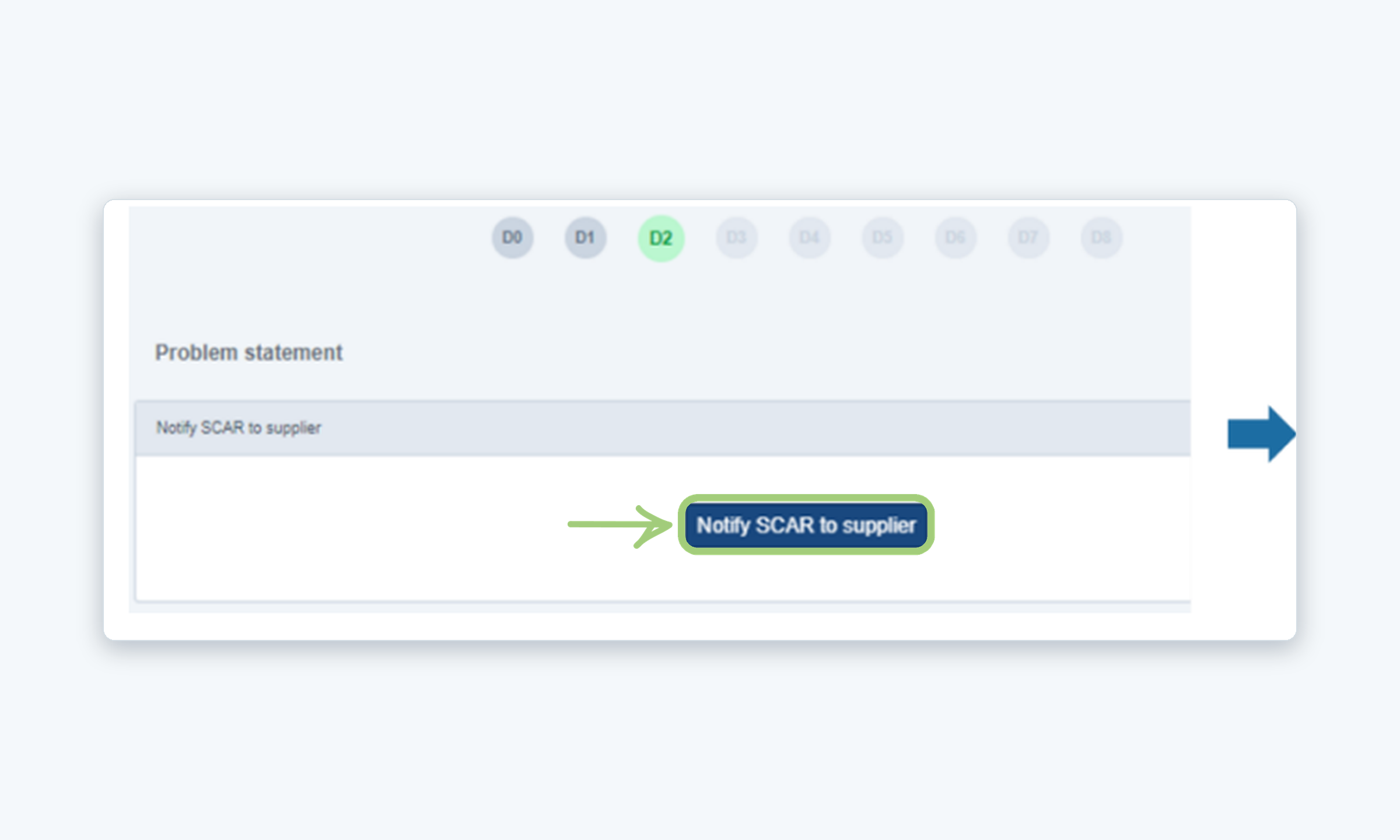
In D2, Problem statement, click Notify SCAR to supplier. The supplier is then notified and can start responding. The team members are listed in this stage.
6
D3 · Review the interim containment actions
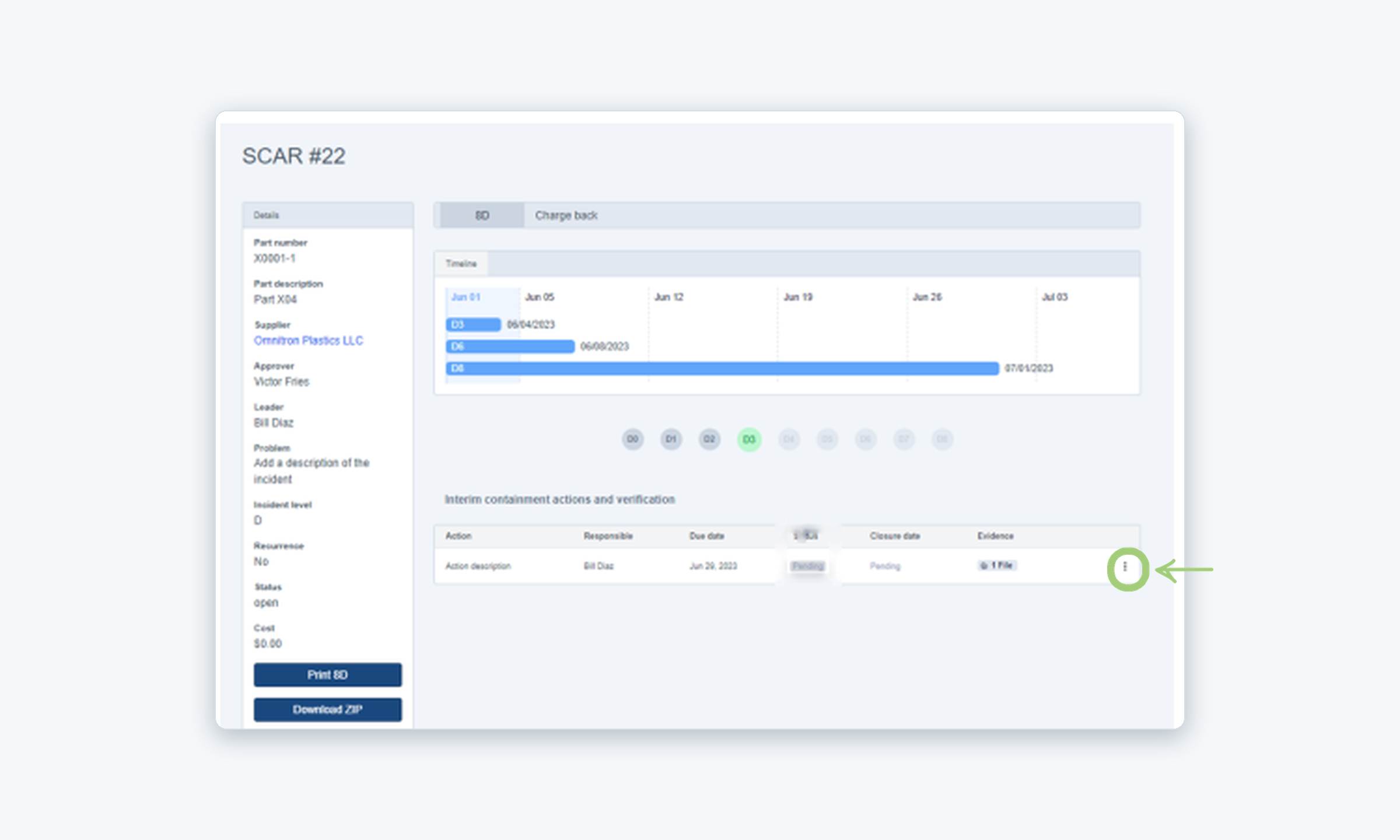
When the supplier requests a disposition, open the SCAR and go to D3. Each action shows as Pending. Click the three dots (⋮) of the action and select Grant disposition.
7
Accept or reject
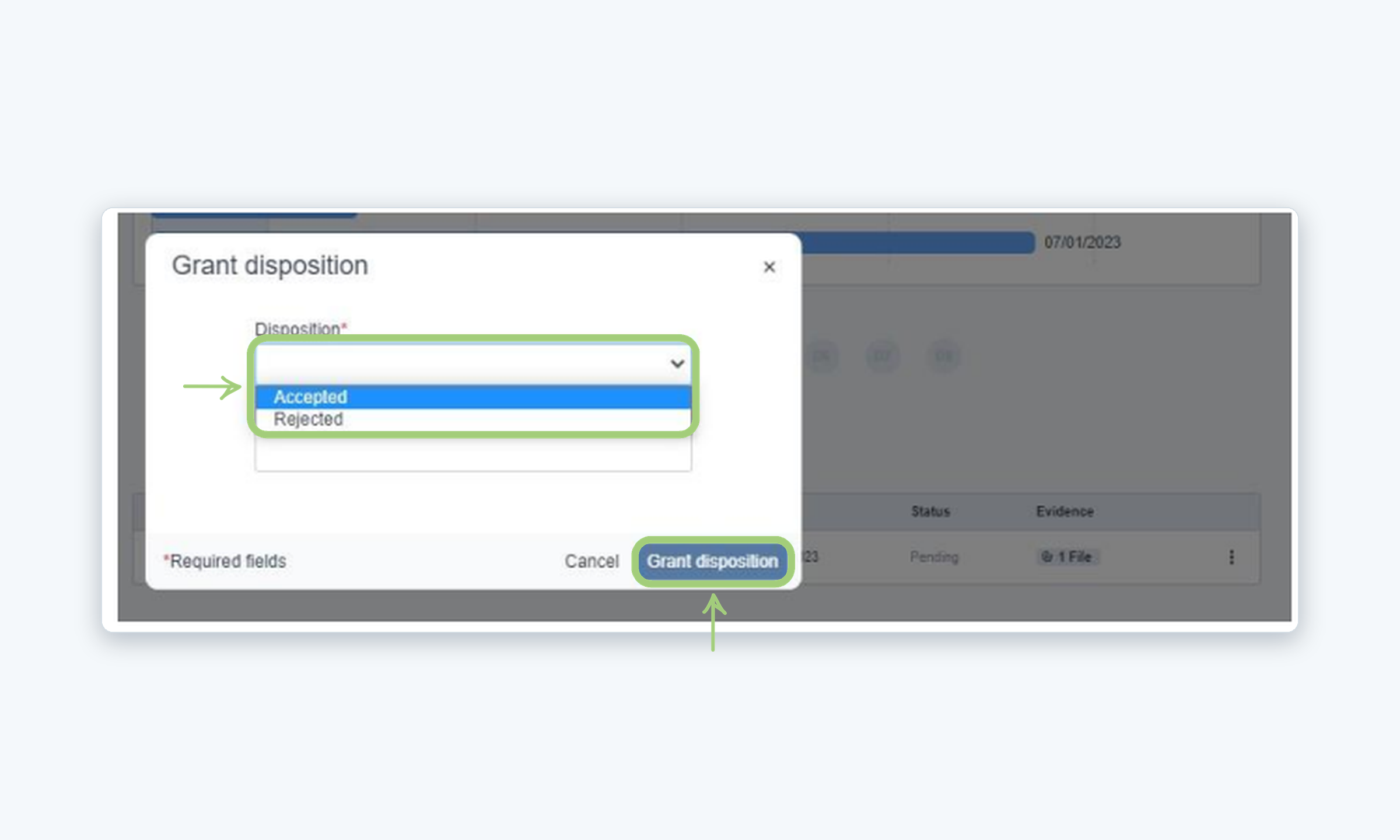
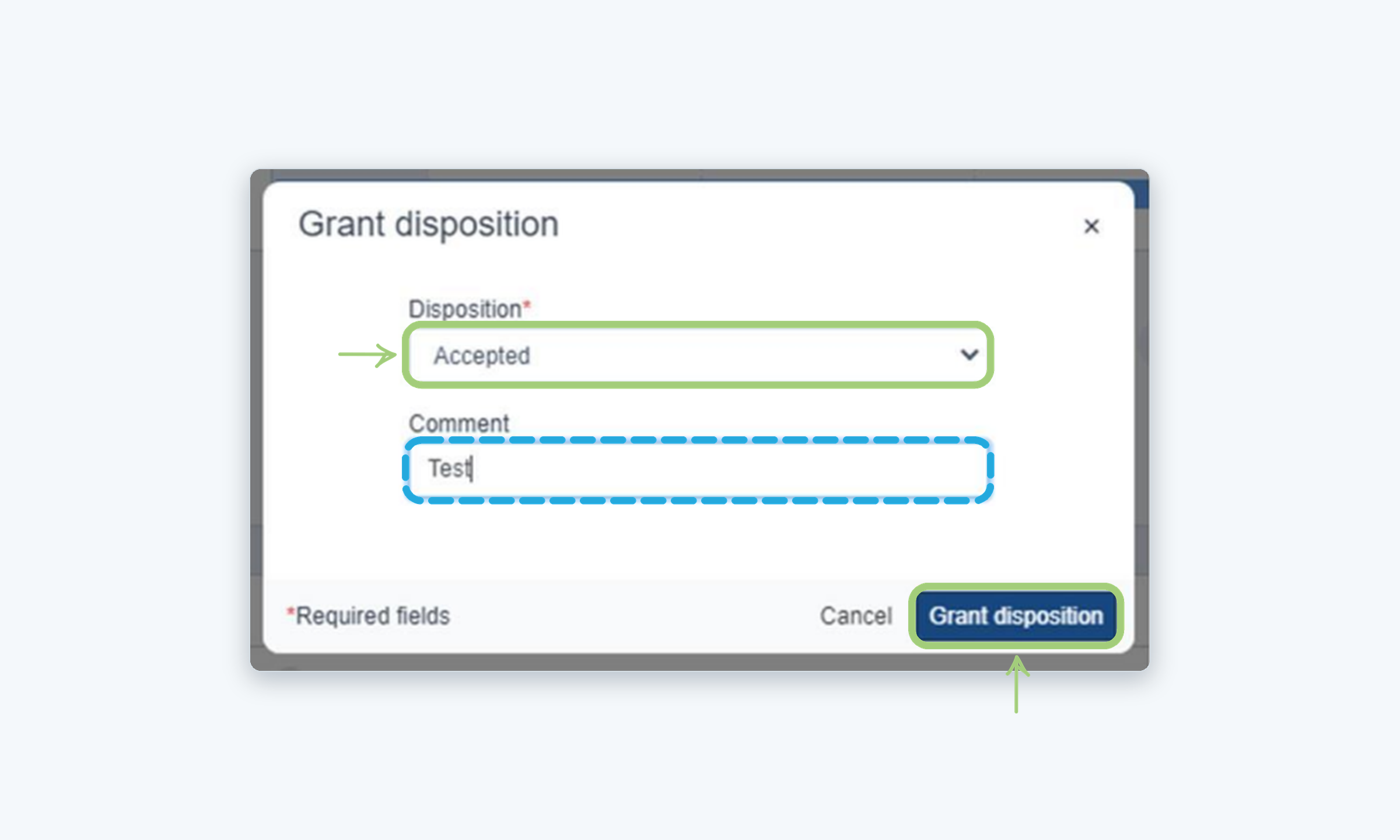
In the Grant disposition window, select Accepted or Rejected in Disposition, add a Comment if needed and click Grant disposition.
8
D4 · Review the root cause analysis
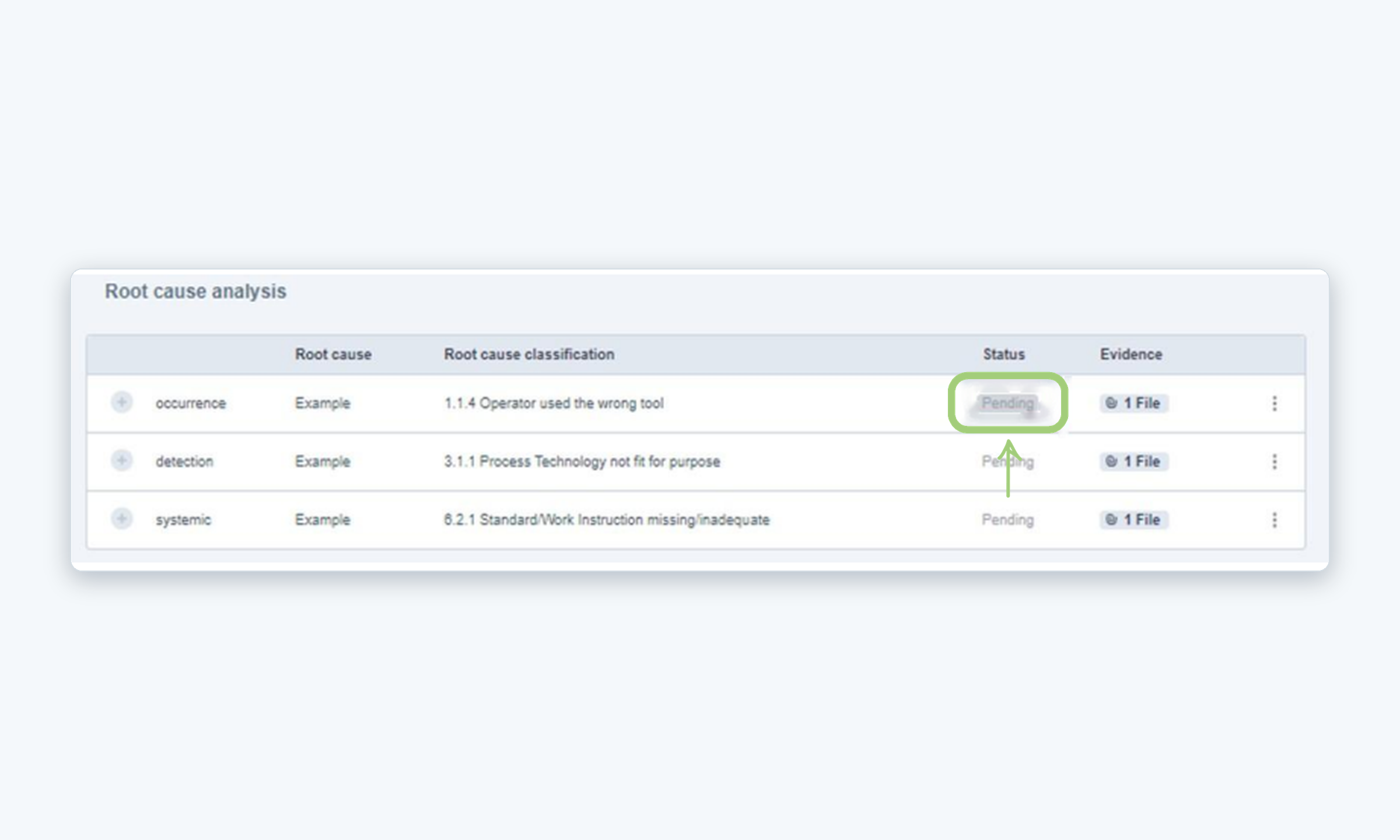
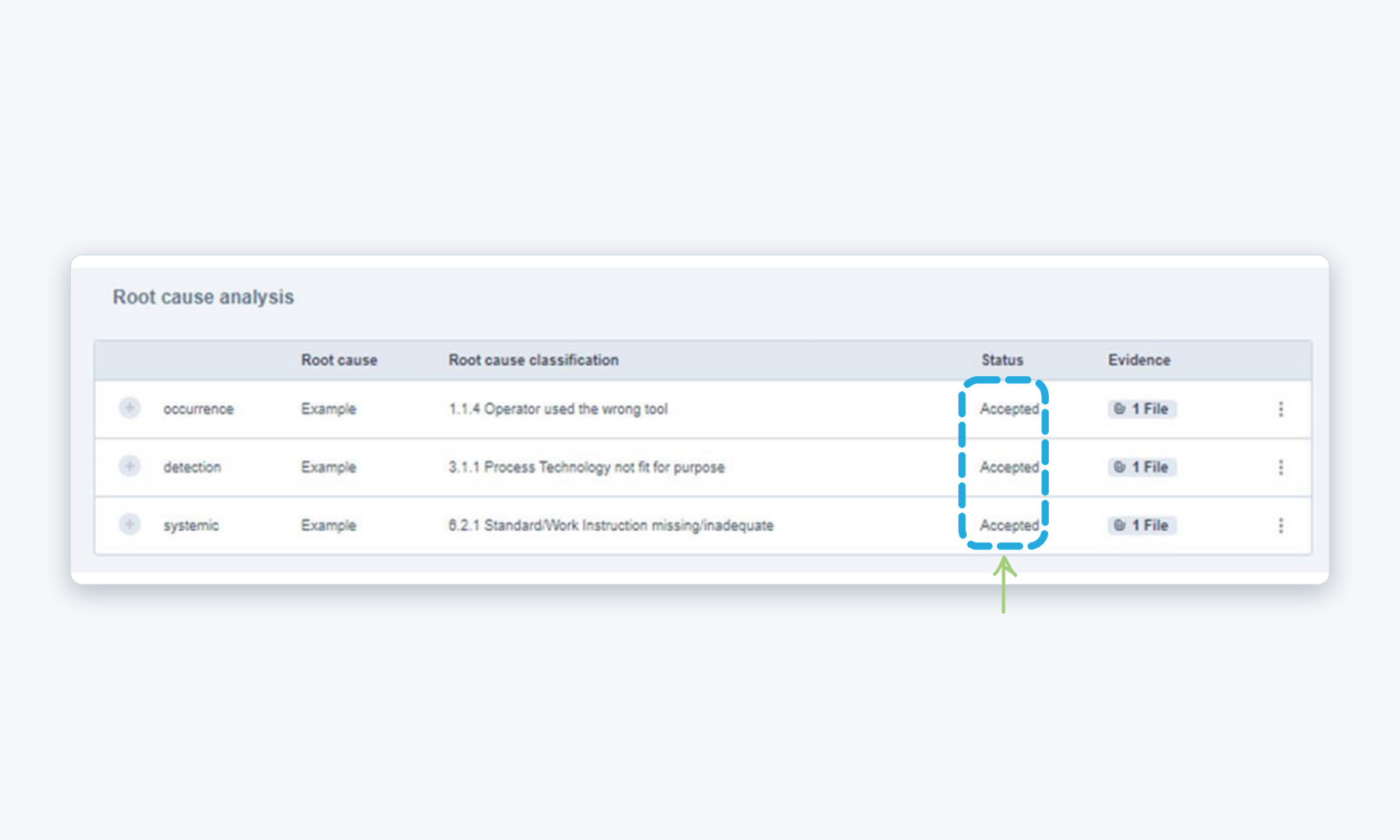
In D4, Root cause analysis, review each analysis. The ones waiting for your review show the Pending status. Open the three dots (⋮) and select Grant disposition.
9
Grant the disposition
Select Accepted (or Rejected), add a comment and click Grant disposition. The status of the analysis updates immediately.
10
D5 and D6 · Verify and close the corrective actions
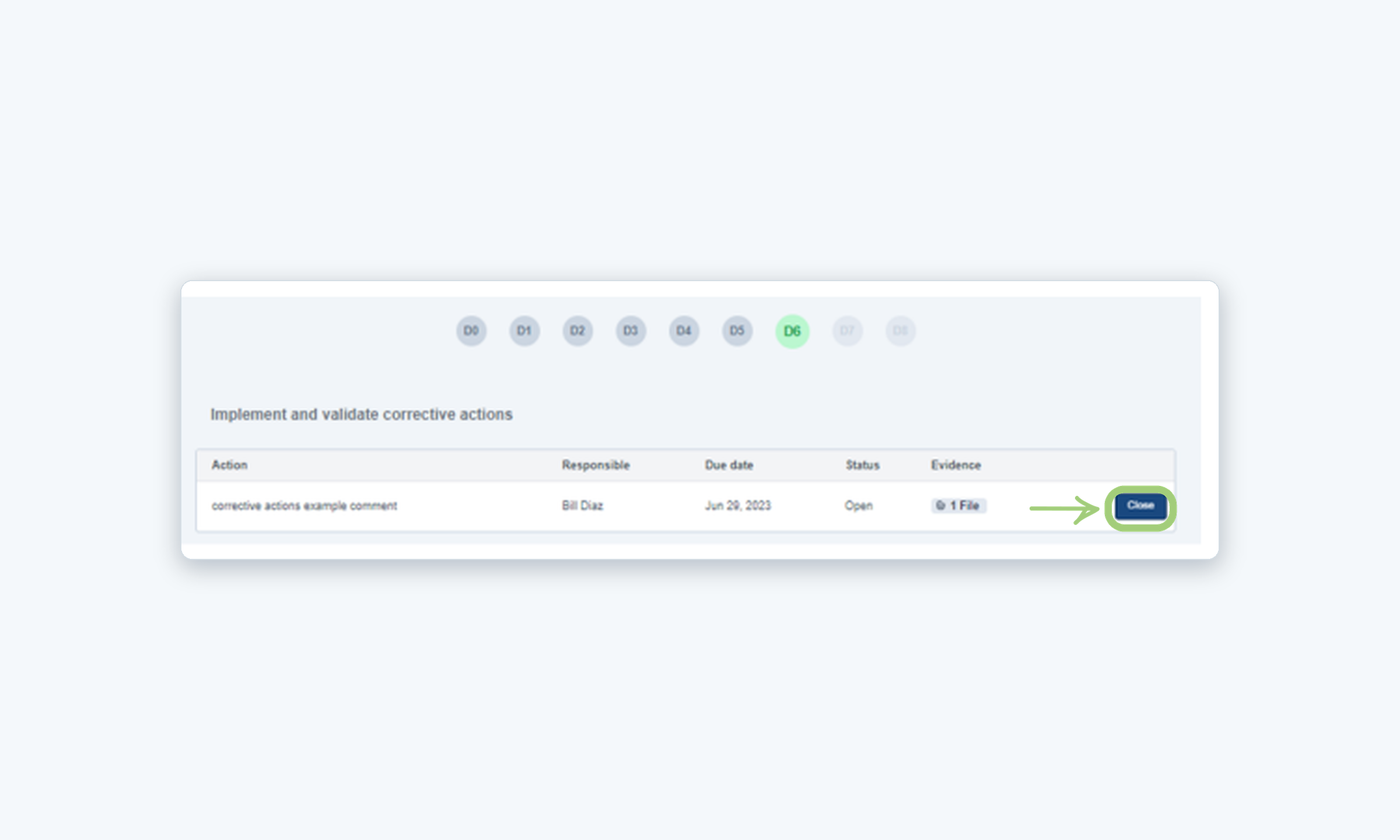
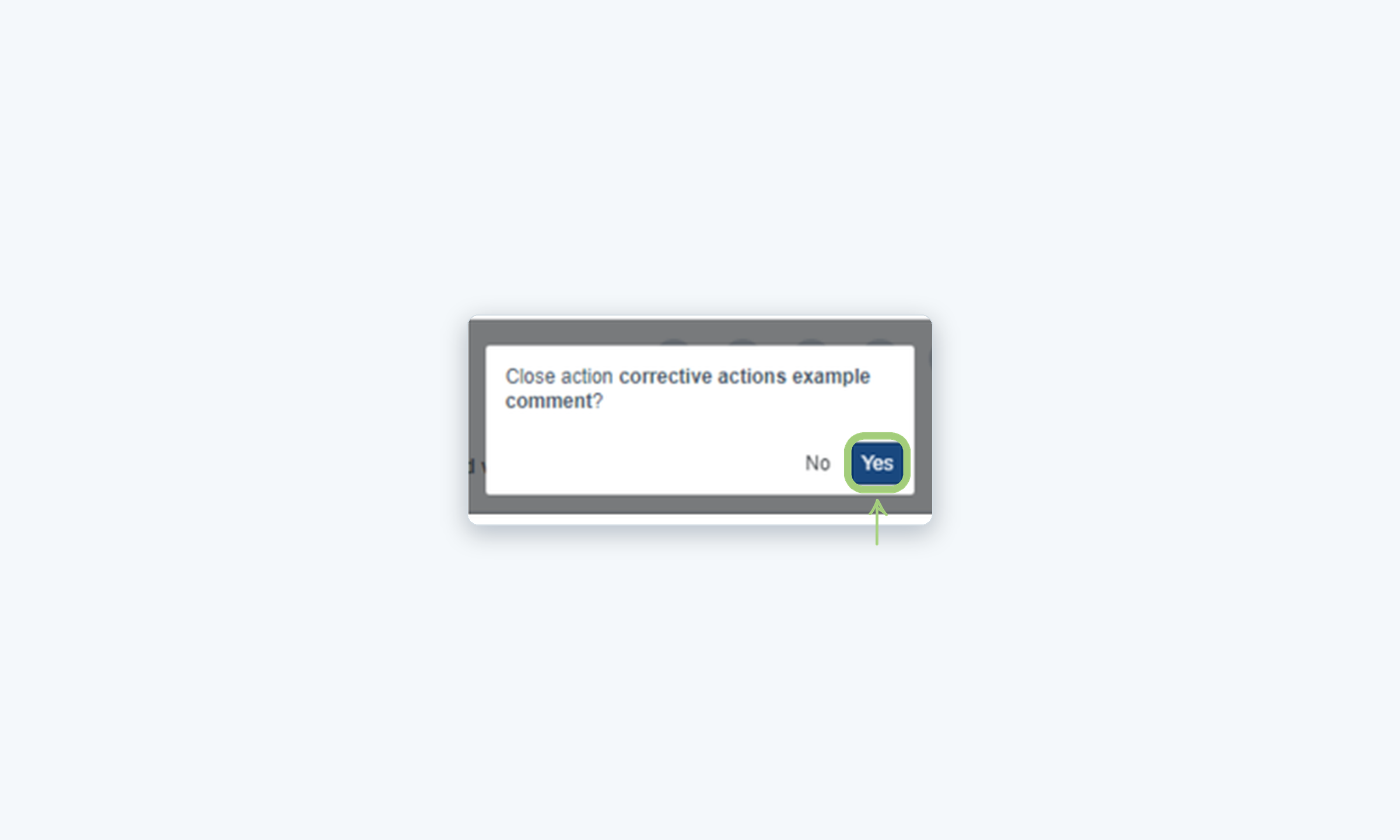
Review the corrective actions of D5 in the same way. In D6, Implement and validate corrective actions, click Close in the row of each action and confirm by clicking Yes.
11
D7 · Review the actions to prevent recurrence
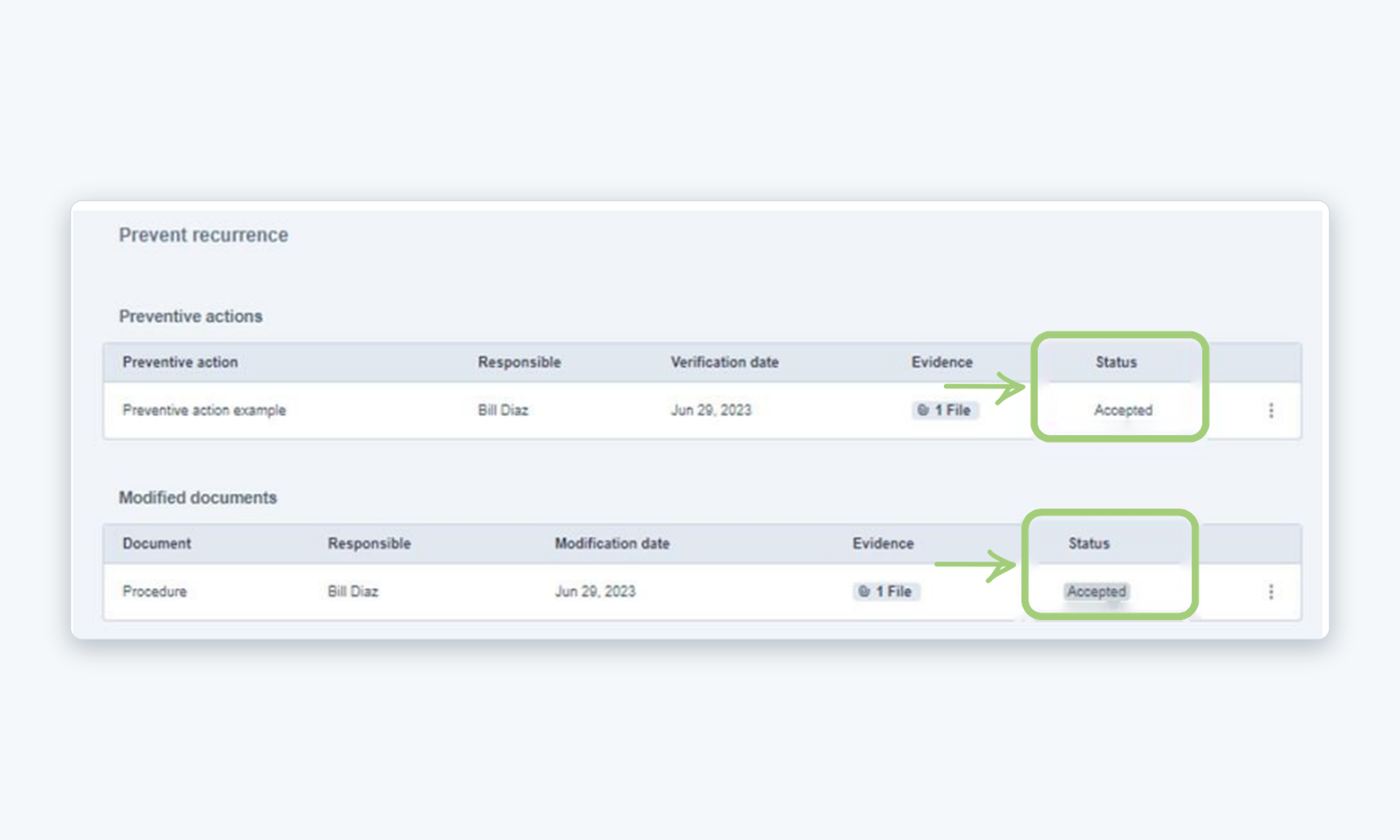
In D7, Prevent recurrence, grant a disposition to every Preventive action and Modified document. When they are accepted, the Status column shows Accepted.
12
D8 · Close the SCAR
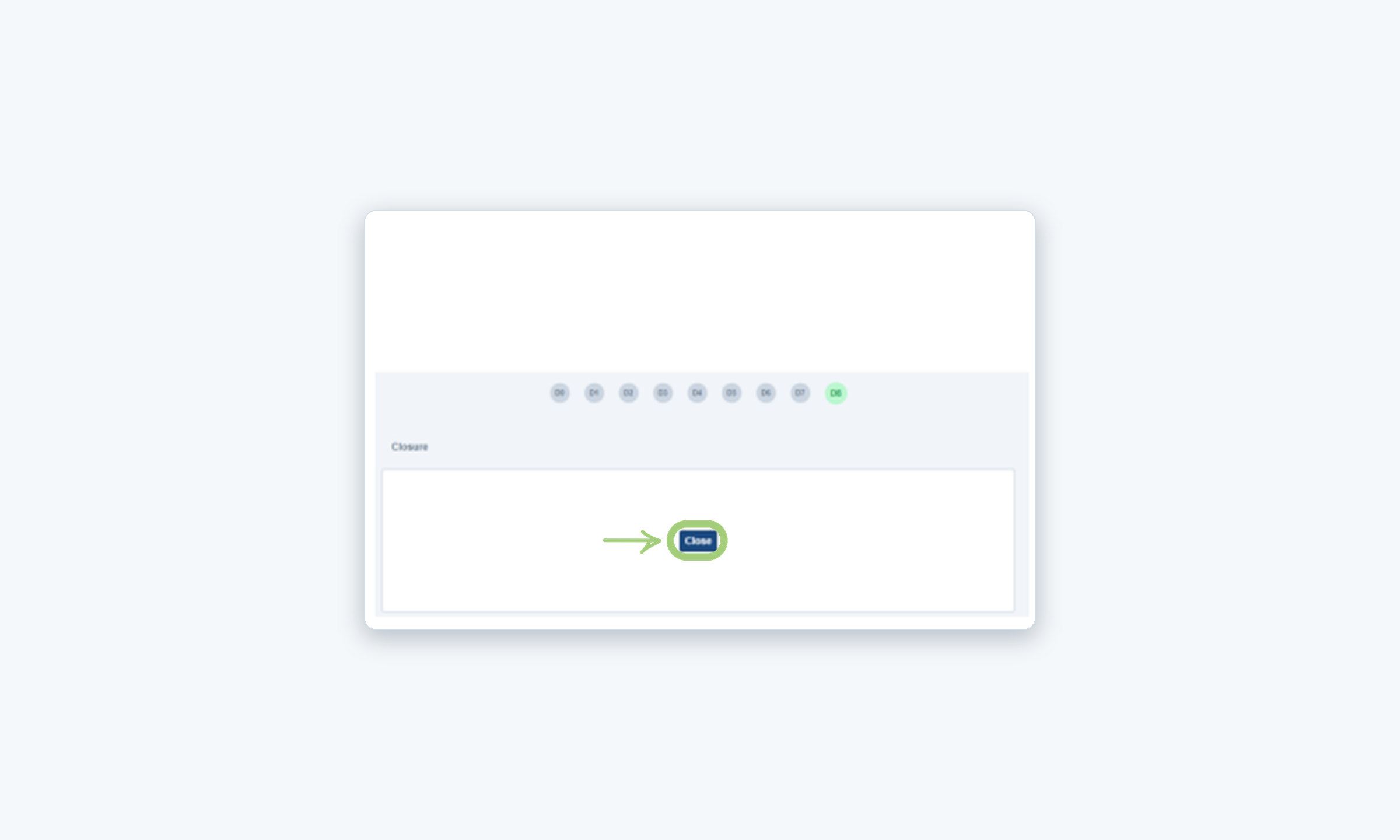
In D8, Closure, click Close. The SCAR status changes to closed and the page shows that the SCAR is closed.
Need more help?
If you have any questions or concerns, please contact Kiuey Support by submitting a ticket or through any of our support channels. Our team will be happy to assist you.