Supplier Scorecards allow internal users and supplier contacts to assess and track supplier performance.
Important:
- Any user with internal access can create and update supplier scorecards. This excludes Viewers and External Suppliers.
- Suppliers can only view their own scorecards.
- Suppliers cannot modify scorecards and cannot view scorecards belonging to other suppliers.
1. From the Dashboard, select AVL tab
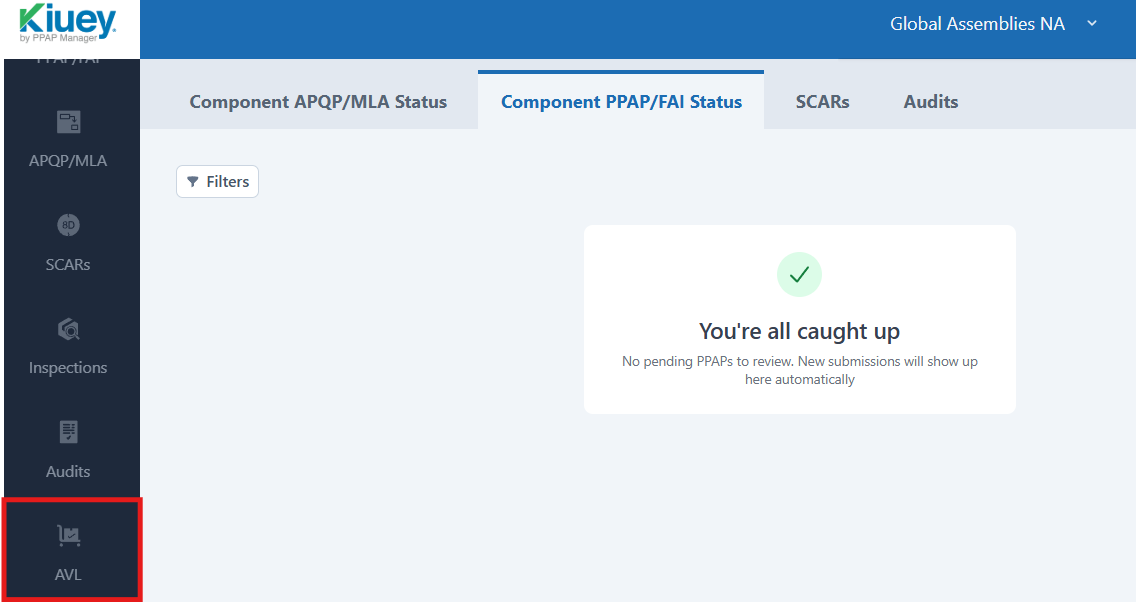
2. Locate the supplier whose scorecard you want to update.
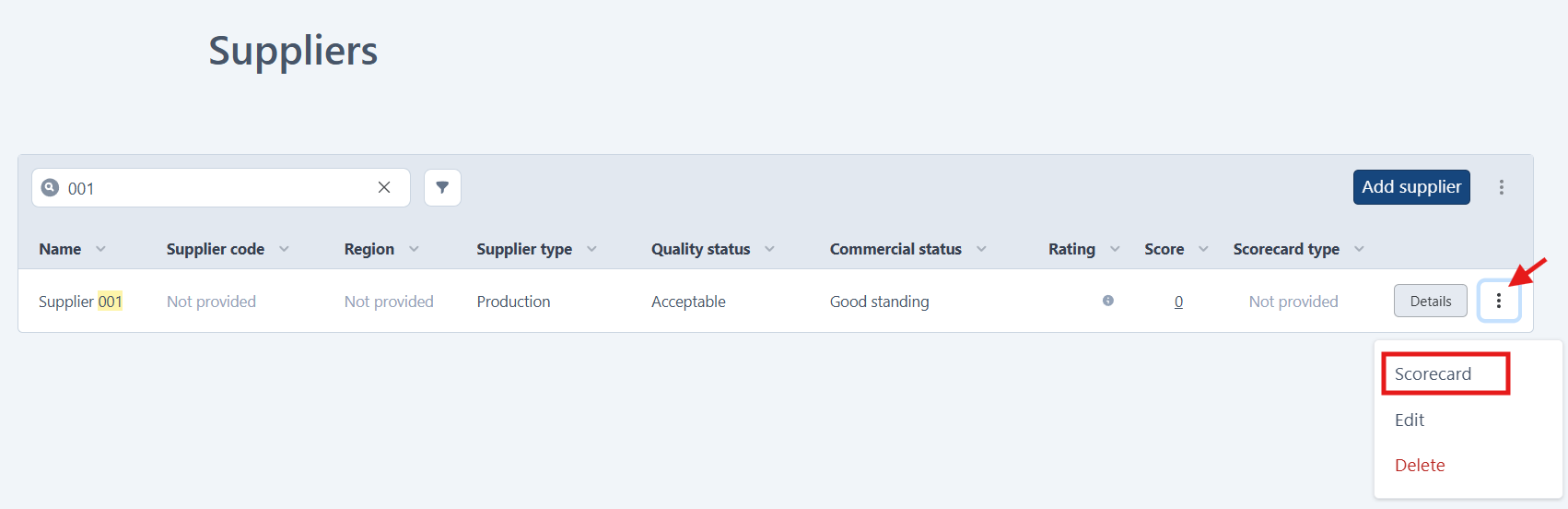
3. You can access the scorecard using either of the following methods:
Click the score displayed in the Score column.
OR
Click the three-dot menu (⋮) and select Scorecard.
4. Update the Scorecard
Note: The scorecard layout may vary depending on how your organization has configured supplier evaluations.
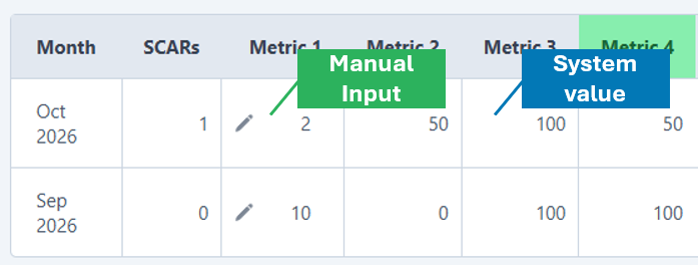
- Criteria that require manual input are identified by a pencil icon. Enter values for all criteria with a pencil icon.
- Criteria without a pencil icon are either populated automatically from system records or calculated based on the values entered into manual input fields.
5. Save scorecard:
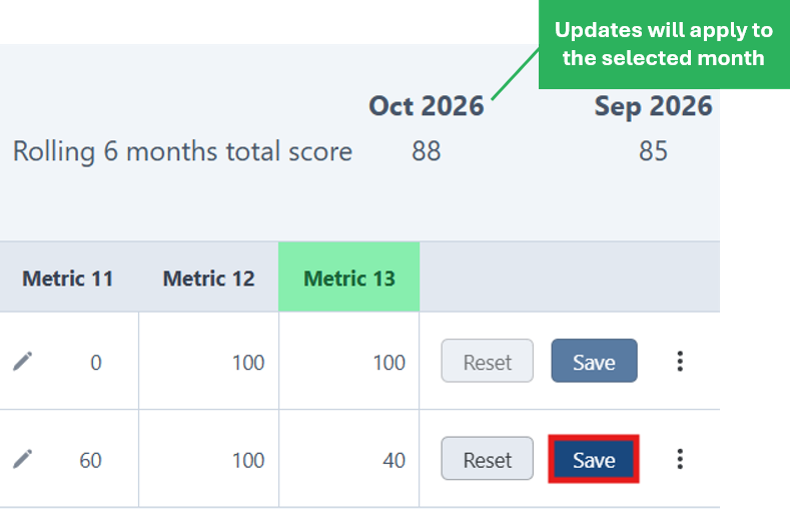
After completing all manual input fields, click Save to recalculate and update the score for the selected month.
Clicking Reset will revert the score to its previous value.
Was this article helpful?
That’s Great!
Thank you for your feedback
Sorry! We couldn't be helpful
Thank you for your feedback
Feedback sent
We appreciate your effort and will try to fix the article