[Component PPAP] How to change the Coordinator of a Component PPAP

Created by Kiuey Support, Modified on Thu, Nov 12 at 3:46 PM by Kiuey Support Representative

change coordinator, coordinator, component ppap, edit ppap, on going ppaps, ppap coordinator

OVERVIEW

This guide explains how to change the Coordinator assigned to a Component PPAP.

Who is this for?  Internal users

IMPORTANT NOTES

  • Coordinator is a required field in the Edit PPAP window.
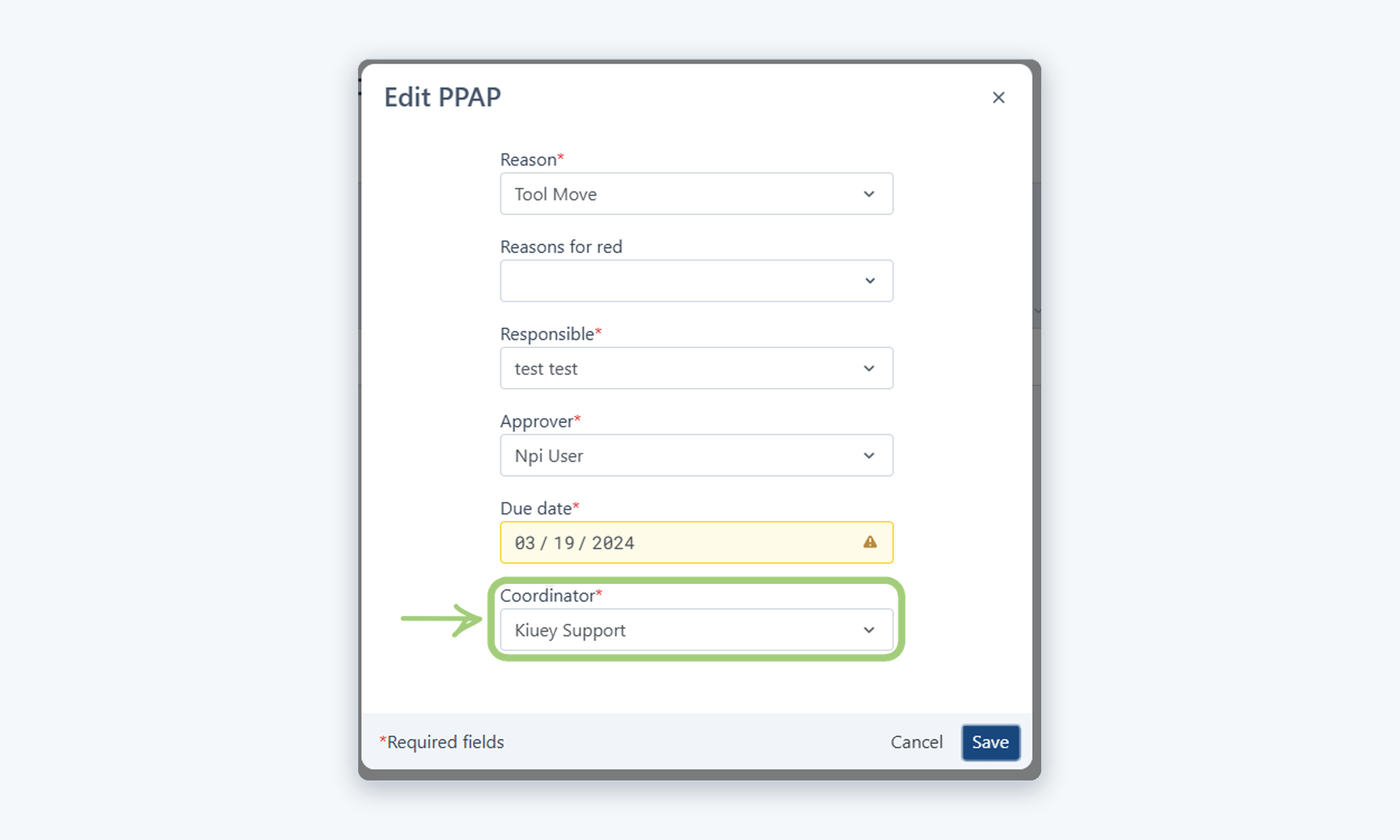
  • The Edit PPAP window also lets you update the Reason, Responsible, Approver and Due date of the PPAP.

WHO CAN DO THIS

Internal user: Can edit a Component PPAP from the On going PPAPs list.

Steps
1

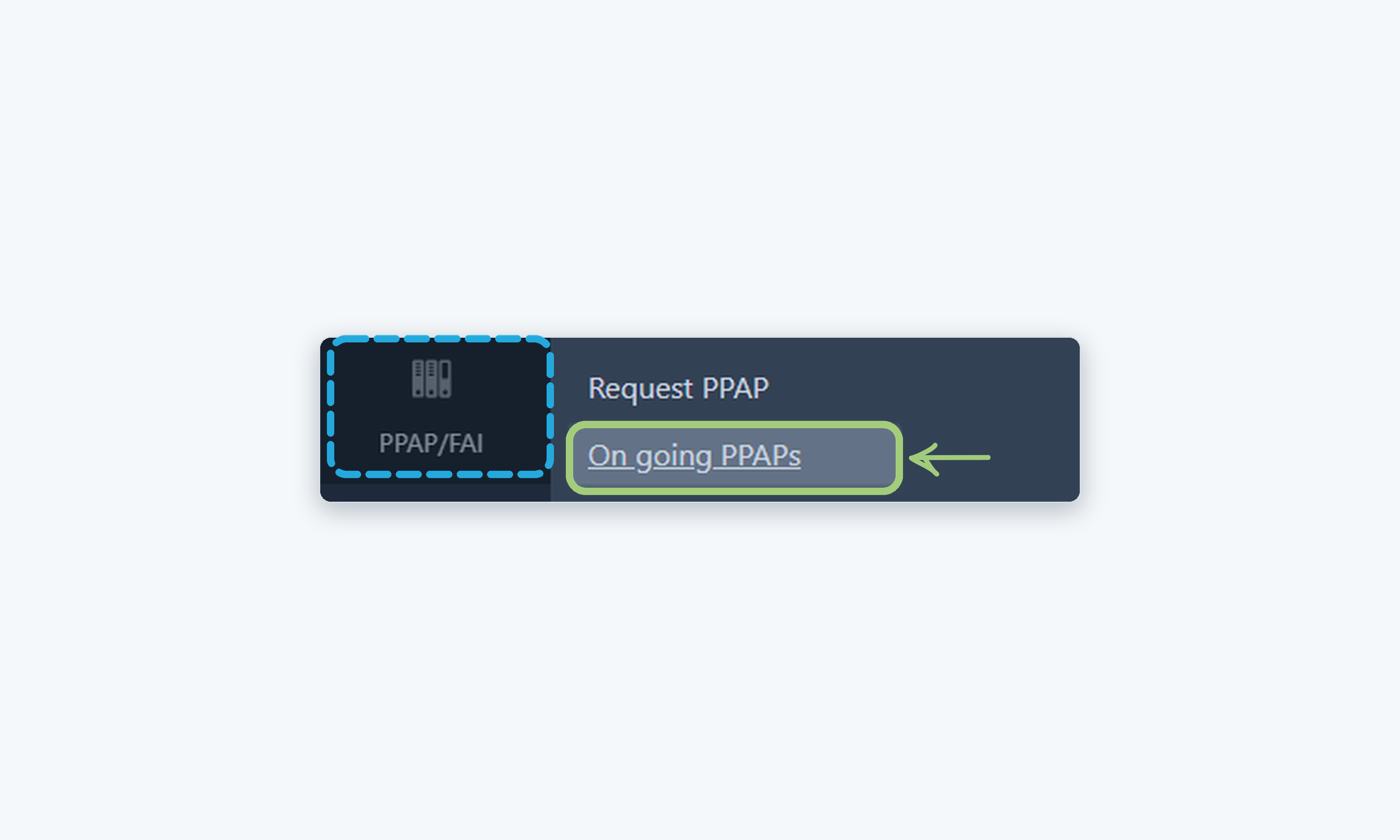
Open the On going PPAPs list

In the left menu, hover over PPAP/FAI and click On going PPAPs.

2

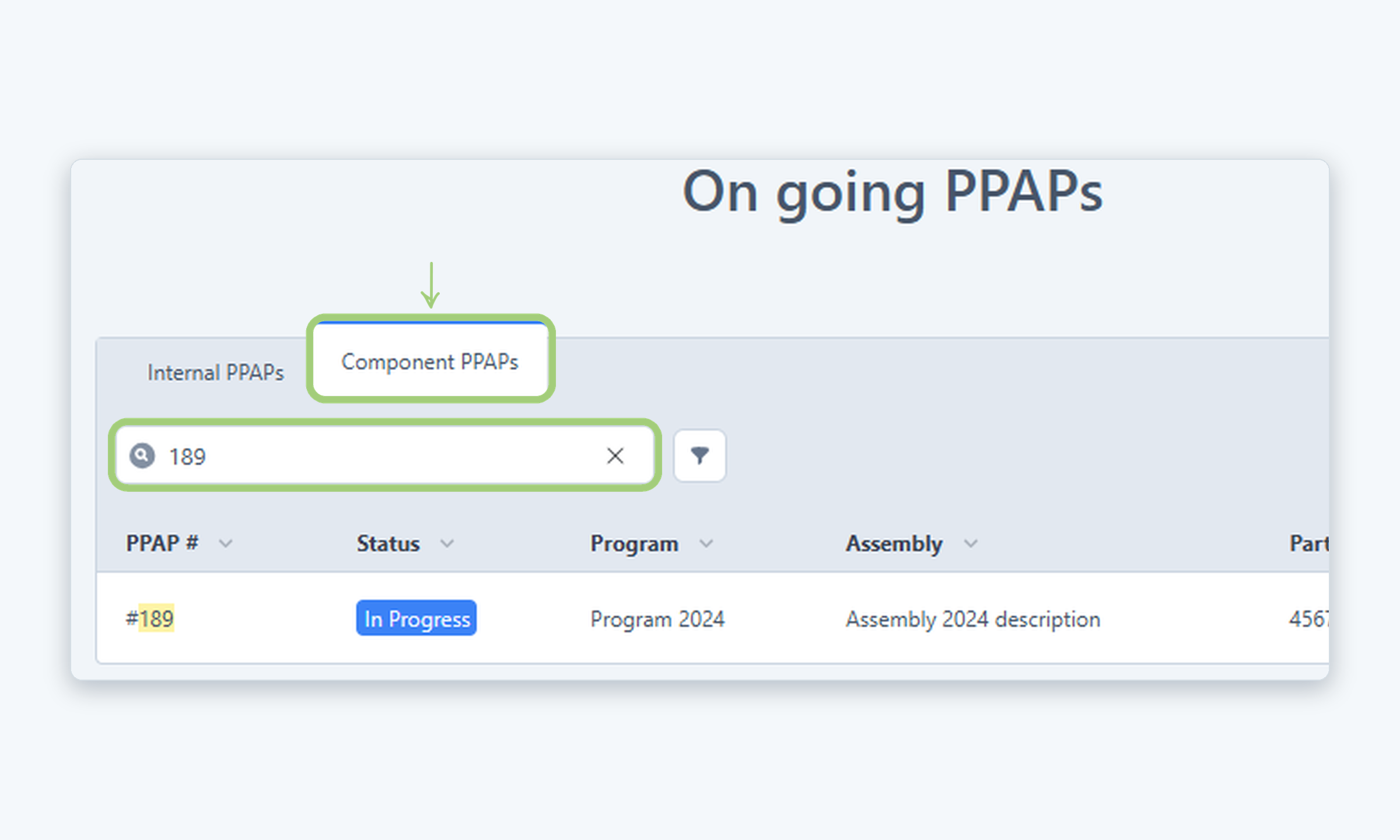
Find the Component PPAP

Click the Component PPAPs tab and use the search box to find the PPAP (for example, by its number).

3

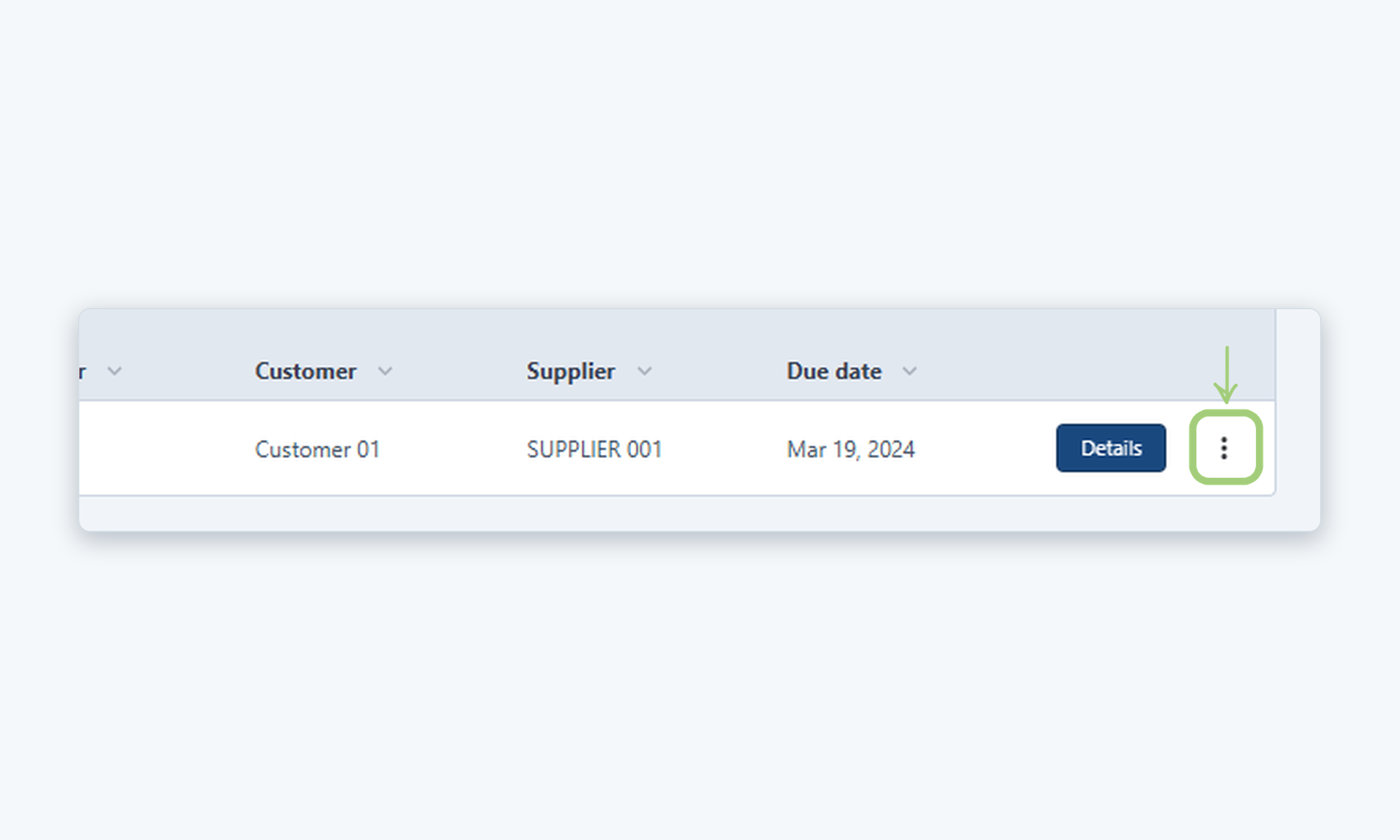
Open the row menu

Click the three dots (⋮) at the end of the PPAP row.

4

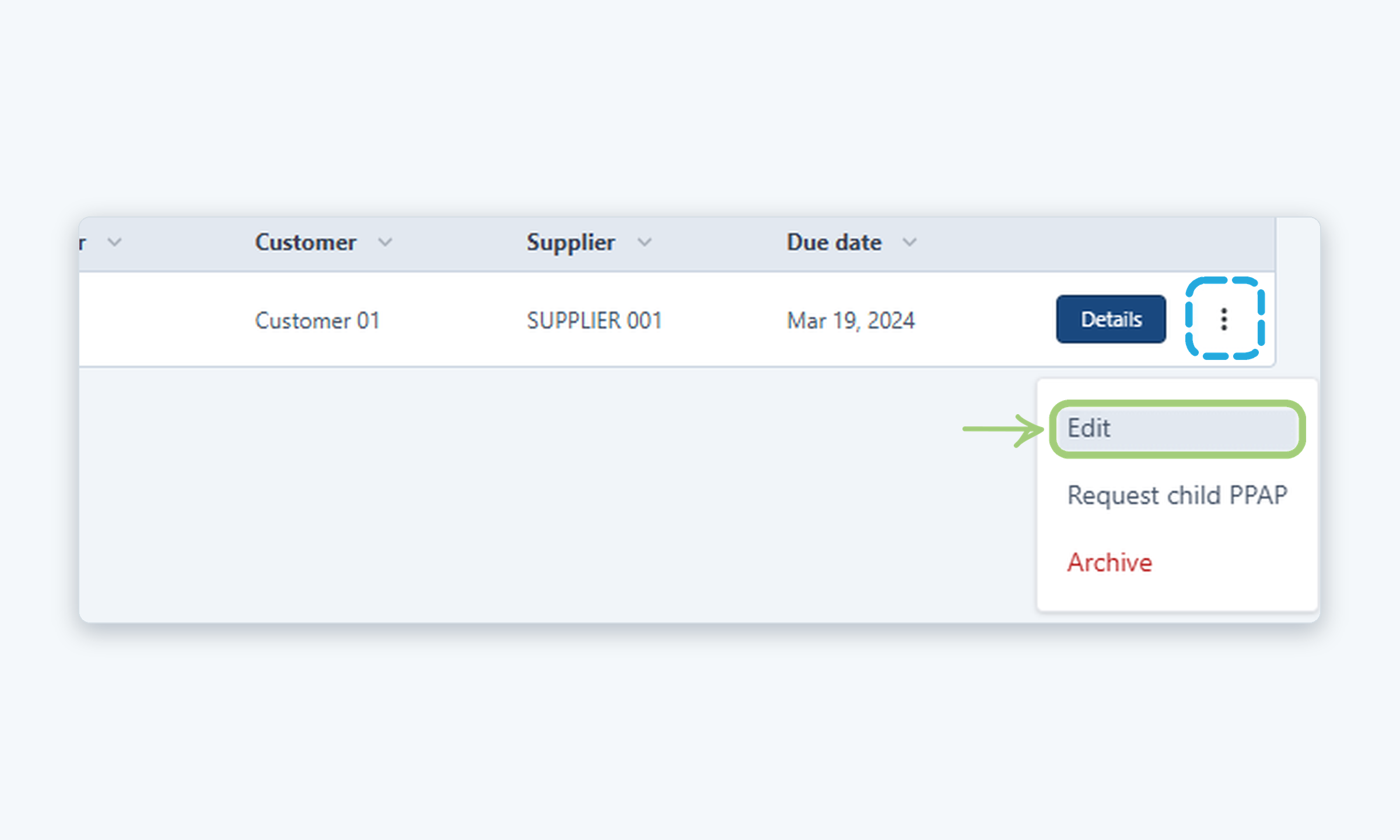
Click Edit

In the menu, select Edit. The menu also includes Request child PPAP and Archive.

5

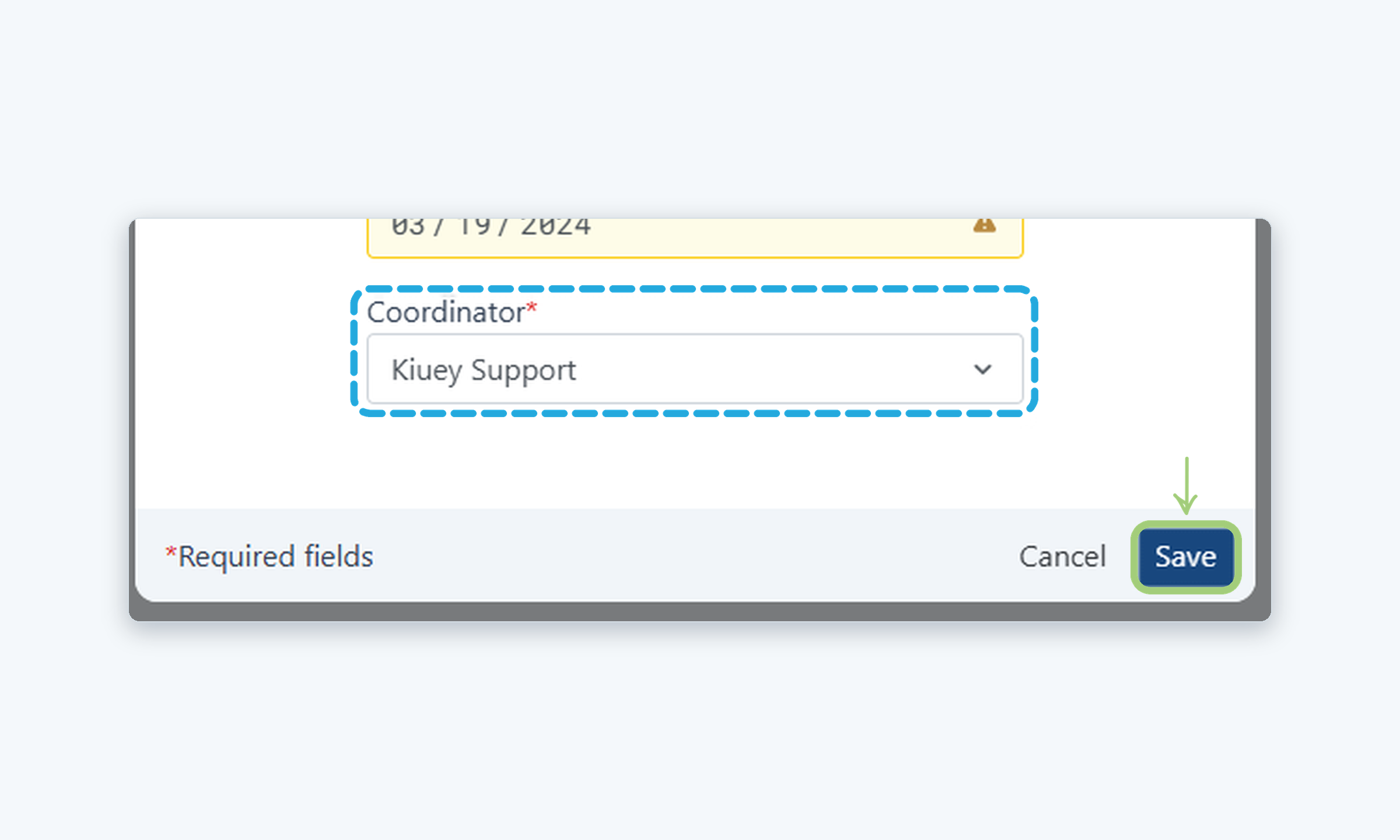
Select the new Coordinator

In the Edit PPAP window, open the Coordinator drop-down and select the new coordinator.

6

Save the change

Click Save to apply the new coordinator.

Need more help?

If you have any questions or concerns, please contact Kiuey Support by submitting a ticket or through any of our support channels. Our team will be happy to assist you.

Was this article helpful?

That’s Great!

Thank you for your feedback

Sorry! We couldn't be helpful

Thank you for your feedback

Let us know how can we improve this article!

Select at least one of the reasons

Feedback sent

We appreciate your effort and will try to fix the article