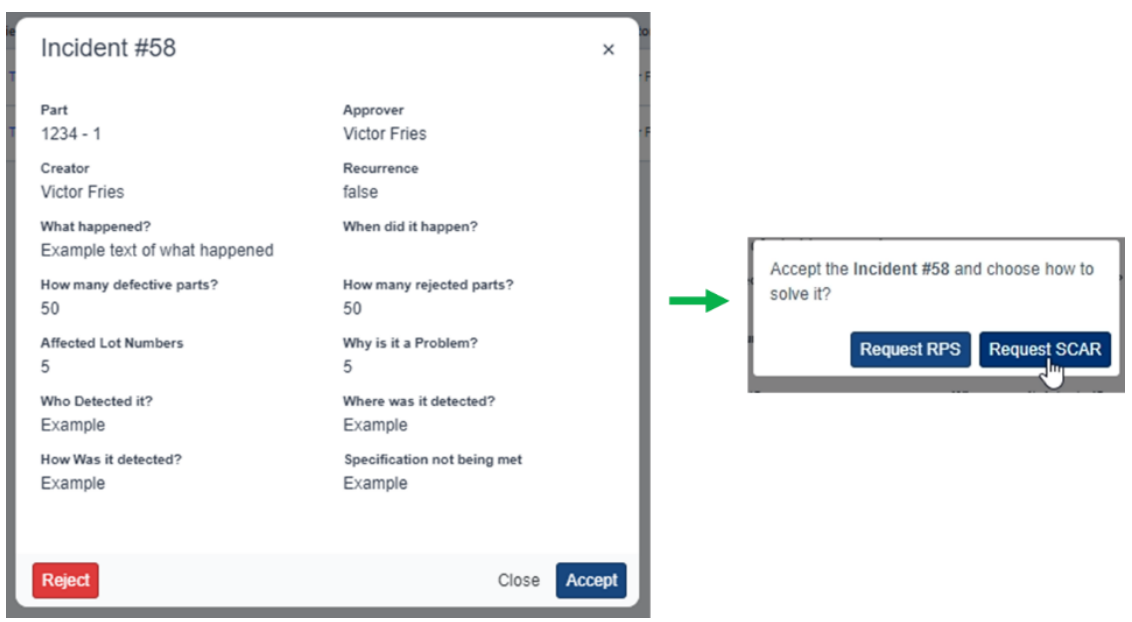
Step 0. Create and Accept an Incident as a SCAR
Access the incident you need to manage.
Create and accept the incident as a SCAR.
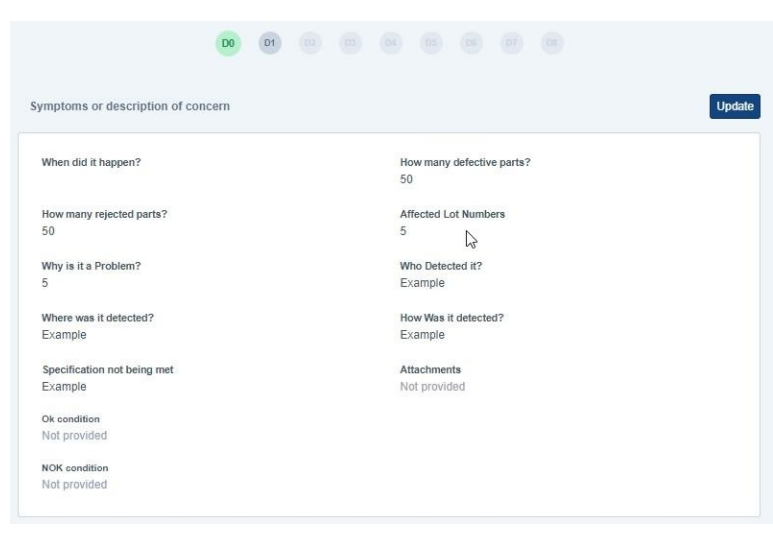
Step 1. D0 – Symptoms or Description of Concerns
Open the SCAR.
Review the symptoms and description of concerns.
Ensure the information is correct.
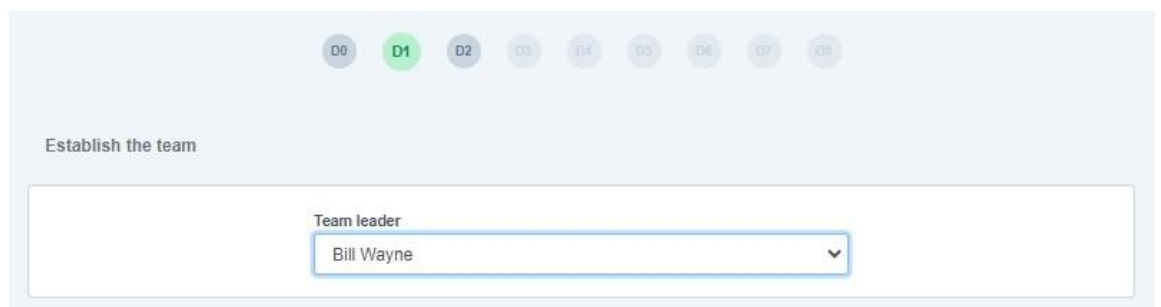
Step 2. D1 – Establish the Team
Access the D1 section.
Select the SCAR team leader.
Step 3. D2 – Problem Statement
Complete the D2 problem statement.
Proceed with the SCAR assignment.
The Supplier will be notified that a SCAR has been assigned to them.

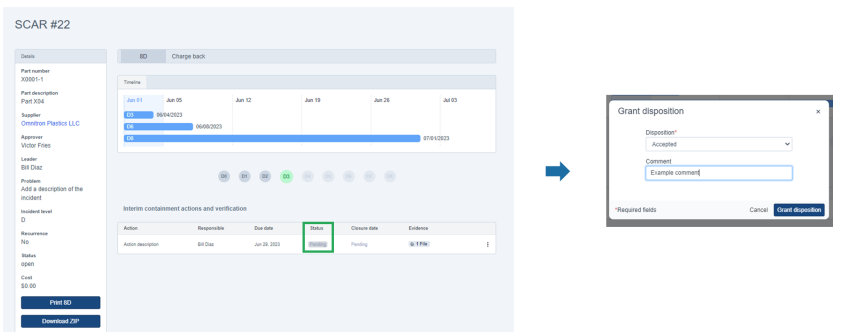
Step 4. D3 – Review Interim Containment Actions
Access the D3 section.
Review the evidence submitted by the Supplier.
Open the Status section.
Select Accepted or Rejected to provide the disposition.
Wait for the Supplier to close the containment action and submit the root cause analysis.
Step 5. D4 – Review Root Cause Analysis
Access the D4 section.
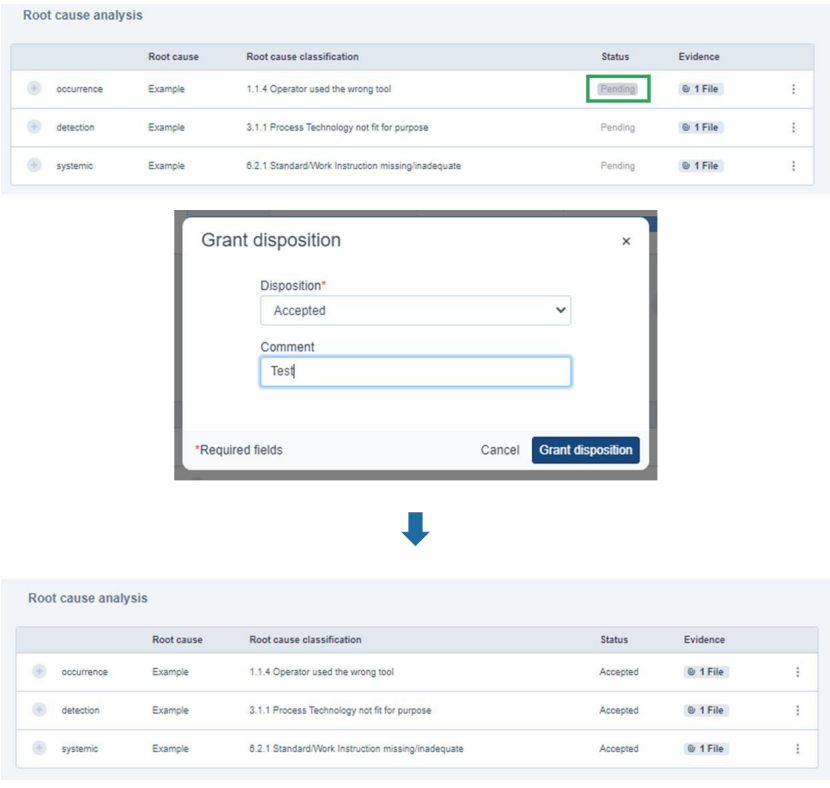
Review the root cause analysis submitted by the Supplier.
Provide a disposition for each root cause analysis.
Step 6. D5 – Review Corrective Actions
Access the D5 section.
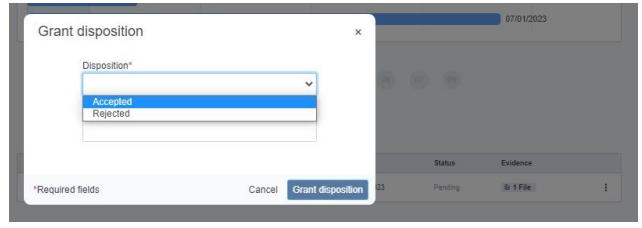
Review the corrective actions proposed by the Supplier.
Grant a disposition to the corrective actions.
Step 7. D6 – Implement and Validate Corrective Actions
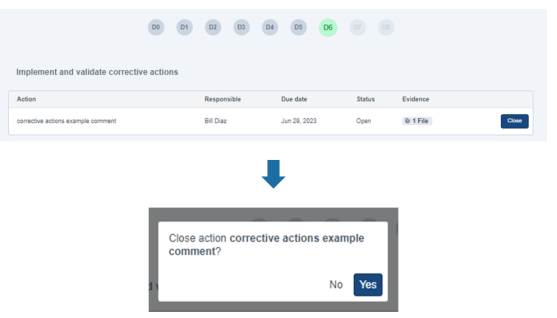
Access the D6 section.
Complete this stage by clicking the button located in the upper-right corner of the screen.
Step 8. D7 – Prevent Recurrence
Access the D7 section.
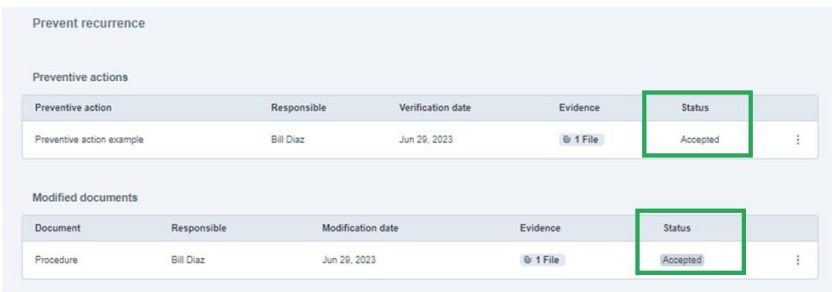
Review the preventive actions and modified documents submitted by the Supplier.
Provide an Accepted or Rejected disposition.
Step 9. D8 – Closure
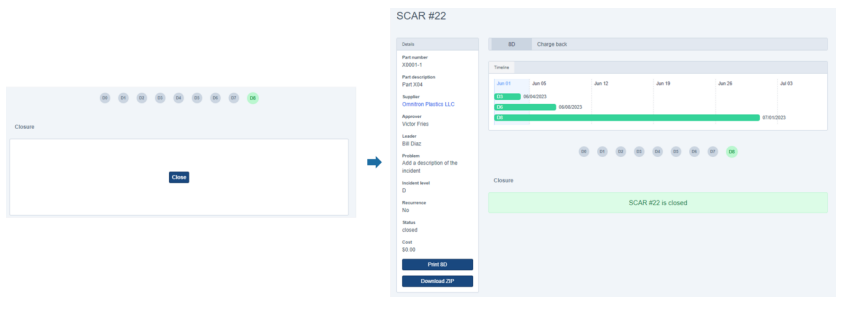
Verify that the SCAR has reached the closure stage.
Click the Close button.
Confirm that the SCAR status updates to CLOSED.
The Supplier will receive an email notification.
Was this article helpful?
That’s Great!
Thank you for your feedback
Sorry! We couldn't be helpful
Thank you for your feedback
Feedback sent
We appreciate your effort and will try to fix the article